Feature Summary
Extract text content from images or screenshots. This feature supports OCR recognition, and the recognized results can be copied for use.
Feature Description
| Feature Dimension | Description |
|---|---|
| Subscription Limit | Subscription required |
| Version Limit | No version limits |
Operation Steps
Extract Text from Image
Feature Entry
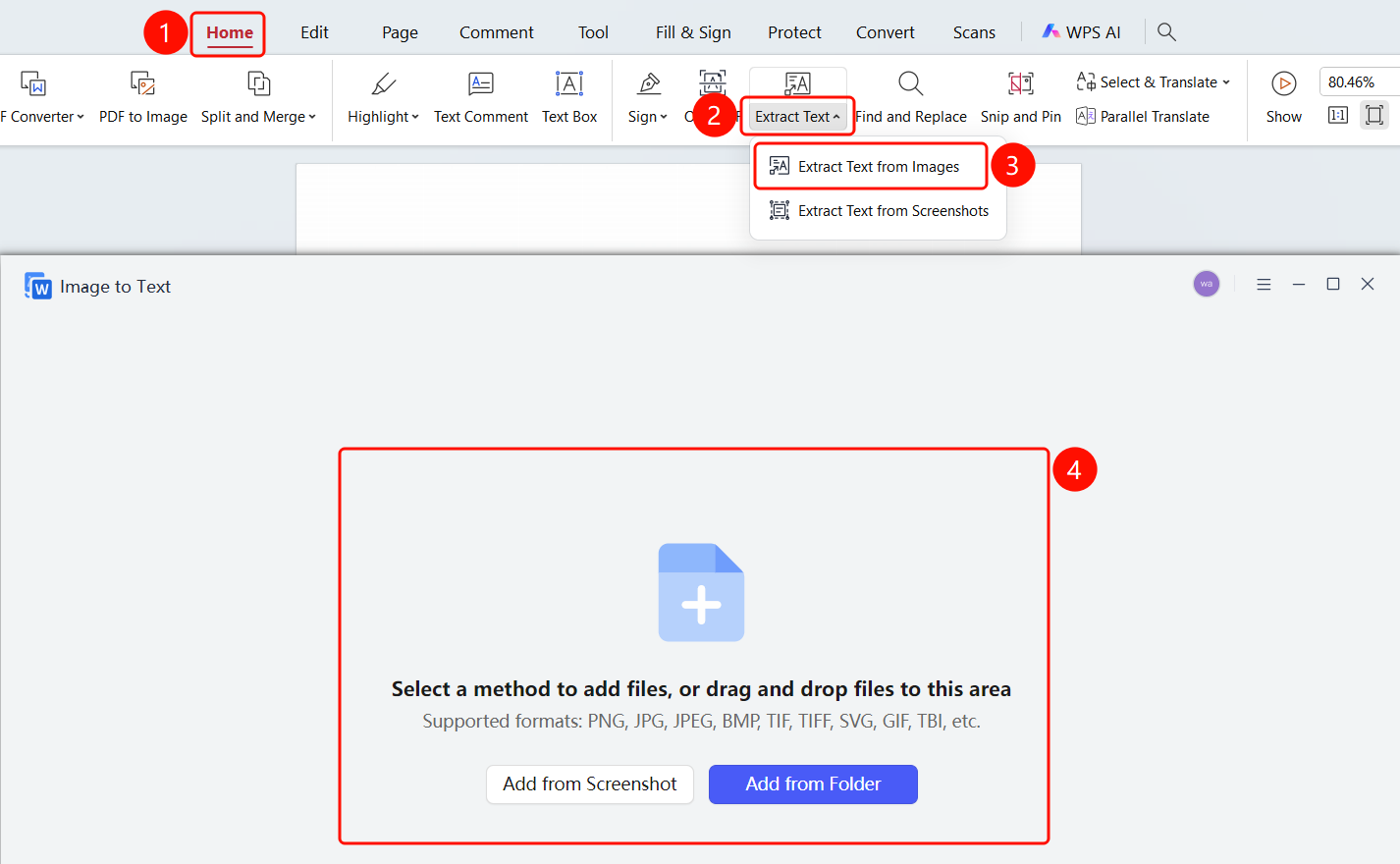
"Start" tab → "Recognition & Extraction" drop-down menu → "Extract Text from Image" option
Open a PDF file or stay on the desktop.
Click the Start tab in the top ribbon.
Click the Recognition & Extraction drop-down button in the ribbon.
Select Extract Text from Image to open the "Image to Text" dialog box.
Choose a method to add files:
- Add via Screenshot: Capture a screen area.
- Add from Folder: Select a local image file.
Supported formats: PNG, JPG, JPEG, BMP, TIF, TIFF, SVG, GIF, TBI, etc.
You can also drag and drop images directly into the dialog box area.
Extract Text from Screenshot
Feature Entry
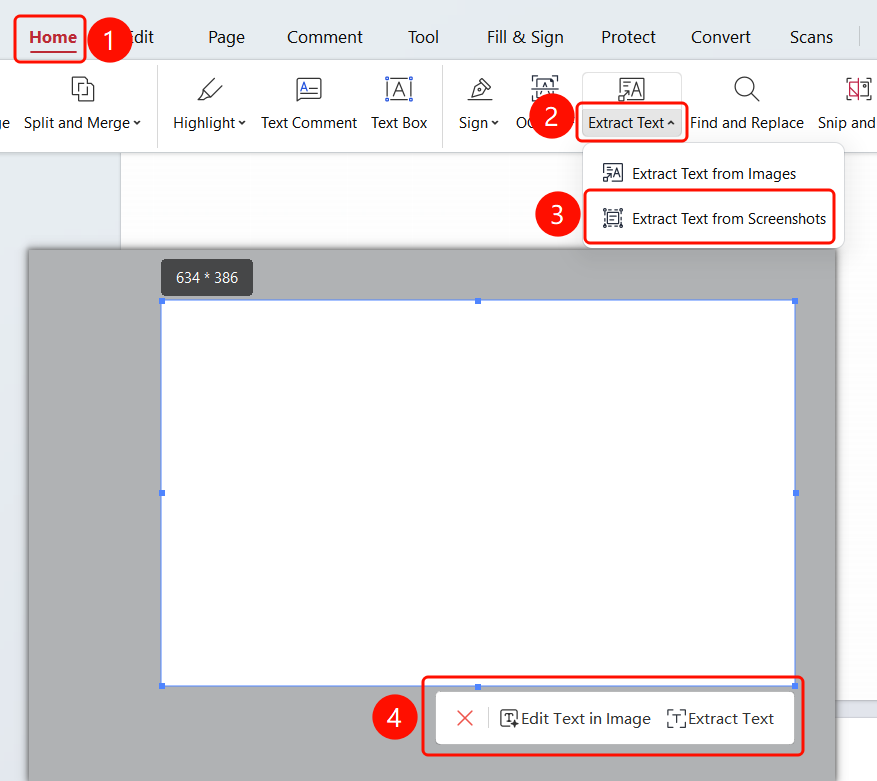
"Start" tab → "Recognition & Extraction" drop-down menu → Screenshot toolbar → "Extract Text from Screenshot" option
- Open a PDF file or stay on the desktop.
- Click the Start tab in the top ribbon.
- Click the Recognition & Extraction drop-down button in the ribbon.
- Select Extract Text from Screenshot to enter screenshot mode.
- Drag to select the screen area you want to recognize.
- After capturing the screenshot, click the Extract Text button in the pop-up toolbar.
- The system will automatically perform OCR text recognition.
FAQs
Question 1: How do I recognize only a specific area?
- Solution: Use the "Select Recognition Area" feature to drag and select the area you want to recognize, avoiding unnecessary content.
Question 2: Which image formats are supported?
- Solution: Common image formats such as PNG, JPG, JPEG, BMP, TIF, TIFF, SVG, GIF, and TBI are supported.
Notes
- The clearer the image, the higher the OCR recognition accuracy.
- Screenshot recognition is suitable for quickly extracting text content from the screen.
- Recognition results can be copied with one click for easy subsequent use.