Feature Summary
Add highlight annotations to text in PDF documents to emphasize important content.
Feature Description
| Feature Dimension | Description |
|---|---|
| Membership Restriction | Requires a subscribe to membership |
| Version Restriction | No version restriction |
Operation Steps
Set Highlight Text
Feature Entry
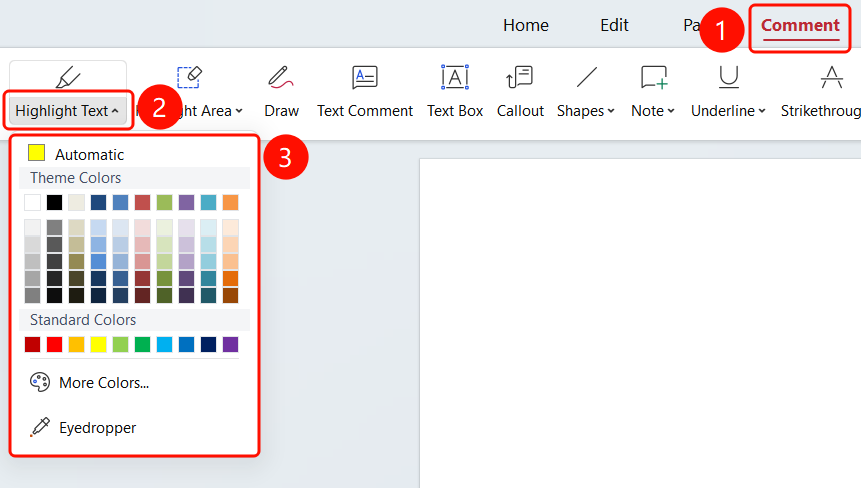
「Annotation」 tab → 「Highlight Text」 drop-down menu
- Open the PDF file that needs annotations
- Click the 「Annotation」 tab in the top menu bar
- Click the 「Highlight Text」 drop-down menu in the feature area
- Select a highlight color from the 「Highlight Text」 drop-down menu:
- Auto: Use the default color (yellow)
- Theme Color: Select a color from the theme palette
- Standard Color: Select a standard color
- More Colors (M): custom color
- Eyedropper (E): Pick a color from the document
- Drag the mouse over the text you want to highlight in the PDF document
- After releasing the mouse, the selected text will be highlighted
FAQ
Q1: How to change the highlight color?
- Solution: Click the 「Highlight Text」 drop-down menu, select a new color, and then re-select the text.
Q2: Will the highlight annotation be saved?
- Solution: Yes, the highlight annotation will be saved with the PDF document and will still be visible the next time you open it.
Notes
- Highlight text will be saved with the PDF document
- Supports custom colors and the eyedropper feature
- Multiple highlight annotations can be added