Feature Summary
Crop the page size of PDF documents and adjust page margins.
Feature Description
| Feature Dimension | Description |
|---|---|
| Member Limit | Subscription required (Must subscribe to membership) |
| Version Limit | No version limit |
| Platform Limit | Available on Windows, macOS, Android, and iOS |
Operating Steps
Accessing the Crop Page from the Page Tab
Feature Entry
"Page" tab → "Crop Pages" button
- Open the PDF file that needs page cropping.
- Click the Page tab in the top ribbon.
- Click the Crop Pages button in the ribbon.
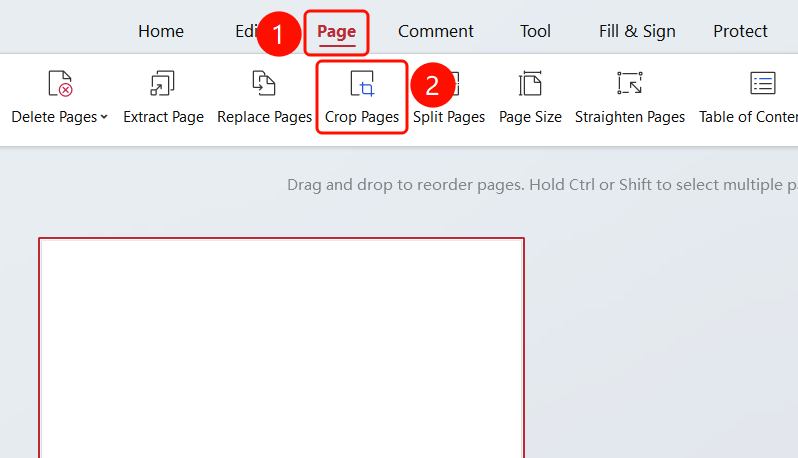
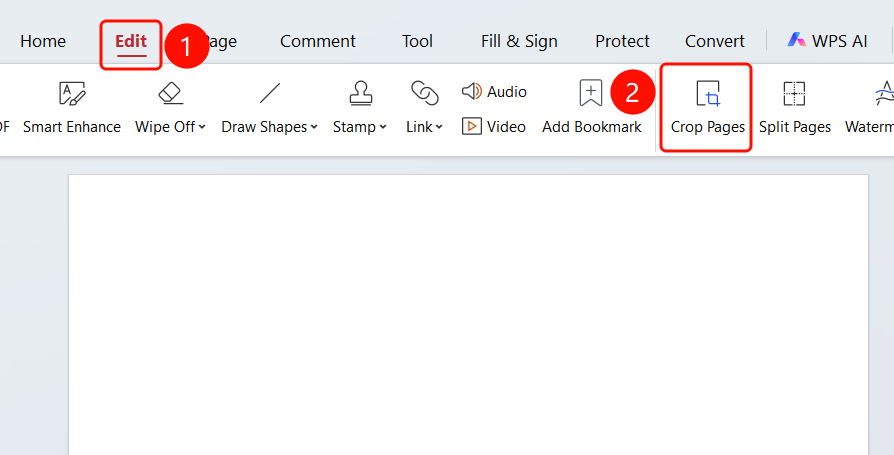
Accessing the Crop Page from the Edit Tab
Feature Entry
"Edit" tab → "Crop Pages" button
- Click the Edit tab in the top ribbon.
- Click the Crop Pages button in the ribbon.
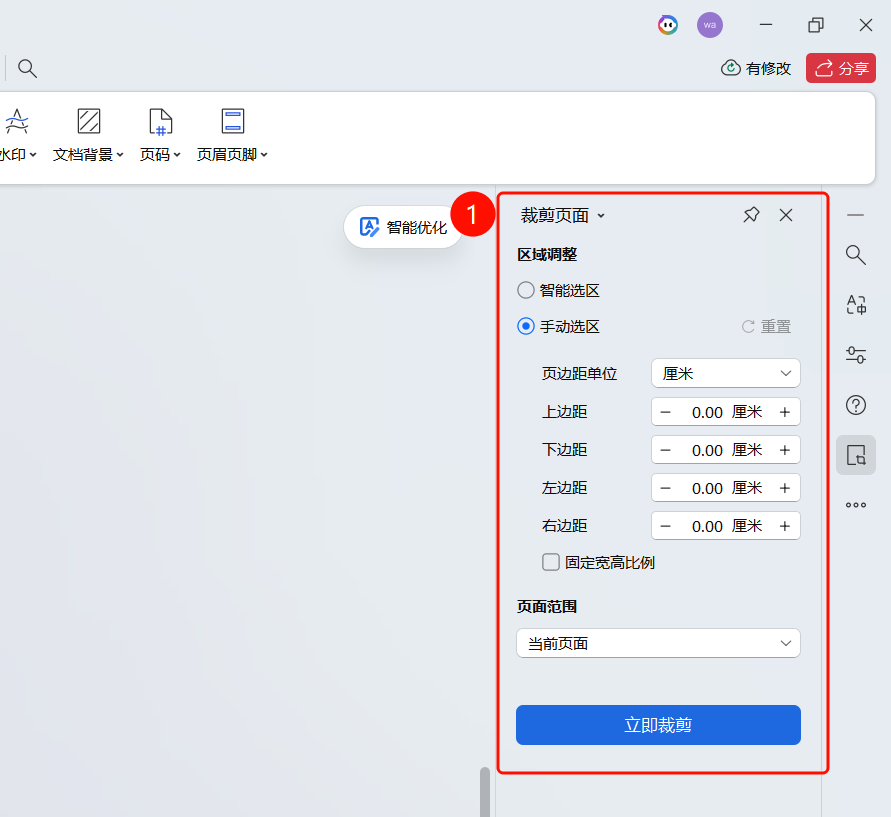
Crop Pages Dialog Box
Feature Entry
"Crop Pages" dialog box
Open the "Crop Pages" dialog box, which displays the current page size (e.g., 14.92 cm * 9.40 cm).
Set Area Adjustment:
- Auto Selection: Automatically identify the page content area.
- Manual Selection: Manually drag to adjust the crop area.
- Reset: Reset the crop area.
Set Margin Unit: Choose centimeters or other units.
Set Margins:
- Top: Set the top margin.
- Bottom: Set the bottom margin.
- Left: Set the left margin.
- Right: Set the right margin.
You can check Constrain Proportions to maintain the crop ratio.
Click the Crop button to complete the cropping.
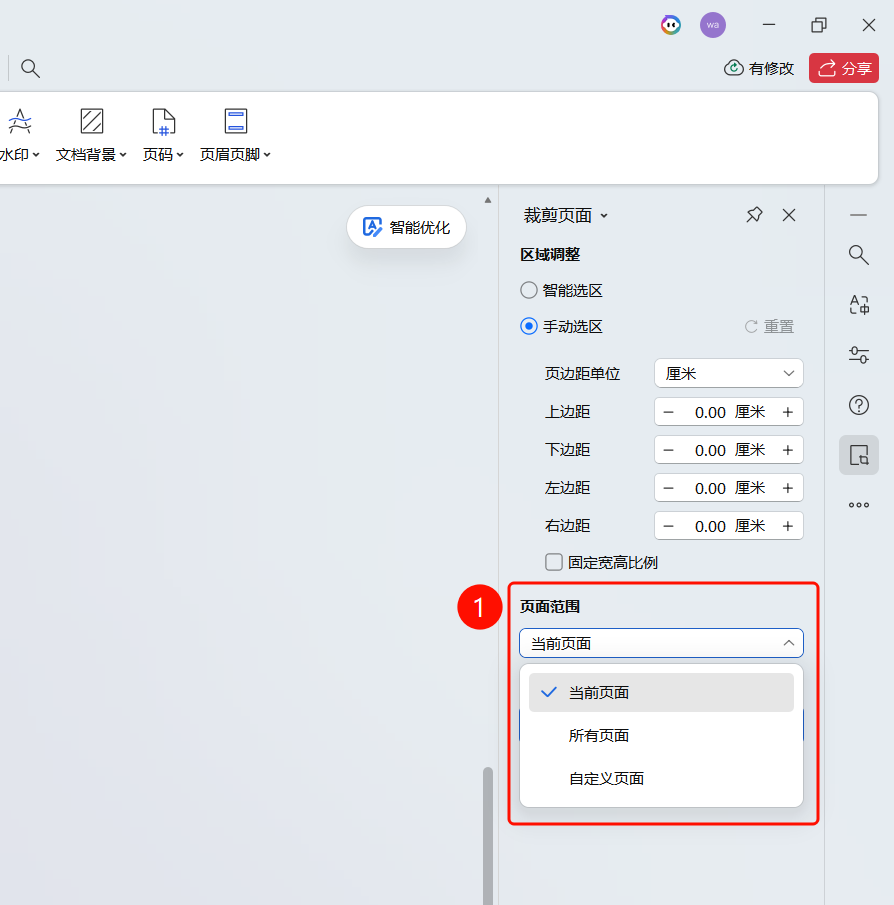
Setting Page Range
Feature Entry
"Crop Pages" dialog box → "Page Range" dropdown menu
Click the Page Range dropdown menu in the "Crop Pages" dialog box.
Select the crop application range:
- Current Page: Crop the current page only.
- All Pages: Crop all pages of the document.
- Custom Pages: Enter a page range to crop specific pages.
FAQ
Question 1: Will cropping pages delete content?
- Solution: Cropping only adjusts the page display range and will not delete any content.
Question 2: How do I set the crop range?
- Solution: Set the area adjustment, margins, and page range in the Crop Pages dialog box.