Feature Summary
Insert blank pages into a PDF document, with support for setting the page size, orientation, and insertion position.
Feature Description
| Feature Dimension | Description |
|---|---|
| Subscription Limit | Requires subscribing to Premium |
| Version Limit | No version limits |
Operating Steps
Accessing the Insert Blank Page Feature
Feature Entry
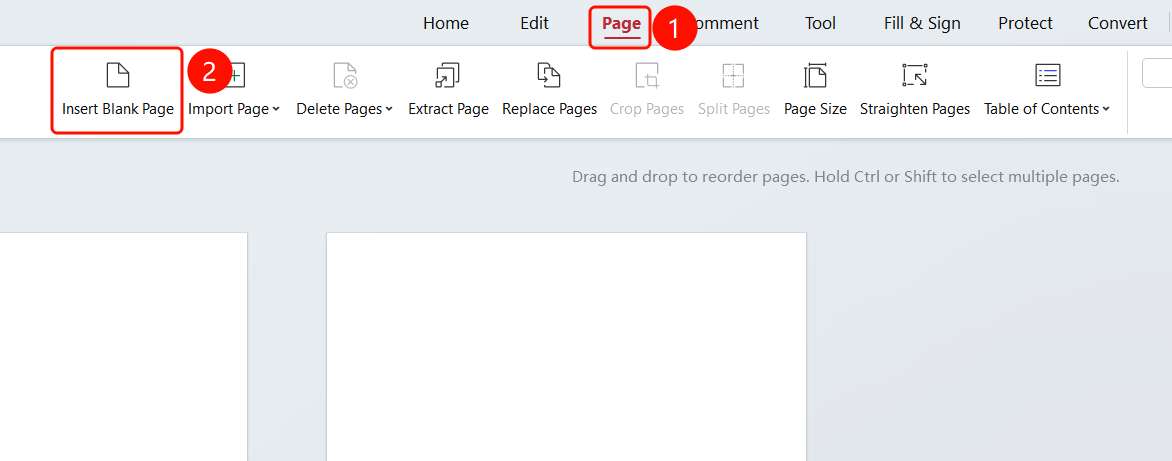
"Page" tab → "Insert Blank Page" button → "Insert Blank Page" dialog box
Open the PDF file where you want to insert a blank page.
Click the Page tab in the top ribbon.
Click the Insert Blank Page button in the ribbon.
Open the "Insert Blank Page" dialog box.
Set the Page Size:
- Select Default Page Size (210x297 mm).
- Or custom set the Page Width and Page Height.
Set the Page Orientation: Portrait or Landscape.
Set the Insert Quantity: Enter the number of blank pages you want to insert.
Set Insert To:
- Beginning of Document: Insert at the very beginning of the document.
- End of Document: Insert at the very end of the document.
- Page: Enter page numbers (e.g., 1,8,1-10).
- Insert Position: Enter the insertion position.
Click the OK button to complete the insertion.
FAQ
Question 1: Where will the blank page be inserted?
- Solution: In the Insert Blank Page dialog box, you can choose to insert it at the beginning of the document, at the end of the document, or after a specified page.
Question 2: How do I insert multiple blank pages?
- Solution: Set the Insert Quantity in the Insert Blank Page dialog box.