Feature Summary
Extract specified pages from a PDF document to generate a new PDF file.
Feature Description
| Feature Dimension | Description |
|---|---|
| Membership Restriction | Requires a subscribe to membership |
| Version Restriction | No version restriction |
Operation Steps
Enter Extract Pages Feature
Feature Entry
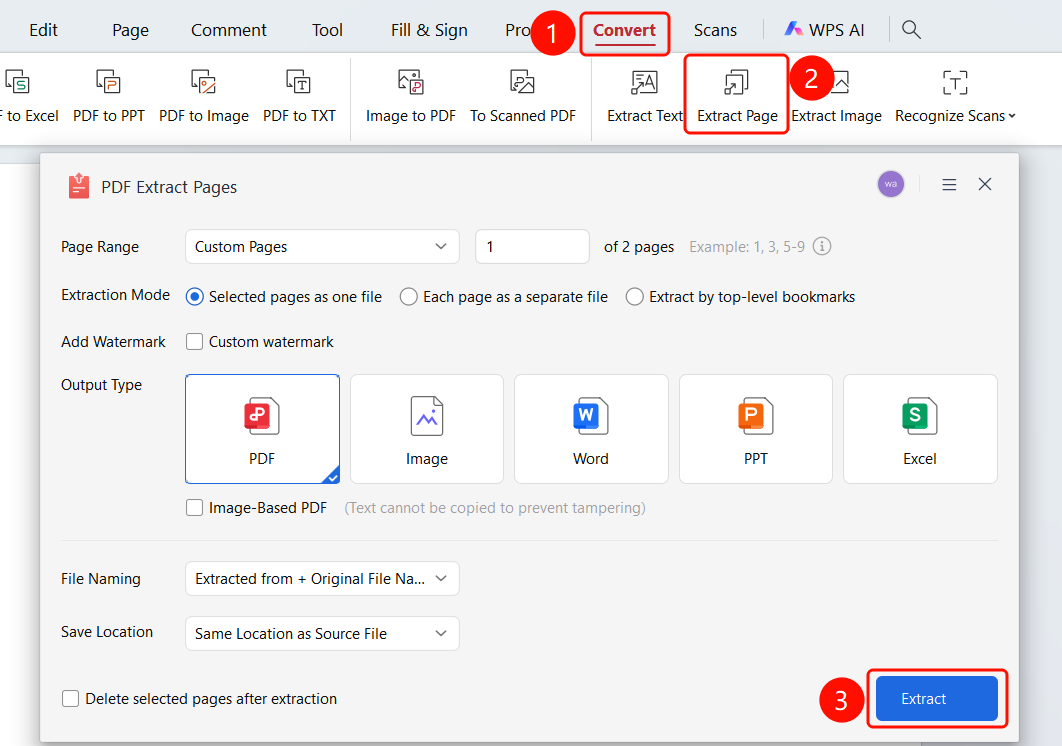
「Convert」 tab → 「Extract Pages」 button → 「PDF Extract Pages」 dialog → 「Start Extraction」 button
- Open the PDF file you need to Extract Pages from
- Click the 「Convert」 tab in the top ribbon
- Click the 「Extract Pages」 button in the ribbon
- Open the 「PDF Extract Pages」 dialog
- Click the 「Start Extraction」 button to Extract Pages
Page Range Settings
Feature Entry
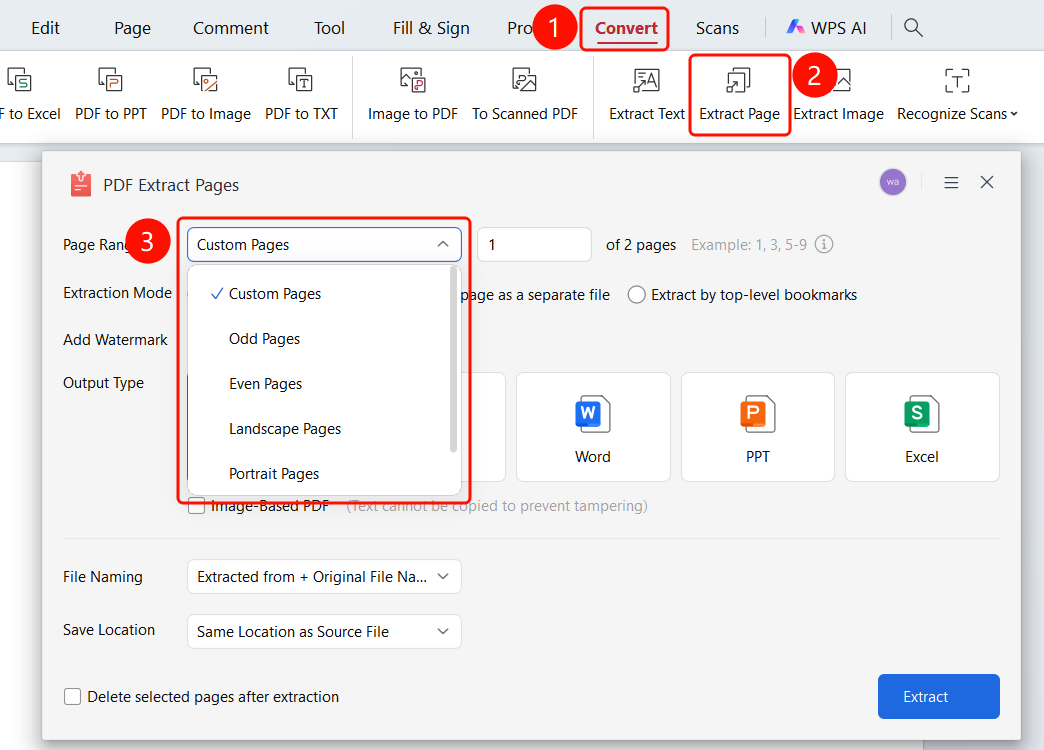
「Convert」 tab → 「Extract Pages」 button → 「PDF Extract Pages」 dialog → 「Page Range」 dropdown menu
- Open the PDF file you need to Extract Pages from
- Click the 「Convert」 tab in the top ribbon
- Click the 「Extract Pages」 button in the ribbon to open the 「PDF Extract Pages」 dialog
- Click the 「Page Range」 dropdown menu
- Select the extraction range:
- Custom Pages: Enter page ranges (e.g., 1,3,5-9)
- Odd Pages: Extract all odd pages
- Even Pages: Extract all even pages
- Landscape Pages: Extract all landscape pages
- Portrait Pages: Extract all portrait pages
- All Pages: Extract all pages
Extraction Mode Settings
Feature Entry
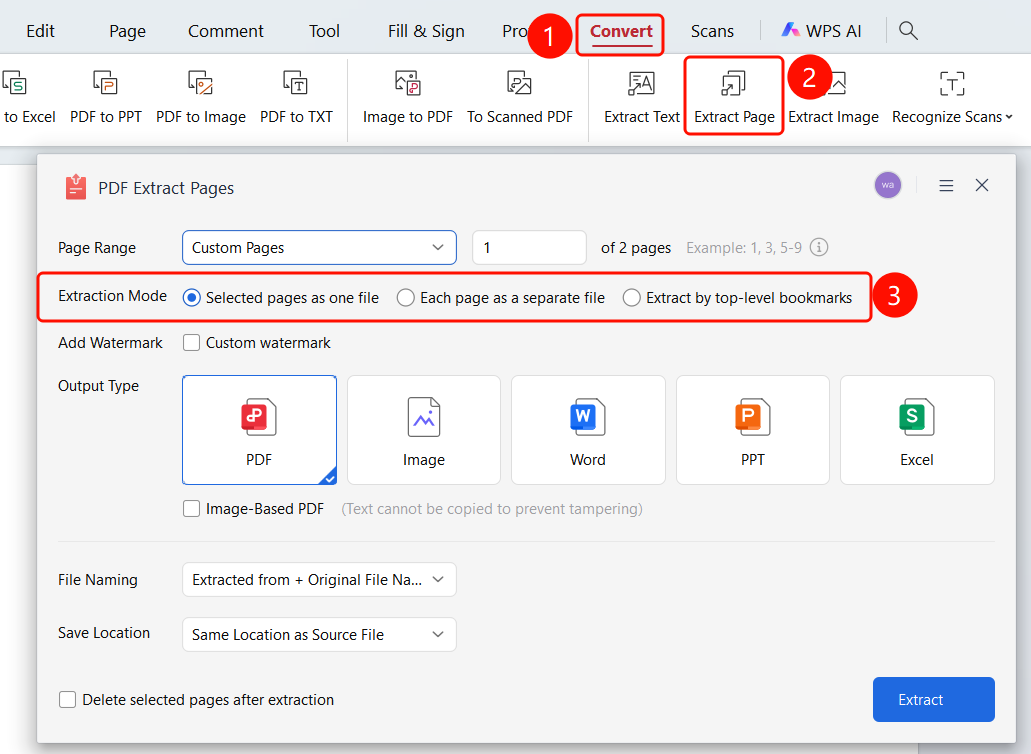
「Convert」 tab → 「Extract Pages」 button → 「PDF Extract Pages」 dialog → 「Extraction Mode」 option
- Open the PDF file you need to Extract Pages from
- Click the 「Convert」 tab in the top ribbon
- Click the 「Extract Pages」 button in the ribbon to open the 「PDF Extract Pages」 dialog
- Set the Extraction Mode:
- Each page as a separate file: Generate a separate file for each page
- Selected pages as one file: Merge selected pages into one file
- Extract by top-level bookmarks: Split and extract by top-level bookmarks
Add Watermark
Feature Entry
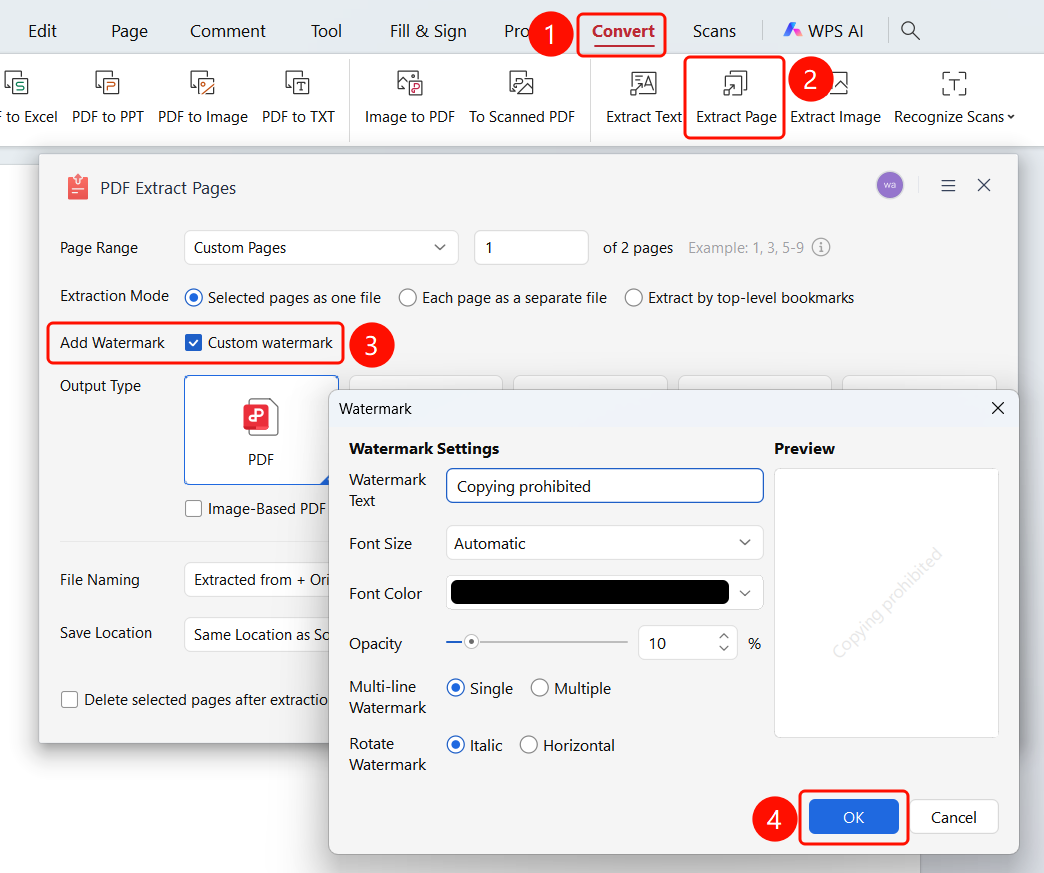
「Convert」 tab → 「Extract Pages」 button → 「PDF Extract Pages」 dialog → 「Custom Watermark」 option
- Open the PDF file you need to Extract Pages from
- Click the 「Convert」 tab in the top ribbon
- Click the 「Extract Pages」 button in the ribbon to open the 「PDF Extract Pages」 dialog
- Check the 「Custom Watermark」 option to open the watermark settings dialog
- Adjust the watermark content in the dialog, and click the 「OK」 button to complete the watermark settings
Output Type Settings
Feature Entry
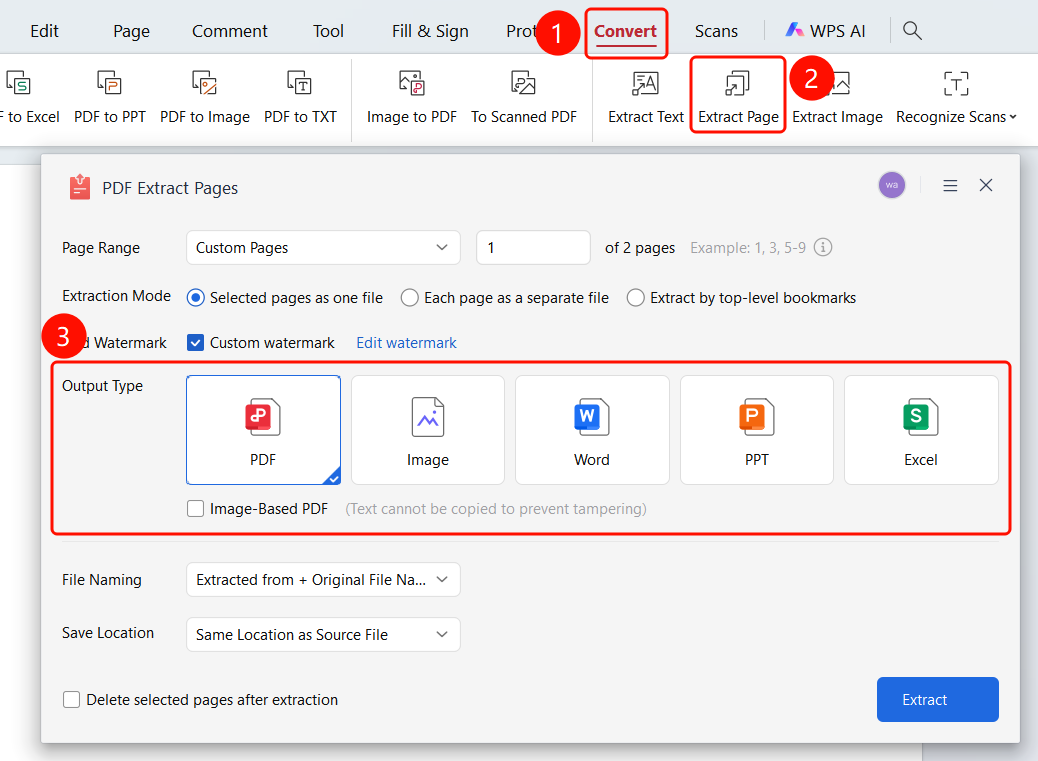
「Convert」 tab → 「Extract Pages」 button → 「PDF Extract Pages」 dialog → 「Output Type」 option
- Open the PDF file you need to Extract Pages from
- Click the 「Convert」 tab in the top ribbon
- Click the 「Extract Pages」 button in the ribbon to open the 「PDF Extract Pages」 dialog
- Set the Output Type:
- Image: Output as image format
- PDF: Export as PDF format
- Word: Output as Word format
- PPT: Output as PPT format
- Excel: Output as Excel format
- Image-Based PDF: Output as Image-Based PDF (text cannot be copied, tamper-proof)
File Naming Rules
Feature Entry
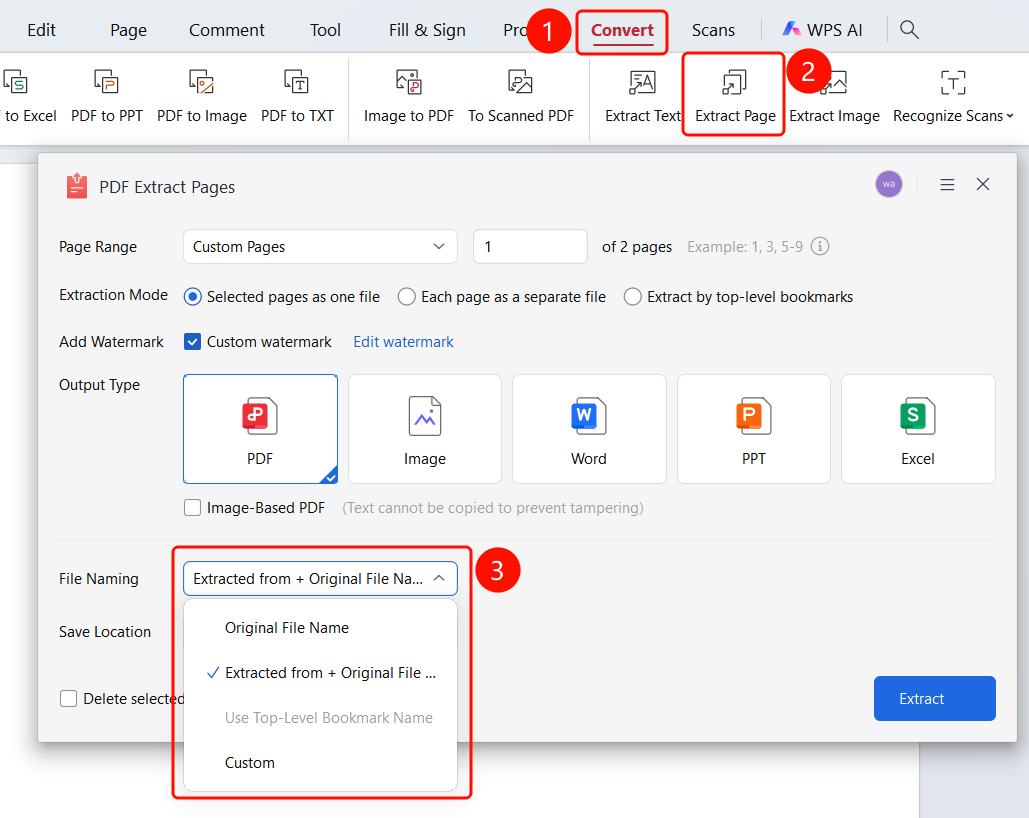
「Convert」 tab → 「Extract Pages」 button → 「PDF Extract Pages」 dialog → 「File Naming」 dropdown menu
- Open the PDF file you need to Extract Pages from
- Click the 「Convert」 tab in the top ribbon
- Click the 「Extract Pages」 button in the ribbon to open the 「PDF Extract Pages」 dialog
- Click the 「File Naming」 dropdown menu
- Select the naming rule:
- Original Filename: Use the original filename
- Extracted From + Original Filename: Add "Extracted From" before the original filename (default)
- Use Top-Level Bookmark Name: Name using the top-level bookmark name
- Custom: Custom naming rule
Save Location Settings
Feature Entry
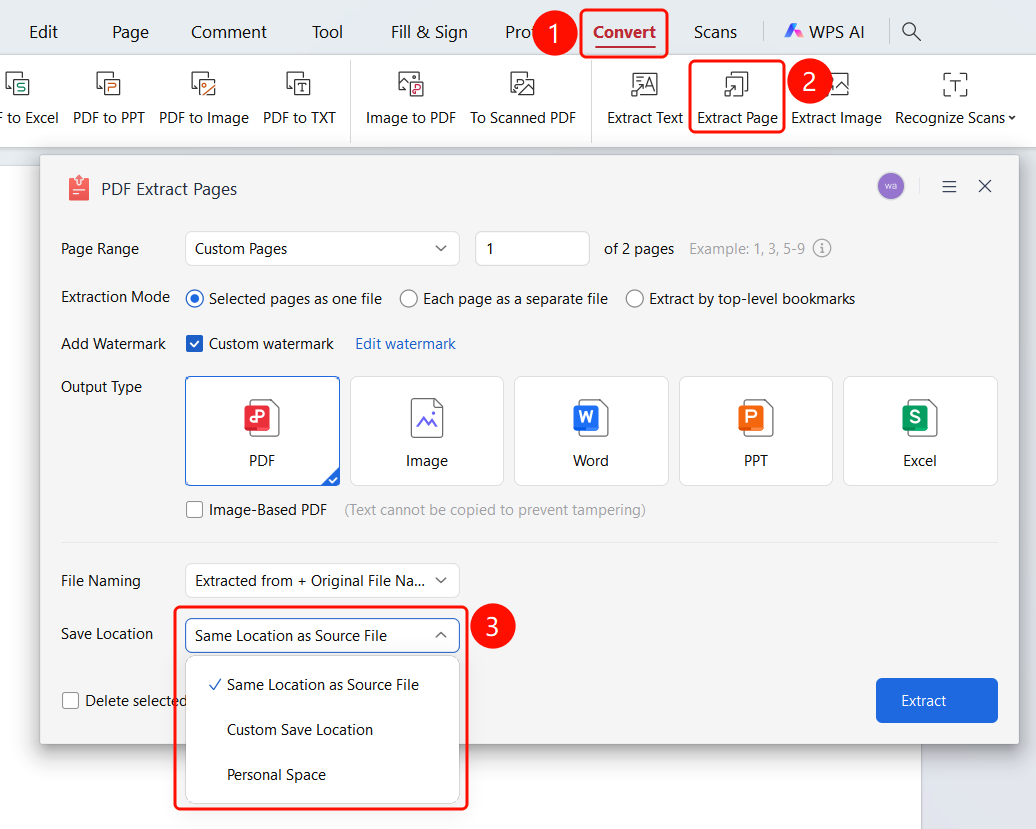
「Convert」 tab → 「Extract Pages」 button → 「PDF Extract Pages」 dialog → 「Save Location」 dropdown menu
- Open the PDF file from which you want to Extract Pages
- Click the Convert tab in the top ribbon
- Click the Extract Pages button in the ribbon to open the "PDF Extract Pages" dialog box
- Click the Save Location drop-down menu
- Select a save location:
- Same location as source file: Save to the directory where the source PDF file is located (default)
- Custom save location: Select a local folder to save
- Personal Space: Save to Personal Space
FAQ
Q1: How do I select the pages to extract?
- Solution: In the Page Range drop-down menu, select custom pages, odd pages, even pages, etc., or enter a page range.
Q2: Will Extract Pages modify the original file?
- Solution: No, Extract Pages will generate a new PDF file, and the original file will remain unchanged.
Q3: How do I extract multiple consecutive pages?
- Solution: Enter the start page and end page in the page range, such as "1-5".