Feature Summary
Draw freehand lines in PDF documents with support for various brush styles and erasing methods.
Feature Description
| Feature Dimension | Description |
|---|---|
| Membership Limit | Requires subscription |
| Version Limit | No version limit |
Steps
Accessing the Free Draw Feature
Feature Entry
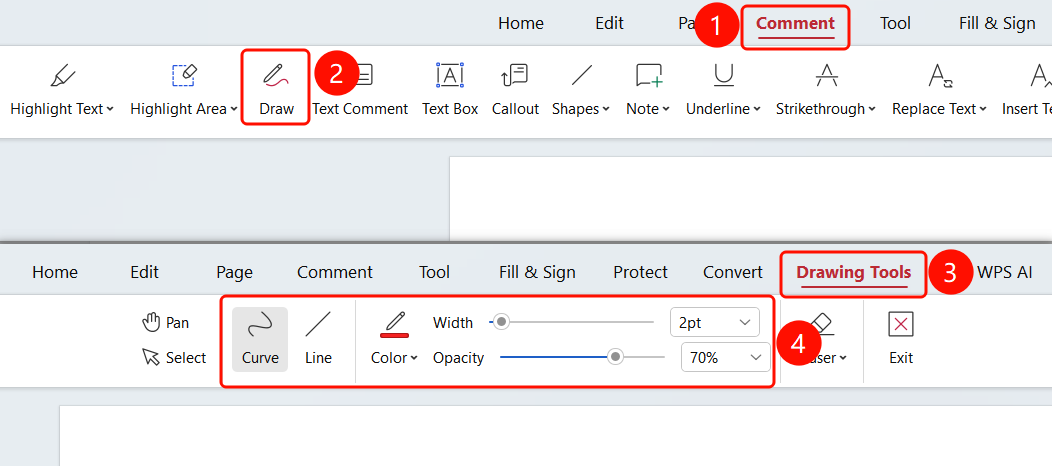
Comment tab > Free Draw button > Free Draw tab
Open the PDF file you want to draw on.
Click the Comment tab in the top ribbon.
Click the Free Draw button in the ribbon.
After entering Free Draw mode, click the Free Draw tab in the ribbon.
You can set up the following drawing tools:
- Draw Curve: Draw freehand curves.
- Draw Line: Draw straight lines.
- Line Thickness: Set the brush thickness (such as 2 pt).
- Color: Choose a brush color.
- Opacity: Set the brush opacity (such as 70%).
- Eraser: Erase drawn content.
Drag the mouse on the PDF page to draw.
Click the Exit Editing button to finish drawing.
FAQ
Question 1: How do I clear drawn content?
- Solution: Use the Eraser tool to select erase all, erase part, or clear strokes.
Question 2: How do I change the brush color?
- Solution: Click Color in the Free Draw tab to select a different color.
Question 3: Can the drawn content be saved?
- Solution: Yes, the drawn content will be saved with the PDF document.