Feature Summary
Set text in a PDF document to italic for emphasis or to mark special content.
Feature Description
| Feature Dimension | Description |
|---|---|
| Membership Restriction | Requires a subscribed membership to edit PDF files |
| Version Restriction | No version restriction |
Steps
Set Text to Italic via the Ribbon
Feature Entry
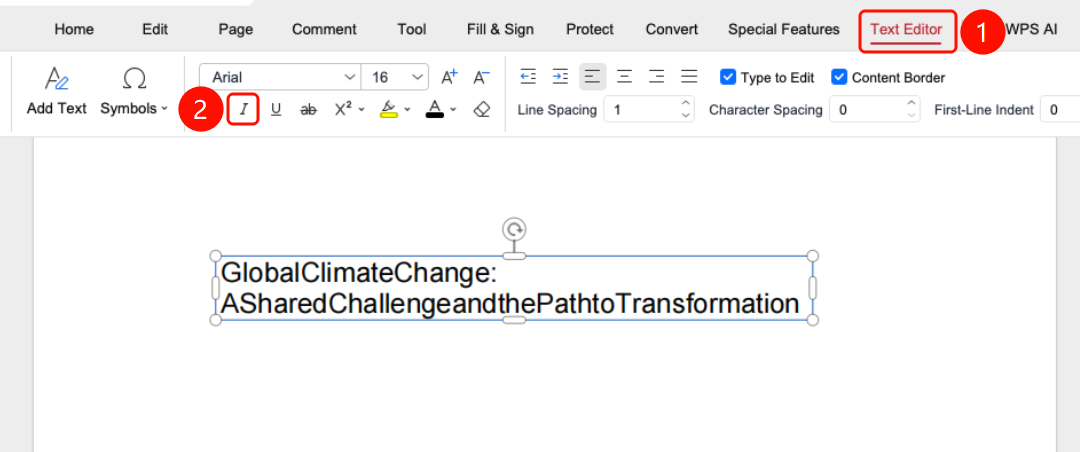
"Edit" tab > "Edit Content" button > "Text Edit" tab > "I" button
- Open the PDF file you want to edit.
- Click the Edit tab on the top ribbon.
- Click the Edit Content button on the ribbon.
- Click the text in the PDF to enter Text Edit mode.
- Select the text you want to set to italic.
- Locate the I button on the Text Edit tab.
- Click the button to apply the italic effect to the selected text.
Set Text to Italic via the Floating Toolbar
Feature Entry
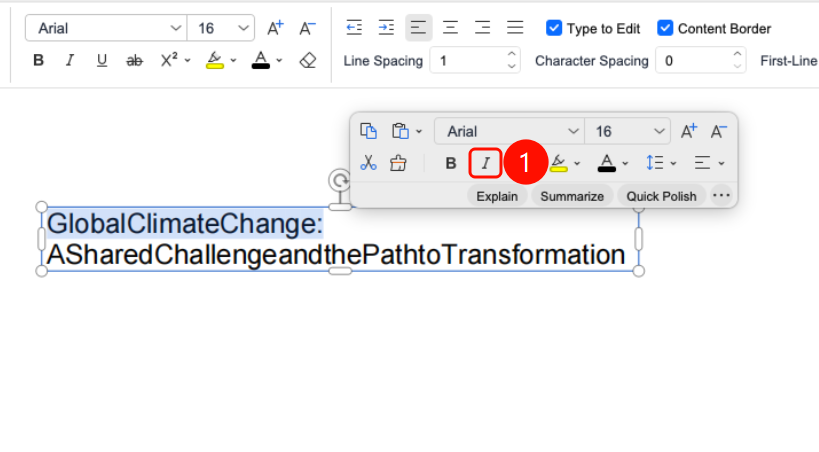
Select text > Floating toolbar > "I" button
- In Text Edit mode, select the text you want to format.
- Once the text is selected, a floating toolbar will appear above it.
- Click the I button on the floating toolbar to apply the italic effect to the selected text.
FAQ
Q1: What should I do if the Italic button is grayed out?
You need to select text first to use the italic feature. Please ensure you have entered 「Docs Editing」 mode and selected the target text.
Q2: How do I remove italic formatting?
Select the italicized text, then click the Italic button again or press Command+I to remove it.
Q3: Can italic be used simultaneously with other formatting?
Yes. Italic can be combined with bold, underline, font color, and other formatting.
Notes
- Italic effect only applies to the currently selected text
- Text in scanned PDFs may not be directly editable; OCR recognition is required first
- Some fonts may not support italic effect, in which case the button may be unclickable