Feature Summary
Adjust the first-line indent of paragraphs in a PDF document to optimize text layout.
Feature Description
| Feature Dimension | Description |
|---|---|
| Membership Requirement | A membership is required to subscribe to the feature for editing PDF files |
| Version Restriction | No version restriction |
Steps
Enter Text Edit Mode from the Ribbon
Feature Entry
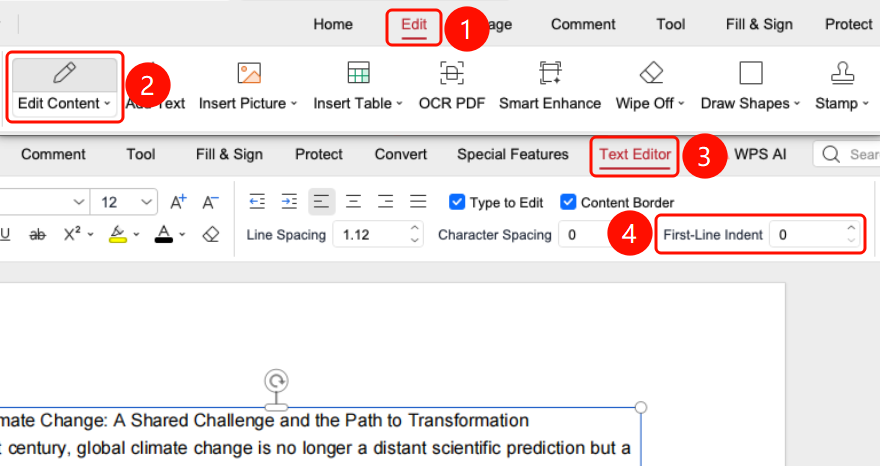
"Edit" tab → "Edit Content" button → "Text Edit" tab → "First Line Indent" input box
- Open the PDF file you want to edit.
- Click the Edit tab in the top ribbon.
- Click the Edit Content button in the ribbon.
- Click the text in the PDF to enter text edit mode.
- Select the paragraph you want to indent.
- Find the First Line Indent input box in the Text Edit tab.
- Enter the indent value (for example, 2 means indenting by 2 characters).
- Press Enter to confirm the setting.
FAQ
Q1: How do I cancel the first line indent?
- Solution: Select the paragraph and set the first line indent value to 0.
Q2: Will the indent affect other paragraphs?
- Solution: No, the indent only applies to the currently selected paragraph.
Notes
- The indent value is measured in characters.
- The indent only applies to the currently selected paragraph.