Feature Summary
Split a single page of a PDF document into multiple pages.
Feature Description
| Feature Dimension | Description |
|---|---|
| Subscription Limit | Subscription required |
| Version Limit | No version limit |
Steps
Access Split Page via Page Tab
Feature Entry
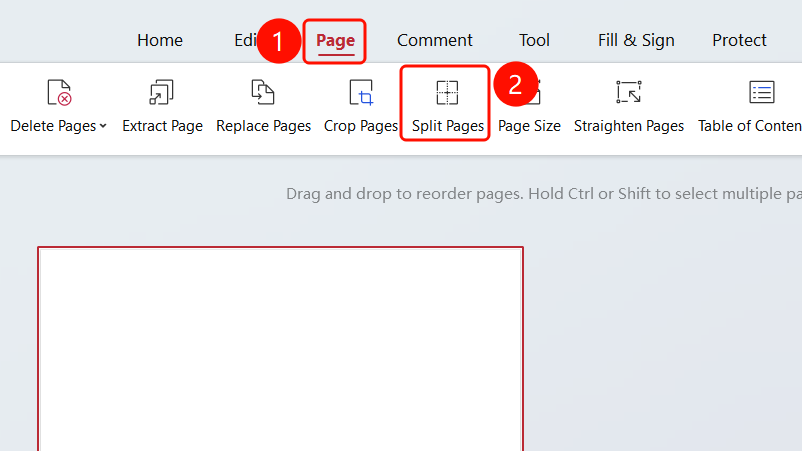
"Page" tab → "Split Page" button
- Open the PDF file you want to split.
- Click the Page tab in the top ribbon.
- Click the Split Page button in the ribbon.
Access Split Page via Edit Tab
Feature Entry
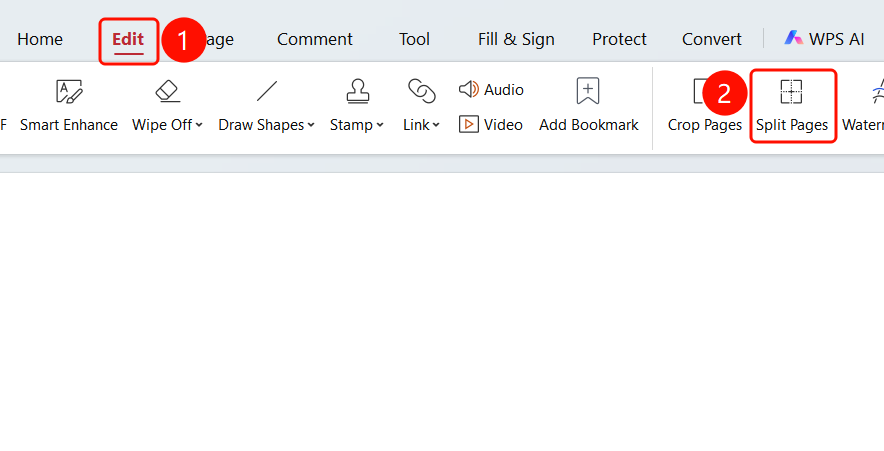
"Edit" tab → "Split Page" button
- Click the Edit tab in the top ribbon.
- Click the Split Page button in the ribbon.
Split Page Window
Feature Entry
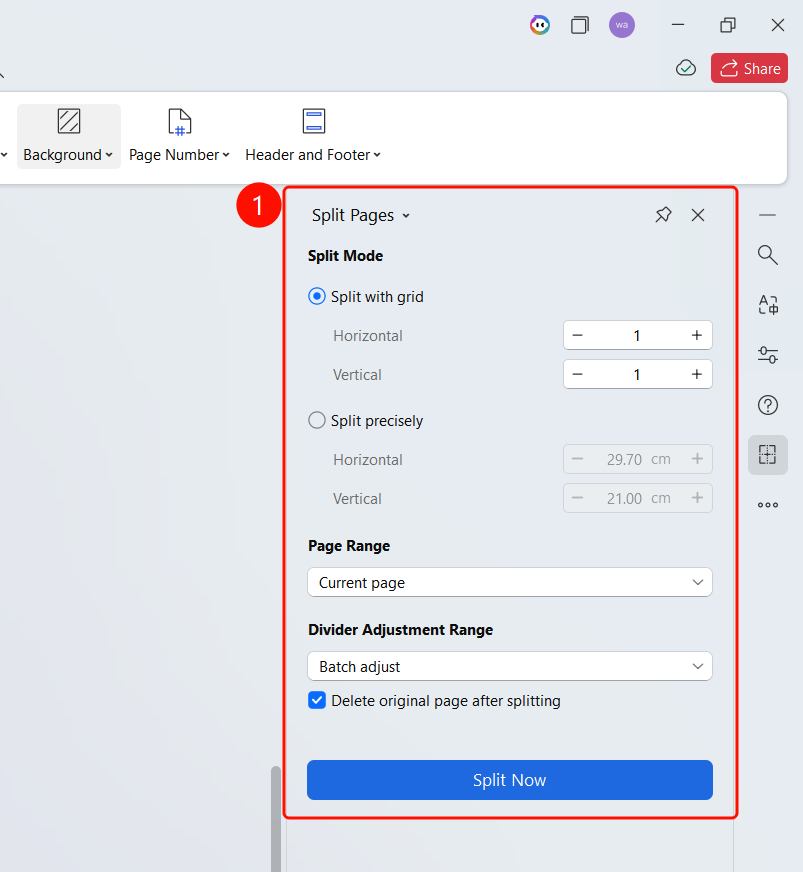
"Split Page" window on the right
Open the "Split Page" window.
Set the Split Method:
- Grid Split: Set the number of horizontal and vertical splits.
- Precise Split: Set the horizontal and vertical split dimensions (such as horizontal 29.70 cm, vertical 21.00 cm).
Set the Page Range:
- Current Page: Split only the current page.
- All Pages: Split all pages of the document.
- Custom Pages: Enter a page range to split specified pages.
Set the Split Line Adjustment Range:
- Batch Adjust: Adjust split lines on all pages in bulk.
- Adjust Current Page Only: Adjust split lines on the current page only.
You can select Delete original pages after splitting.
Click the Split button to complete the split.
FAQs
Question 1: What is the purpose of splitting pages?
- Solution: You can split a single-page PDF into multiple pages for easier individual processing.