Feature Summary
Import external PDF pages or delete existing pages.
Feature Description
| Feature Dimension | Description |
|---|---|
| Subscription Limit | Subscription required |
| Version Limit | No version limit |
Operating Steps
Import Pages
Feature Entry
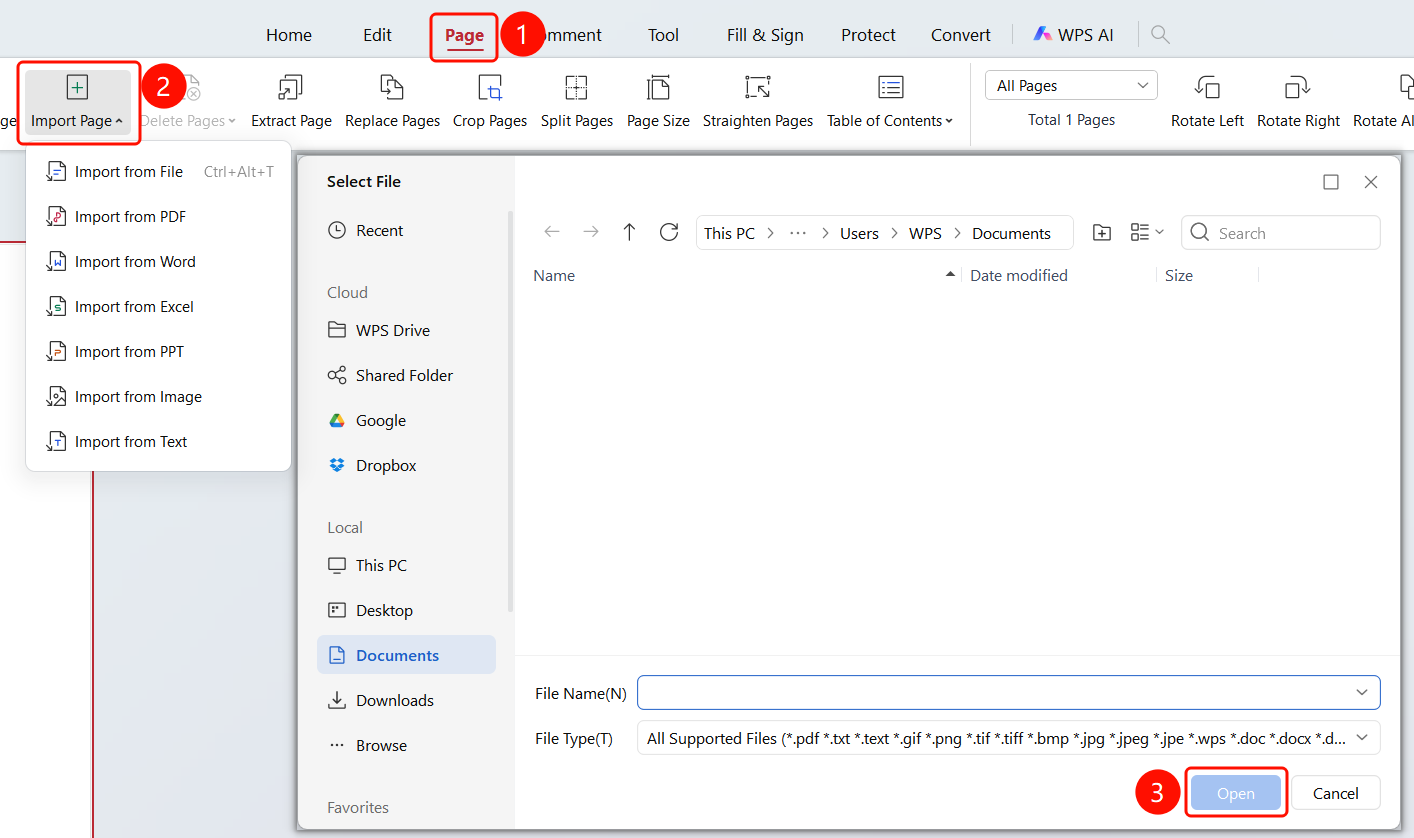
"Page" tab -> "Import Pages" drop-down menu -> "Select File" dialog box
Open the PDF file where you want to import pages.
Click the Page tab in the top ribbon.
Click the Import Pages drop-down button in the ribbon.
Choose an import method from the drop-down menu:
- Import from File (Ctrl+Alt+T): Select and import from a file
- Import PDF File: Import a file in PDF format
- Import Word File: Import a file in Word format
- Import Excel File: Import a file in Excel format
- Import Presentation File: Import a file in Presentation format
- Import Image: Import an image file
- Import TXT File: Import a file in TXT format
Select the file type you want to import from the import methods.
Open the "Select File" dialog box.
Select the file location:
- Cloud: WPS Drive, shared folders, Google, and Dropbox
- Local Location: This PC, Desktop, Documents, Downloads, and Browse
Confirm the File Name and File Type.
Click the Open button to complete the import.
Delete Pages
Feature Entry
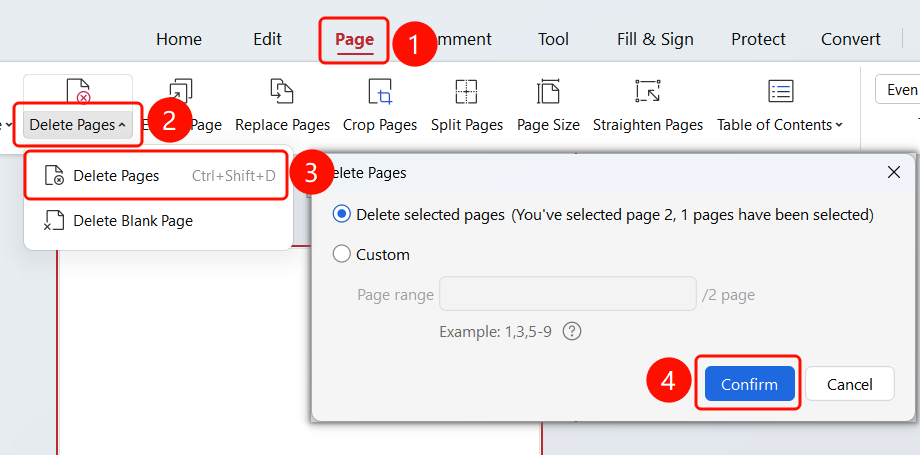
"Page" tab -> "Delete Pages" drop-down menu -> "Delete Pages" dialog box
Click the Page tab in the top ribbon.
Click the Delete Pages drop-down button in the ribbon.
Click the Delete Pages option.
Open the "Delete Pages" dialog box and choose a deletion method:
- Delete Selected Pages: Delete the currently selected pages (displays the number of selected pages and total pages)
- Custom Page Deletion: Enter a page range in the Page Range input box (e.g., 1,3,5-9)
Click the OK button to complete the deletion.
Delete Blank Pages
Feature Entry
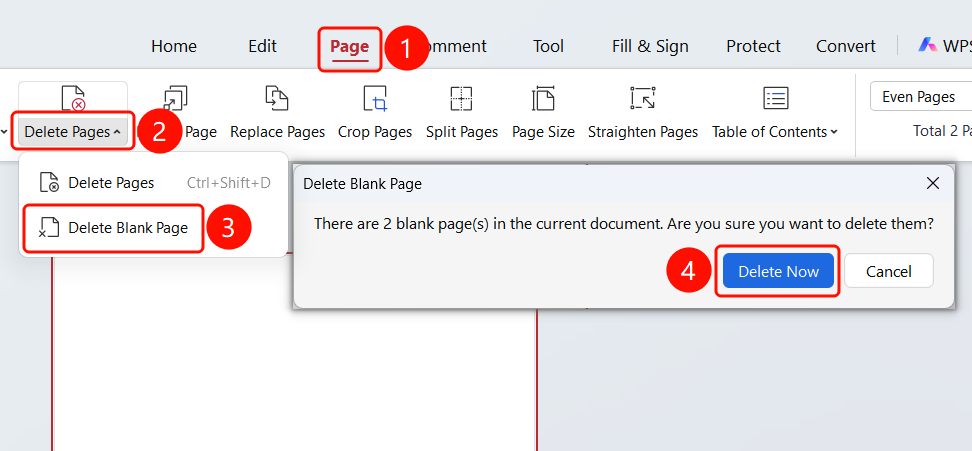
"Page" tab -> "Delete Pages" drop-down menu -> "Delete Blank Pages"
- Click the Page tab in the top ribbon.
- Click the Delete Pages drop-down button in the ribbon.
- Click Delete Blank Pages.
- The "Delete Blank Pages" dialog box will appear, displaying a note with the number of blank pages.
- Click the Delete button to delete all blank pages.
FAQ
Question 1: What formats are supported for importing pages?
- Solution: Various formats are supported, including PDF, Word, Excel, Presentation, images, and TXT.