Feature Summary
Add watermarks to PDF documents. Both text and image watermarks are supported.
Feature Description
| Feature Dimension | Description |
|---|---|
| Subscription Limit | Subscription required |
| Version Limit | No version limit |
Steps
Add Custom Watermarks
Entry
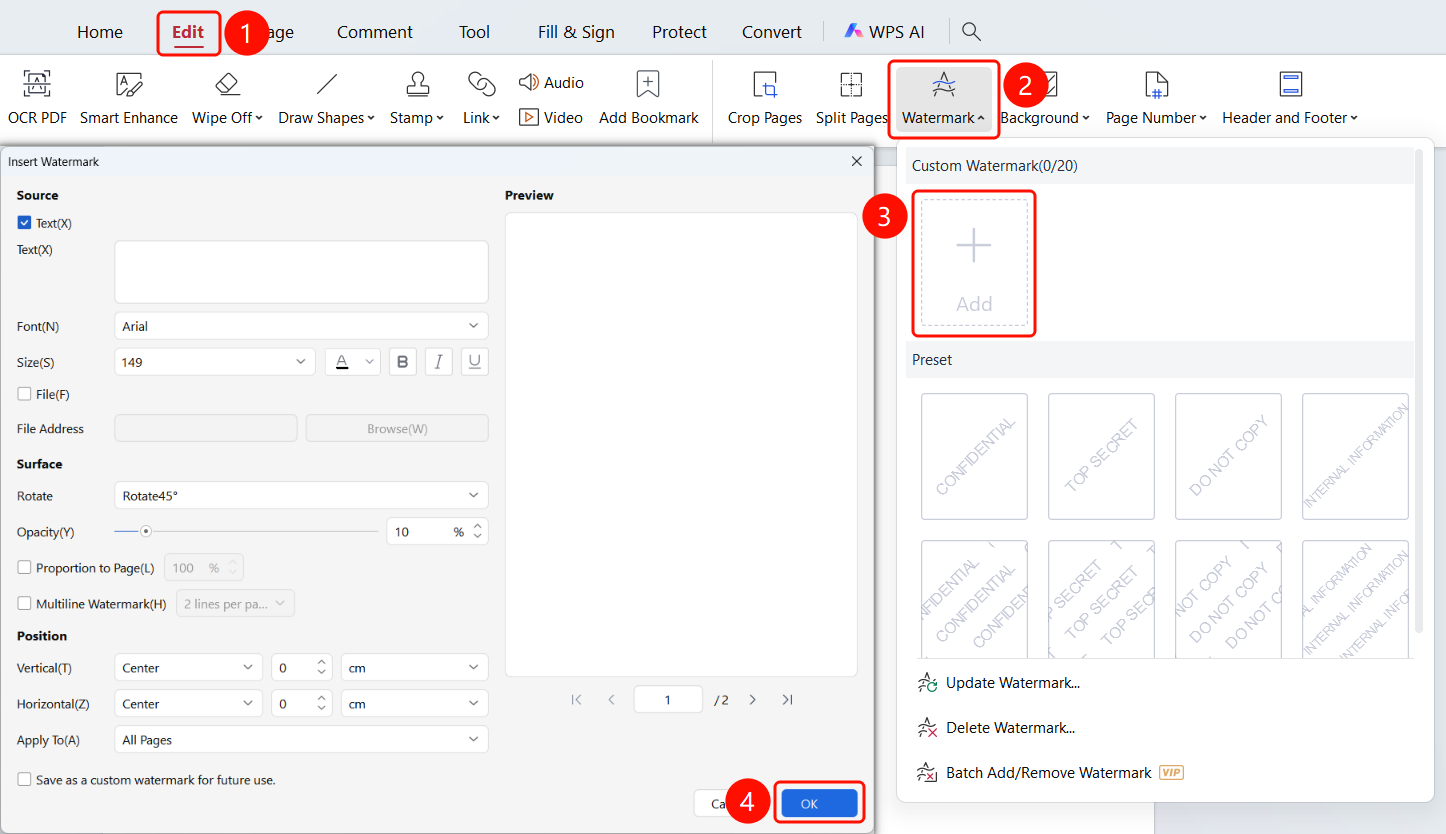
Edit tab → Watermark drop-down menu → Custom Watermark → Add Watermark dialog box
Open the PDF file where you want to add a watermark.
Click the Edit tab in the top ribbon.
Click the Watermark drop-down button in the ribbon.
Click the Click to Add button under Custom Watermark in the Watermark drop-down menu.
In the Add Watermark dialog box, set the Source:
- Text: Enter the watermark text.
- File: Select an image file as the watermark.
Set the Font and Size (for text watermarks).
Set the Appearance:
- Rotation: Set the rotation angle of the watermark (e.g., 45°).
- Opacity (Y): Set the watermark opacity (e.g., 50%).
- Scale Relative to Page (L): Set the watermark size relative to the page (e.g., 50%).
- Tile (H): Set the watermark to display in multiple rows on a page.
Set the Position:
- Vertical Alignment (T): Select the vertical alignment (Center).
- Horizontal Alignment (Z): Select the horizontal alignment (Center).
Set Apply to (A): Select the page range (All Pages).
You can check Save to custom watermarks for quick access.
Click OK to complete the process.
Recommended Watermarks
Entry
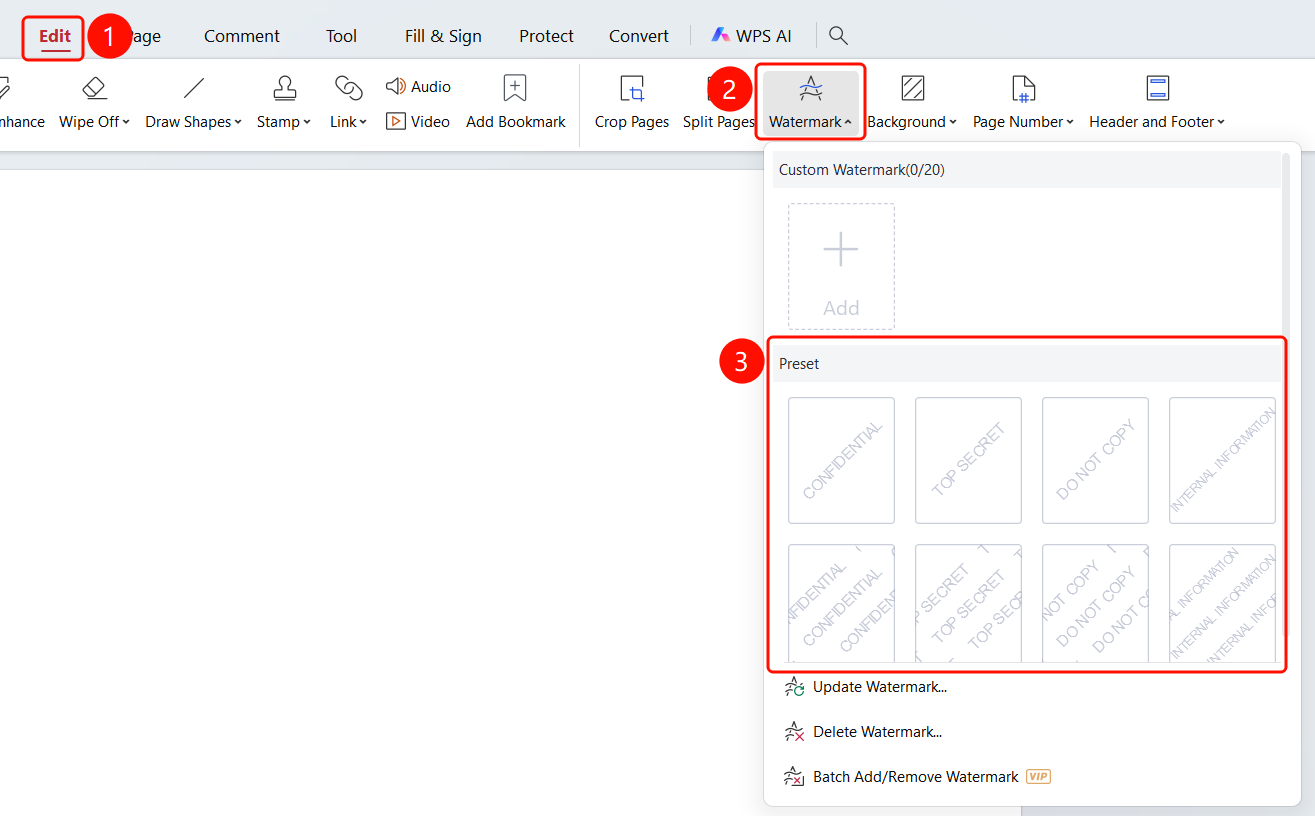
Edit tab → Watermark drop-down menu → Watermark drop-down menu → Recommended Watermarks
- Open the PDF file where you want to add a watermark.
- Click the Edit tab in the top ribbon.
- Click the Watermark drop-down button in the ribbon.
- Select a default watermark in the Recommended Watermarks area of the drop-down menu.
Update Watermarks
Entry
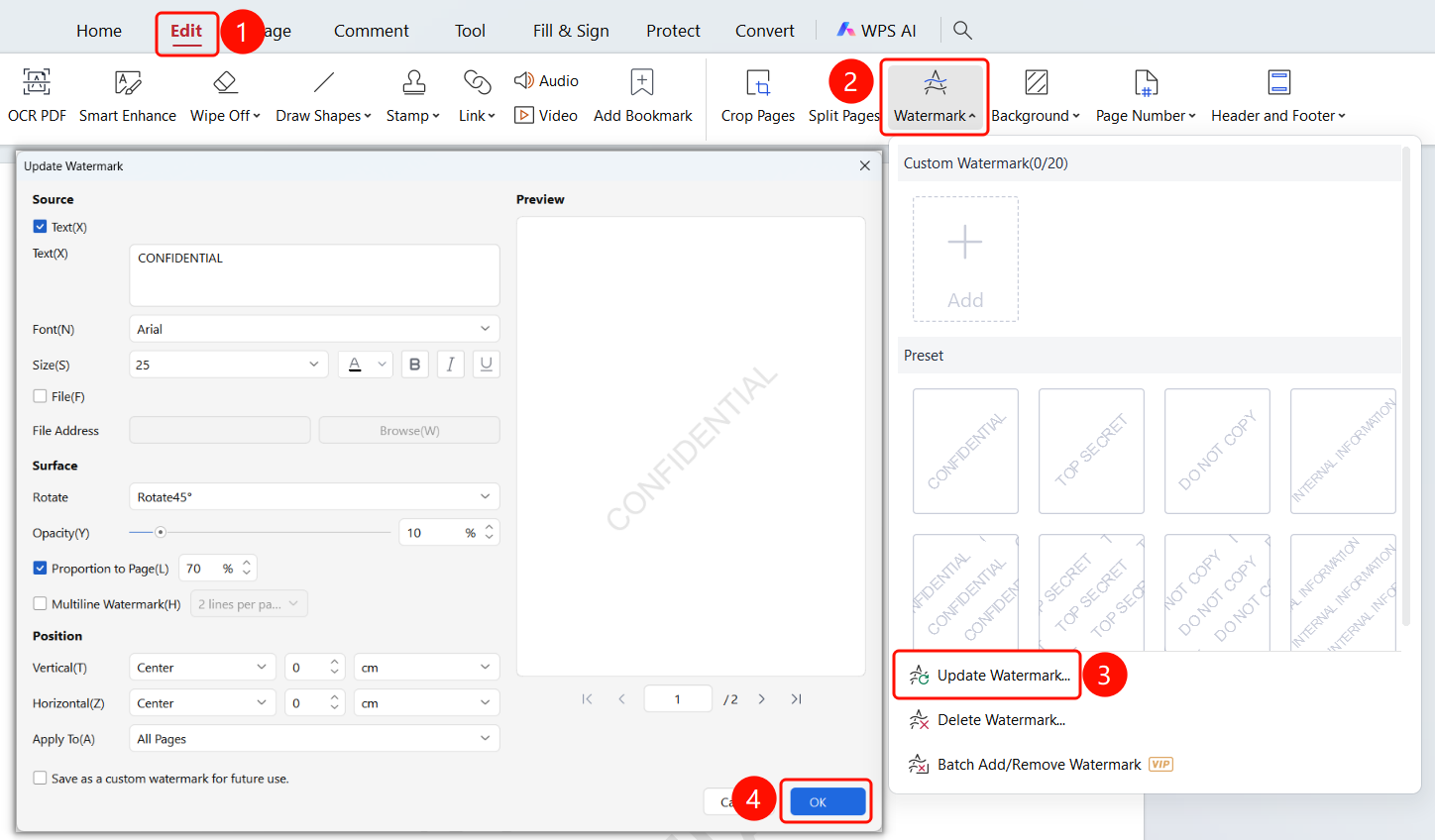
Edit tab → Watermark drop-down menu → Watermark drop-down menu → Update Watermark option → Update Watermark dialog box
- Open the PDF file where you want to update the watermark.
- Click the Edit tab in the top ribbon.
- Click the Watermark drop-down button in the ribbon.
- Click Update Watermark in the drop-down menu.
- In the Update Watermark dialog box, adjust the watermark settings.
- Click OK to complete the update.
Delete Watermarks
Entry
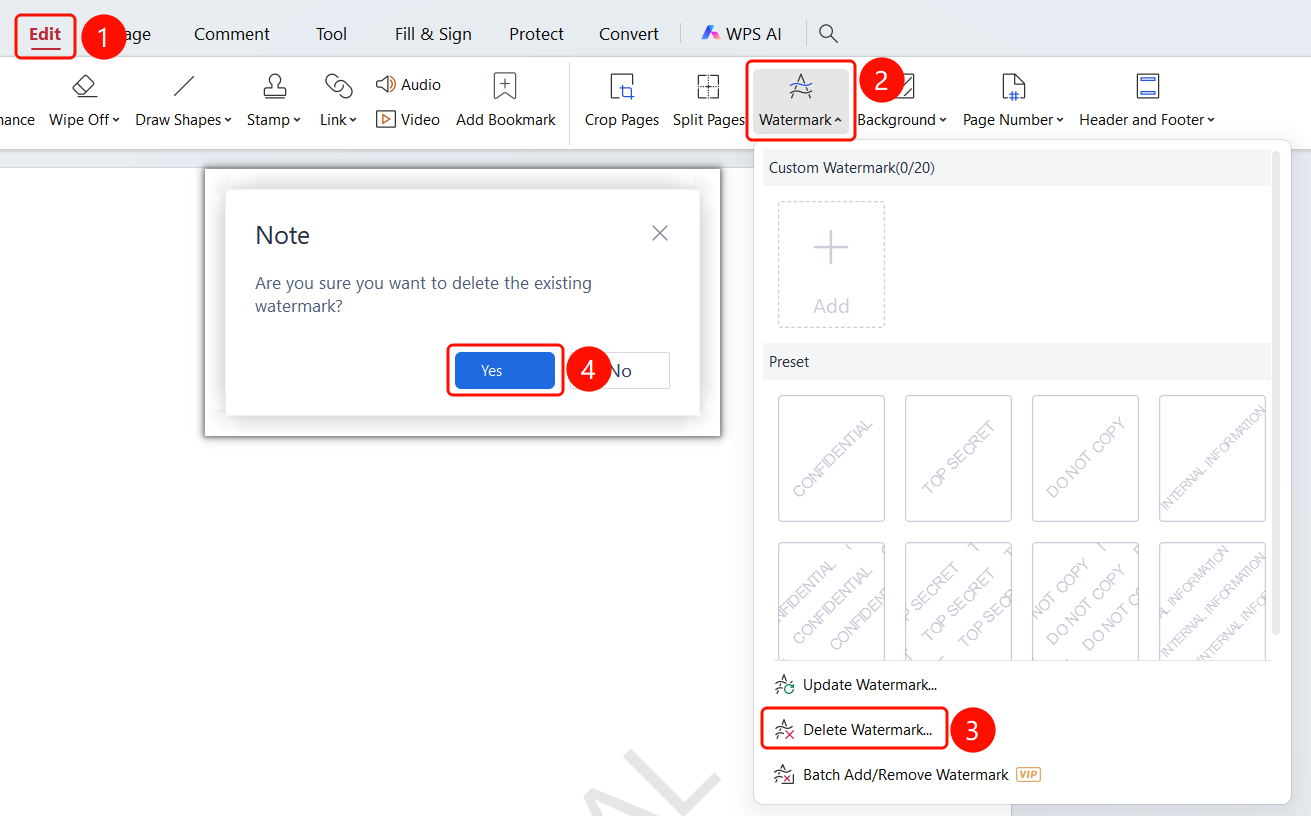
Edit tab → Watermark drop-down menu → Watermark drop-down menu → Delete Watermark option
- Open the PDF file where you want to delete the watermark.
- Click the Edit tab in the top ribbon.
- Click the Watermark drop-down button in the ribbon.
- Click Delete Watermark in the drop-down menu.
- Click OK to delete the watermark.
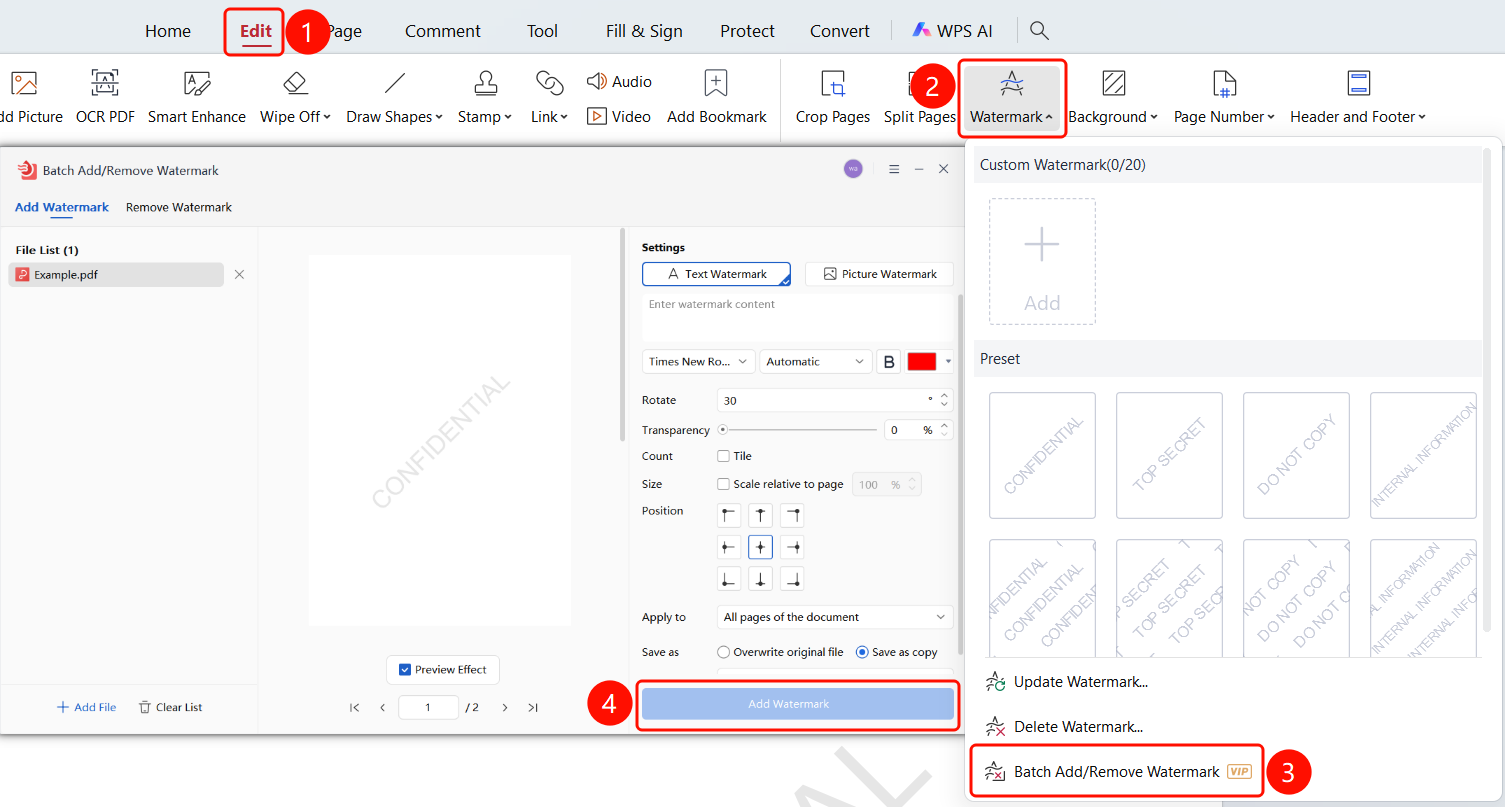
Batch Add/Delete Watermarks
Entry
Edit tab → Watermark drop-down menu → Watermark drop-down menu → Batch Add/Delete Watermarks option → Batch Add/Delete Watermarks dialog box
- Open the PDF file where you want to delete the watermark.
- Click the Edit tab in the top ribbon.
- Click the Watermark drop-down button in the ribbon.
- Click Batch Add/Delete Watermarks in the drop-down menu.
- The Batch Add/Delete Watermarks dialog box will open.
- Select whether to add or delete watermarks, then add PDF files to perform the action in bulk.
- Click OK to add or delete the watermarks.
FAQ
Q1: What types of watermarks are supported?
- Solution: Both text and image watermarks are supported.
Q2: How do I adjust the position and size of a watermark?
- Solution: In the Add Watermark dialog box, you can adjust the rotation, opacity, scale relative to page, and position.
Q3: How do I delete a watermark?
- Solution: Select Delete Watermark in the Watermark drop-down menu.