Feature Summary
Insert a table of contents page in a PDF document for easy navigation and reading.
Feature Description
| Feature Dimension | Description |
|---|---|
| Membership Restriction | Requires a subscribe to membership |
| Version Restriction | No version restriction |
Steps
Add Table of Contents
Feature Entry
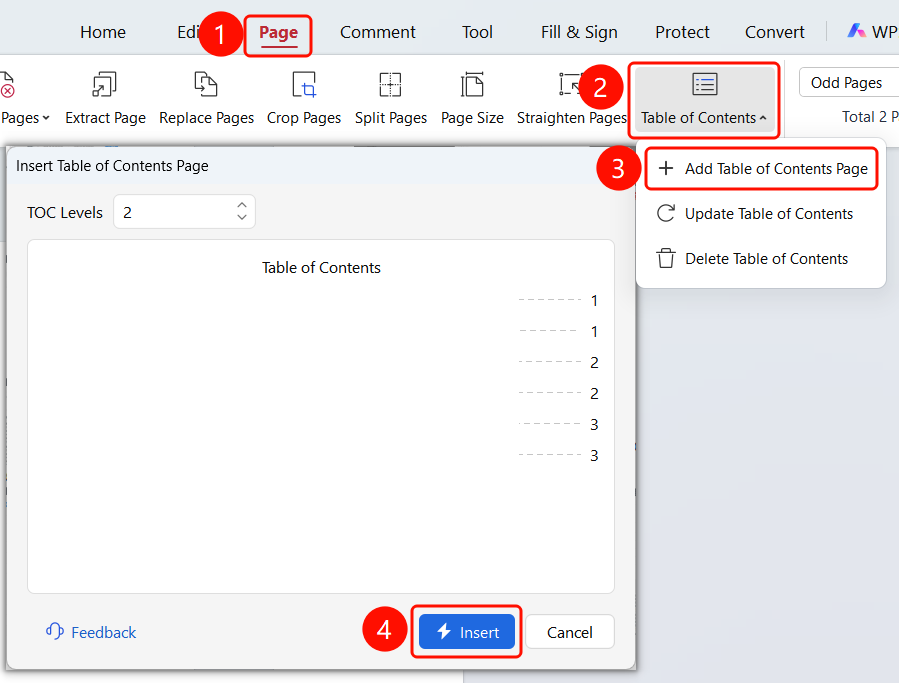
「Page」 tab → 「Table of Contents」 drop-down menu → 「Add Table of Contents Page」 button
- Open the PDF file where you want to insert a table of contents
- Click the 「Page」 tab in the top ribbon
- Click the 「Table of Contents」 drop-down button in the ribbon
- Click 「Add Table of Contents Page」 in the drop-down menu
- Click the 「Insert Now」 button to add a table of contents page at the beginning of the document
Update Table of Contents
Feature Entry
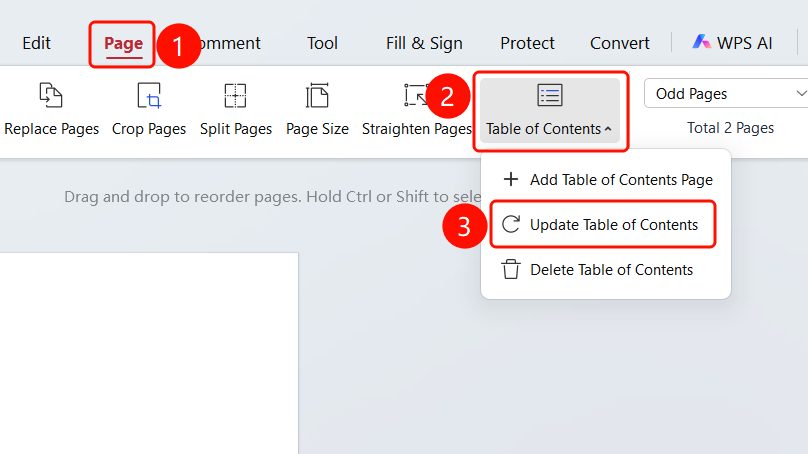
「Page」 tab → 「Table of Contents」 drop-down menu → 「Update Table of Contents」 button
- Open the PDF file where you want to insert a table of contents
- Click the 「Page」 tab in the top ribbon
- Click the 「Table of Contents」 drop-down button in the ribbon
- Click the 「Update Table of Contents」 button in the drop-down menu and wait for the table of contents to finish updating
Delete Table of Contents
Feature Entry
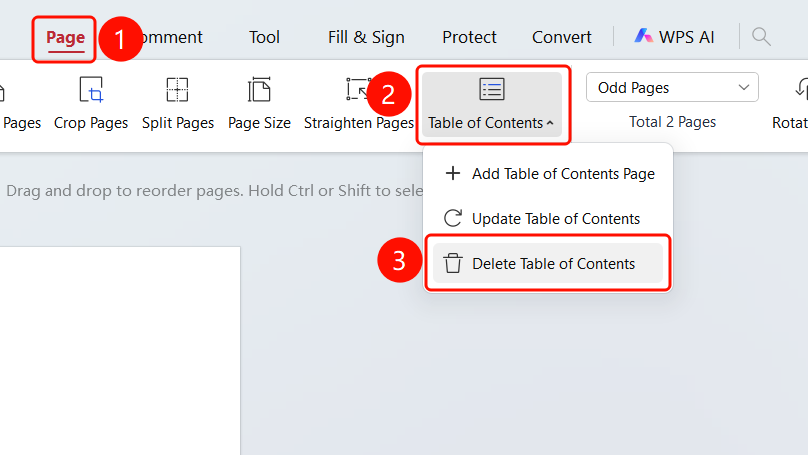
「Page」 tab → 「Table of Contents」 drop-down menu → 「Delete Table of Contents」 button
- Open the PDF file where you want to insert a table of contents
- Click the 「Page」 tab in the top ribbon
- Click the 「Table of Contents」 drop-down button in the ribbon
- Click the 「Delete Table of Contents」 button in the drop-down menu to delete the table of contents page
FAQ
Q1: Does the table of contents update automatically?
- Solution: You need to manually click the 「Update Table of Contents」 button to update the table of contents content.
Q2: Can the table of contents link to pages?
- Solution: Yes, table of contents entries can be clicked to jump to the corresponding page.