Feature Summary
Compress PDF document size for easy transfer and storage.
Feature Description
| Feature Dimension | Description |
|---|---|
| Subscription Limit | Subscription required |
| Version Limit | No version limit |
Steps
PDF File Compression
Feature Entry
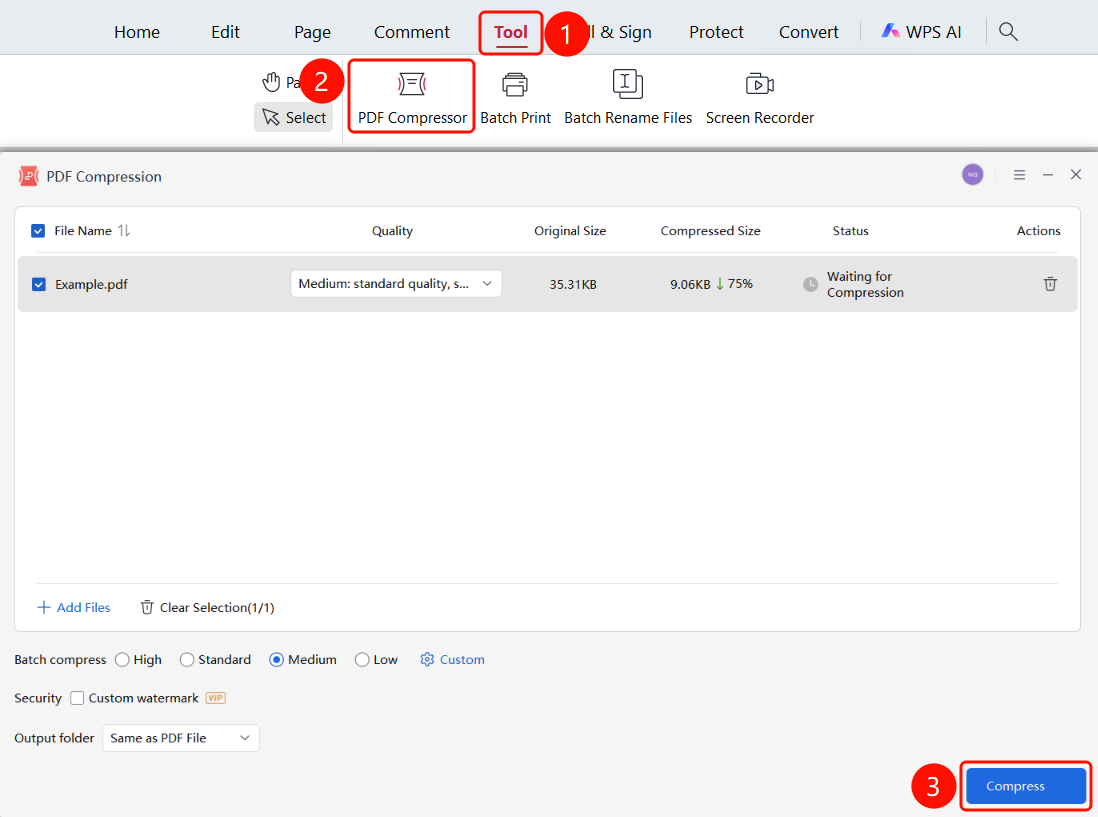
Tools tab > Compress button > PDF Compression window
- Open the PDF file you want to compress.
- Click the Tools tab in the top ribbon.
- Click the Compress button in the ribbon.
- The PDF Compression window will pop up.
- Adjust the compression effect and the output folder for the compressed PDF file in the window.
- Click the Start Compression button to start compressing.
FAQ
Question 1: Will compression affect document quality?
- Solution: Low compression has little impact on quality, while high compression may reduce image clarity.
Question 2: Where are the compressed files saved?
- Solution: A new file will be generated after compression. You can choose the save location in the Output Folder.
Question 3: How do I customize compression settings?
- Solution: Select Custom compression quality in the PDF Compression window and set the image resolution.