Feature Summary
Set the background color or background image of a PDF document.
Feature Description
| Feature Dimension | Description |
|---|---|
| Membership Restriction | Subscription required |
| Version Restriction | No version restrictions |
Steps
Add Background
Feature Entry
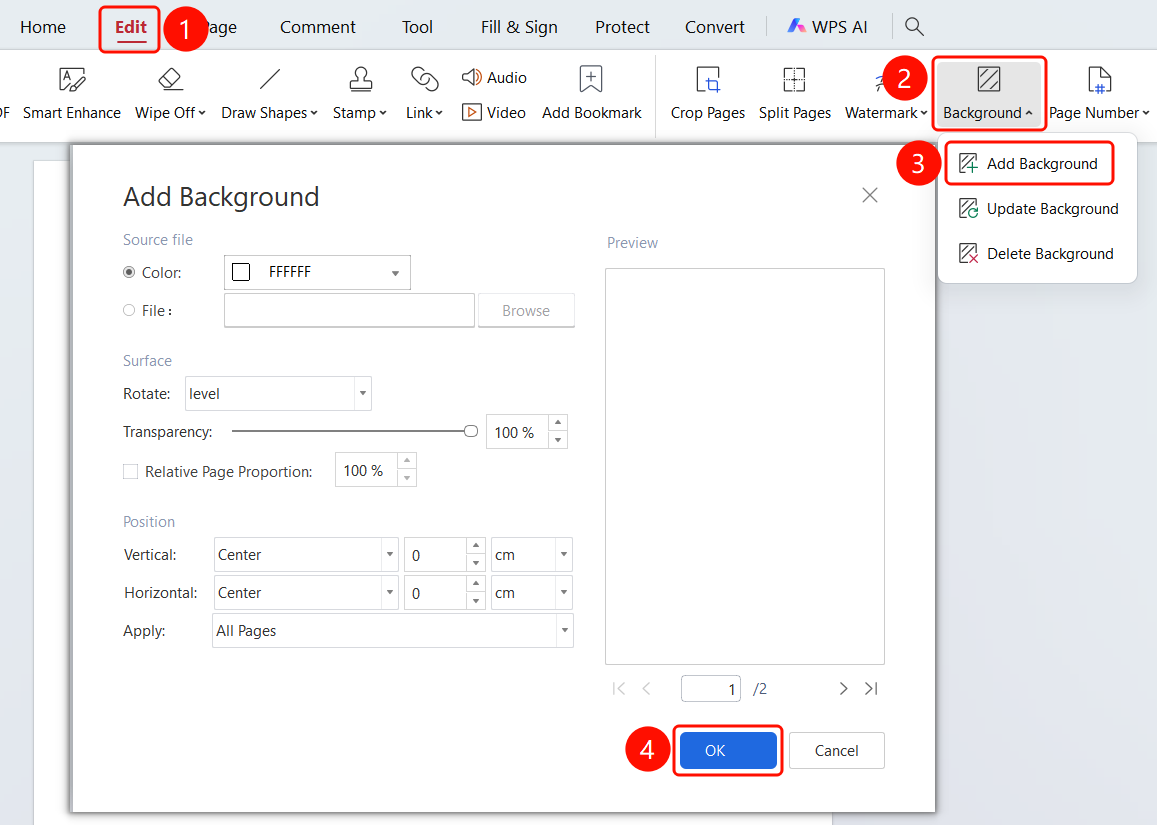
"Edit" tab -> "Document Background" dropdown menu -> "Add Background"
Click Add Background in the "Document Background" dropdown menu.
Open the "Add Background" dialog and set the background fill:
- Color (C): Choose a background color.
- Image (F): Click Browse (W) to choose a background image.
Set the appearance:
- Rotation: Set the background rotation angle.
- Opacity: Set the background opacity (such as 100%).
- Scale relative to target page (L): Set the background size ratio relative to the page (such as 100%).
Set the position:
- Vertical Alignment (T): Choose a vertical alignment method (Center).
- Horizontal Alignment (Z): Choose a horizontal alignment method (Center).
Set Apply to (A): Choose the application range (All Pages).
Click OK to complete adding the background.
Update Background
Feature Entry
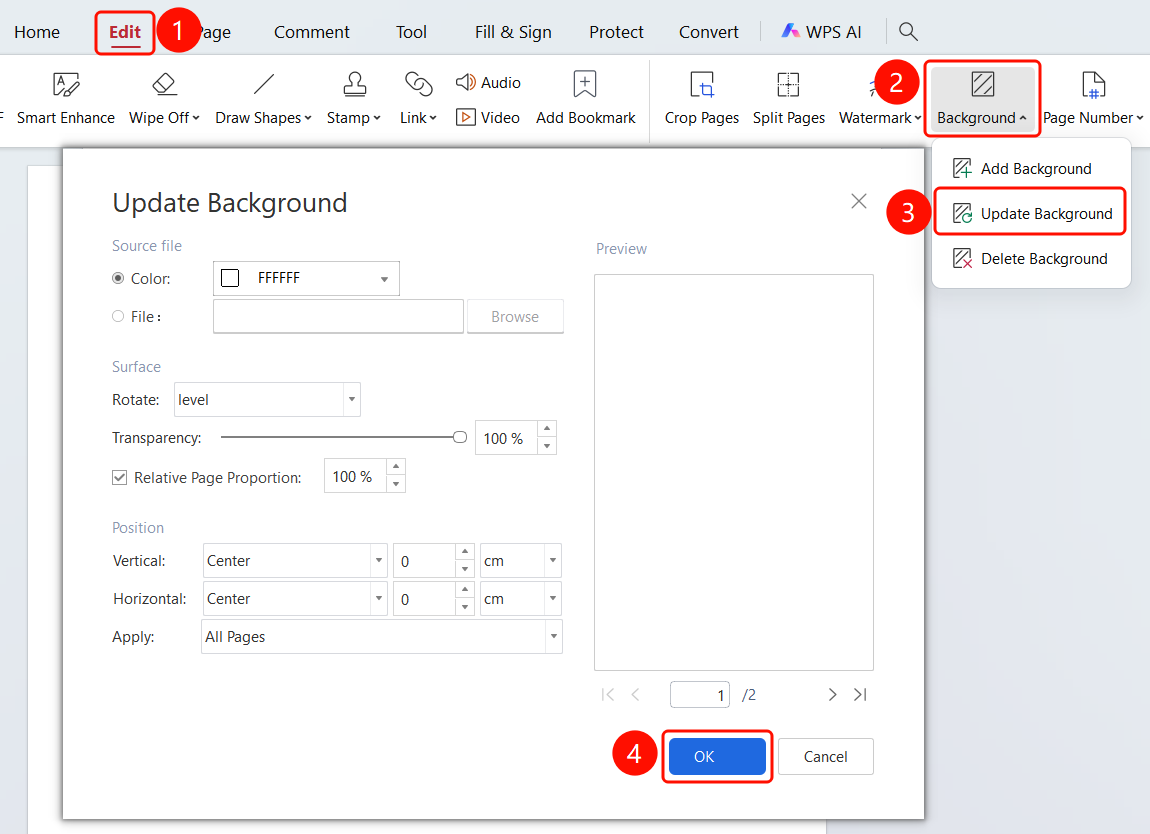
"Edit" tab -> "Document Background" dropdown menu -> "Update Background"
- Open the PDF file where you want to set the background.
- Click the Edit tab in the top ribbon.
- Click the Document Background dropdown button in the ribbon.
- Click Update Background.
- Open the "Update Background" dialog and reset the background fill, appearance, and position.
- Click OK to complete the update.
Delete Background
Feature Entry
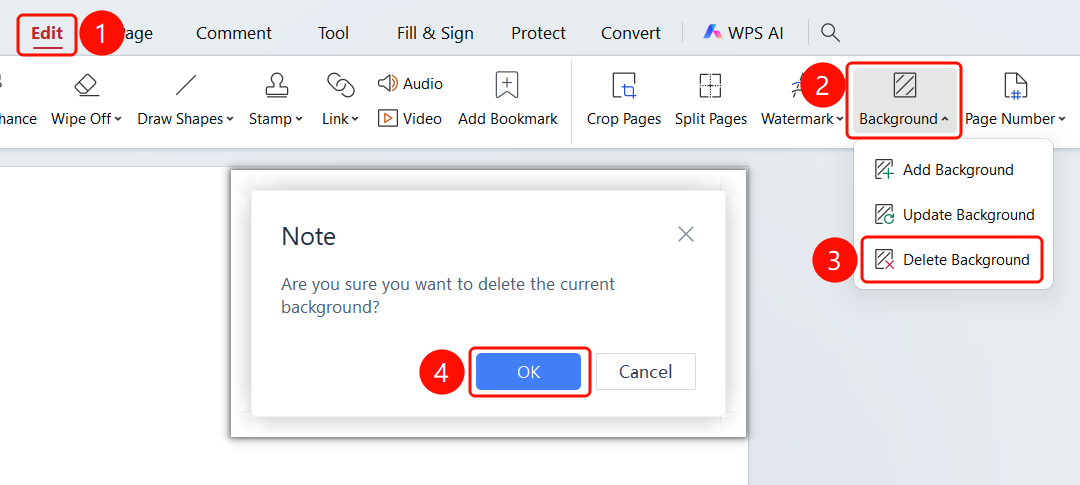
"Edit" tab -> "Document Background" dropdown menu -> "Delete Background"
- Open the PDF file where you want to set the background.
- Click the Edit tab in the top ribbon.
- Click the Document Background dropdown button in the ribbon.
- Click Delete Background.
- Click OK to delete the background.
FAQ
Question 1: What types of backgrounds are supported?
- Solution: Solid color backgrounds and image backgrounds are supported.
Question 2: How do I adjust the background opacity?
- Solution: Adjust the Opacity of the background in the "Add Background" or "Update Background" dialog.