Feature Summary
Replace pages in the current document with pages from another PDF.
Feature Details
| Feature Dimension | Description |
|---|---|
| Subscription Limit | Subscription required |
| Version Limit | No version limit |
Steps
Accessing the Replace Pages Feature
Feature Entry
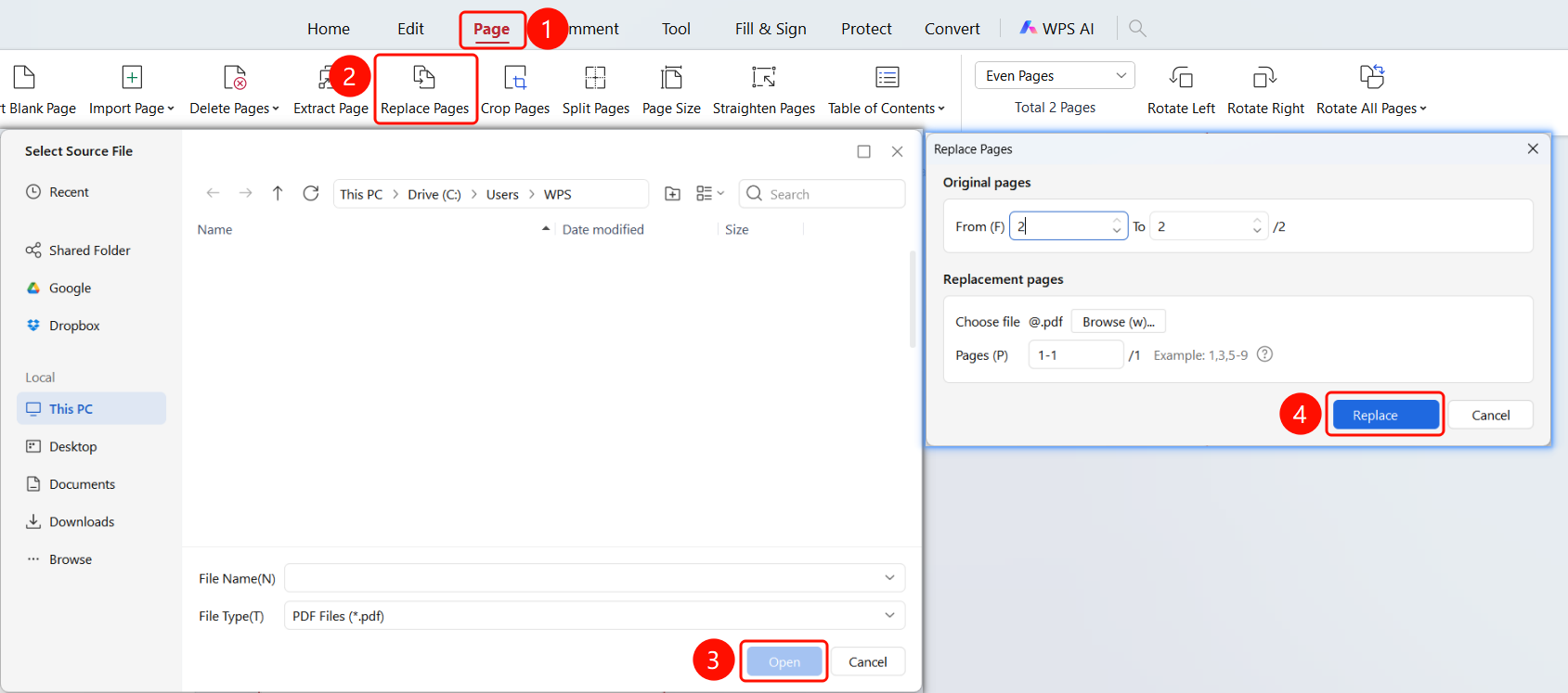
Page tab → Replace Pages button → Select Source File dialog box → Replace Pages dialog box → Confirm Replacement button
Open the PDF file where you want to replace pages.
Click the Page tab in the top ribbon.
Click the Replace Pages button in the ribbon.
The Select Source File dialog box opens.
Choose the source file location:
- Cloud: Shared Folder, Google, Dropbox
- Local: This PC, Desktop, Documents, Downloads, Browse
Click the Open button to select the source file.
The Replace Pages dialog box opens. Set the page range to be replaced.
Click the Confirm Replacement button to complete the replacement.
FAQ
Question 1: How do I select the pages to replace?
- Solution: In the Replace Pages dialog box, set the original page range and the replacement page range.