Feature Summary
Add headers and footers to PDF documents, with support for custom content and styles.
Feature Description
| Feature Dimension | Description |
|---|---|
| Subscription Limit | Subscription required |
| Version Limit | No version limit |
Operating Steps
Add Headers & Footers
Feature Entry
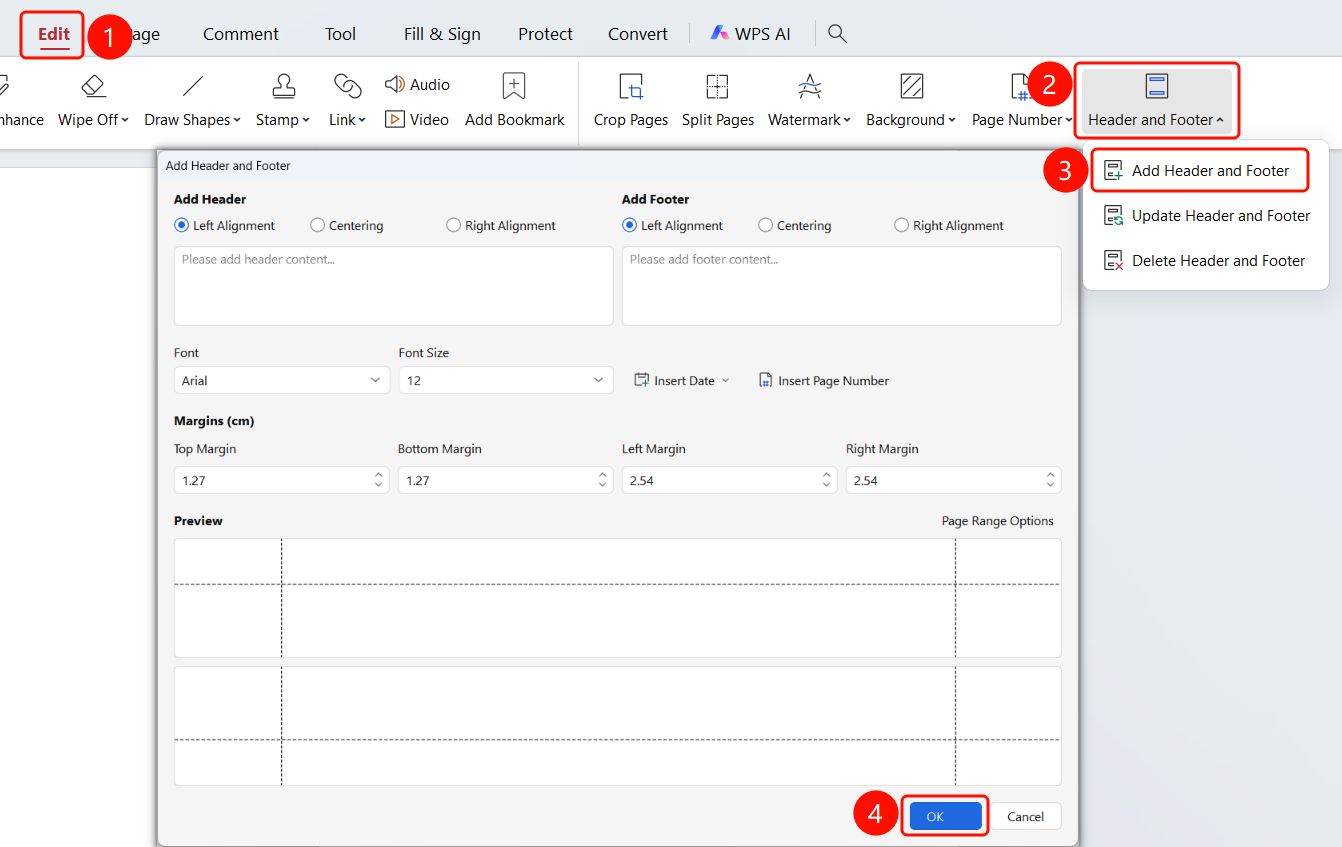
"Edit" tab → "Header & Footer" drop-down menu → "Add Header & Footer"
Open the PDF file where you want to add headers and footers.
Click the Edit tab in the top ribbon.
Click the Header & Footer drop-down button in the ribbon.
Click Add Header & Footer.
In the "Add Header & Footer" dialog, you can configure the following settings:
- Add Header
- Add Footer
- Font
- Font Size
- Insert Date
- Insert Page Number
- Margins
- Page Range Options
Click the Apply button to complete the process.
Update Headers & Footers
Feature Entry
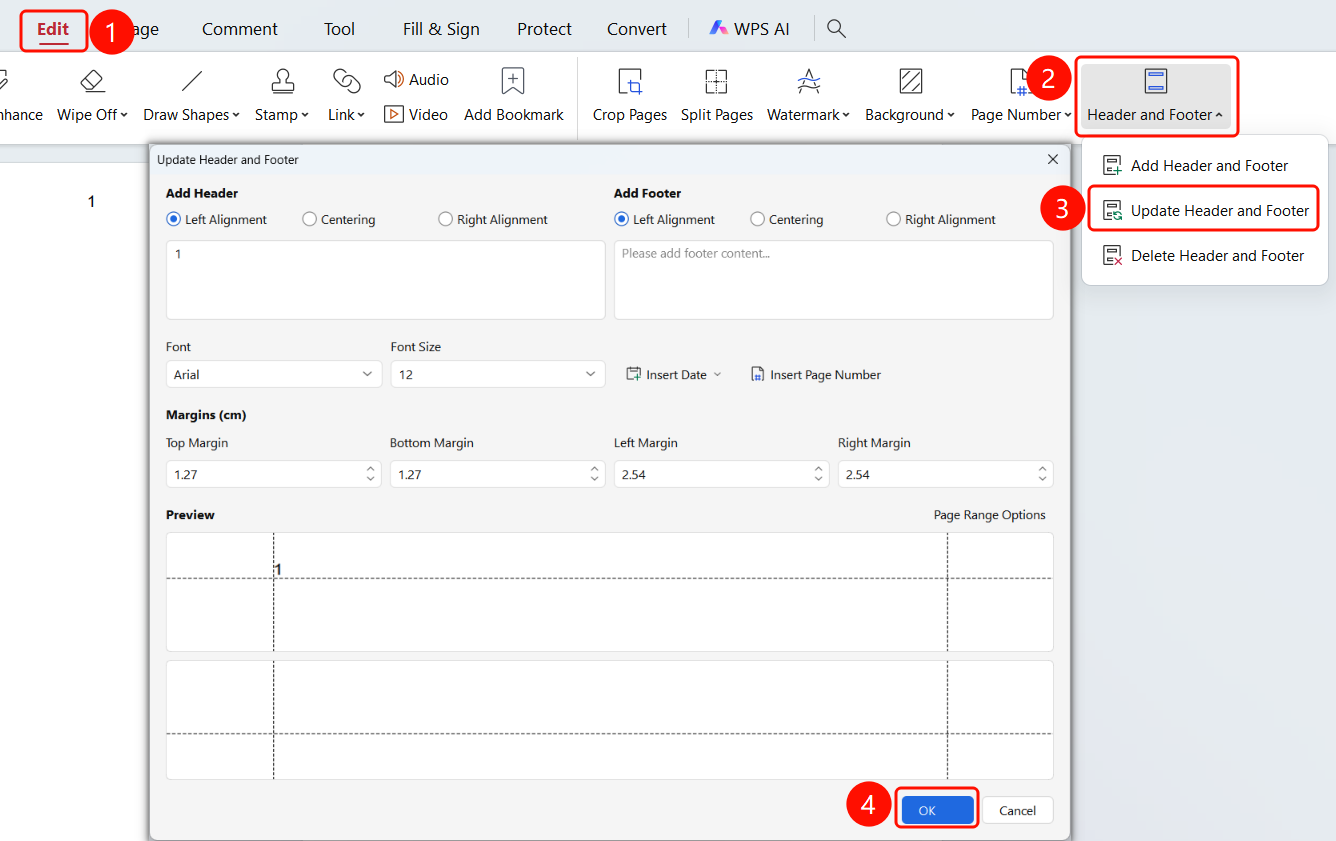
"Edit" tab → "Header & Footer" drop-down menu → "Update Header & Footer"
- Open the PDF file where you want to add headers and footers.
- Click the Edit tab in the top ribbon.
- Click the Header & Footer drop-down button in the ribbon.
- Click Update Header & Footer.
- In the "Update Header & Footer" dialog, reconfigure the header and footer content, font, font size, insert date/page number, margins, and page range options.
- Click the Apply button to complete the update.
Delete Headers & Footers
Feature Entry
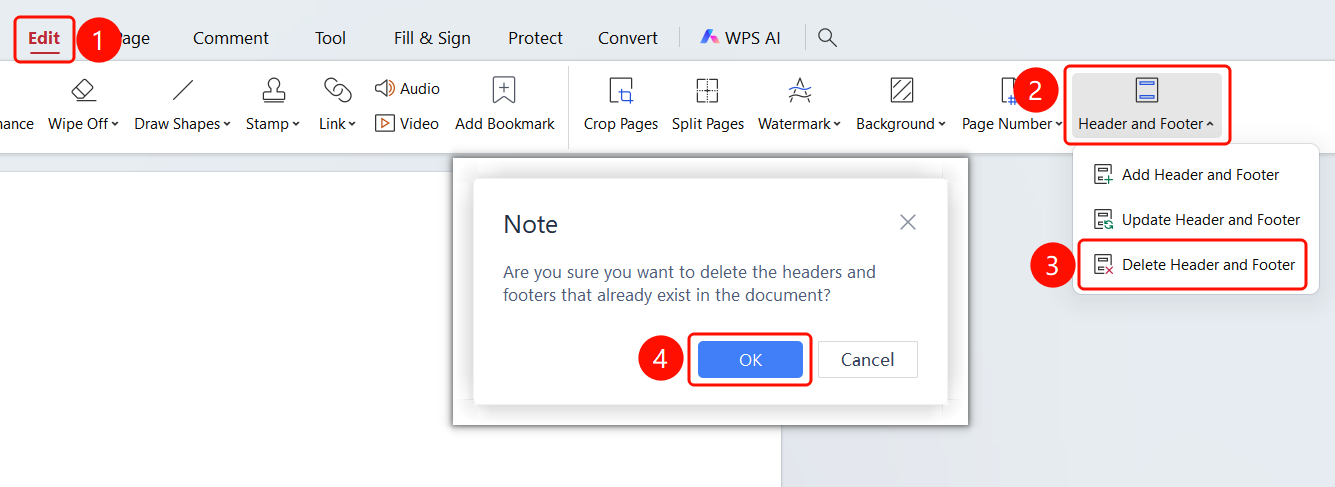
"Edit" tab → "Header & Footer" drop-down menu → "Delete Header & Footer"
- Open the PDF file where you want to add headers and footers.
- Click the Edit tab in the top ribbon.
- Click the Header & Footer drop-down button in the ribbon.
- Click Delete Header & Footer.
- Click the Delete button to delete the headers and footers.
FAQ
Question 1: Do headers and footers affect printing?
- Solution: Headers and footers will be printed along with the document.