Feature Summary
Add page numbers to PDF documents, with support for various page number formats and positions.
Feature Description
| Feature Dimension | Description |
|---|---|
| Subscription Limit | Subscription required |
| Version Limit | No version limit |
Steps
Add Page Numbers
Feature Entry
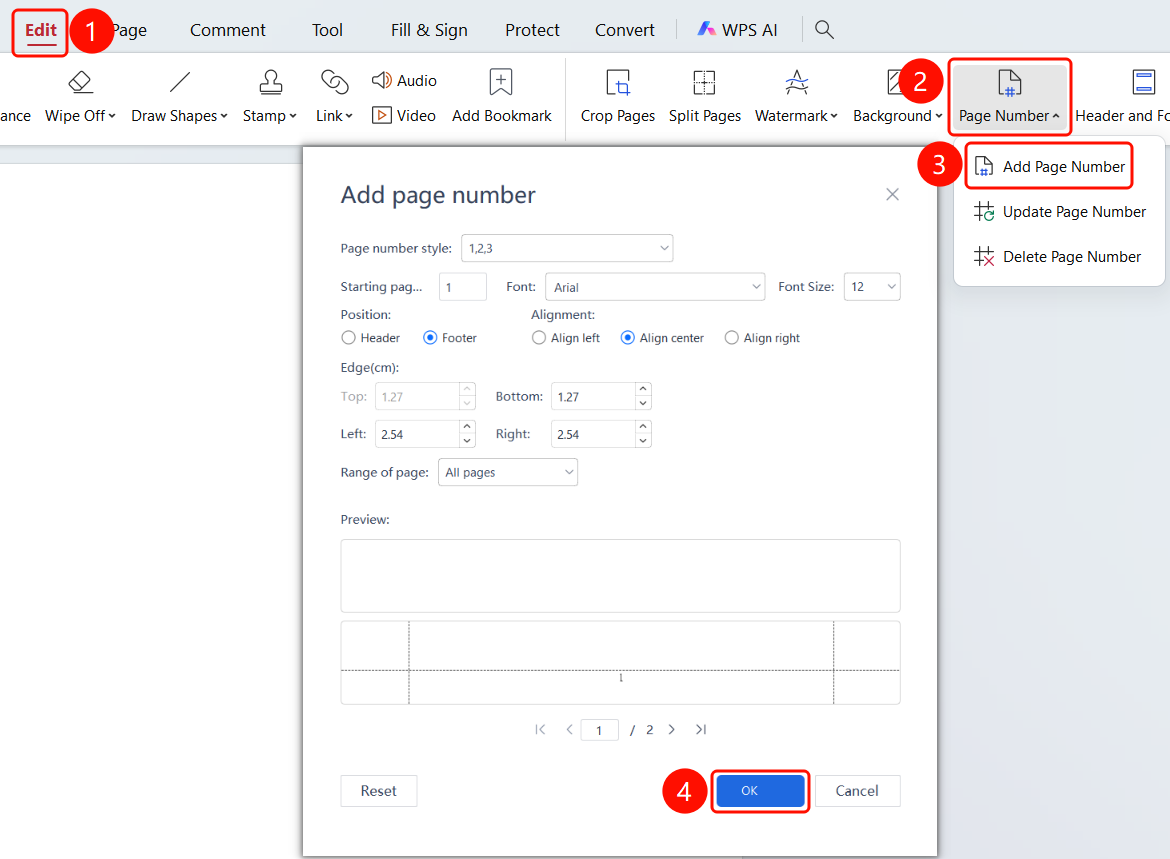
Edit tab > Page Number drop-down menu > Add Page Numbers
Open the PDF file to which you want to add page numbers.
Click the Edit tab in the top ribbon.
Click the Page Number drop-down button in the ribbon.
Click Add Page Numbers.
In the Add Page Numbers dialog, you can configure the following settings:
- Page Number Style (such as 1,2,3...)
- Font and Font Size
- Start Page Number: Enter the starting page number value.
- Page Number Position: Header or footer
- Alignment: Left, Center, or Right
- Margins: Top, bottom, left, and right margins (in centimeters)
- Apply to: Select the range of application (All Pages)
Click OK to complete adding page numbers.
Update Page Numbers
Feature Entry
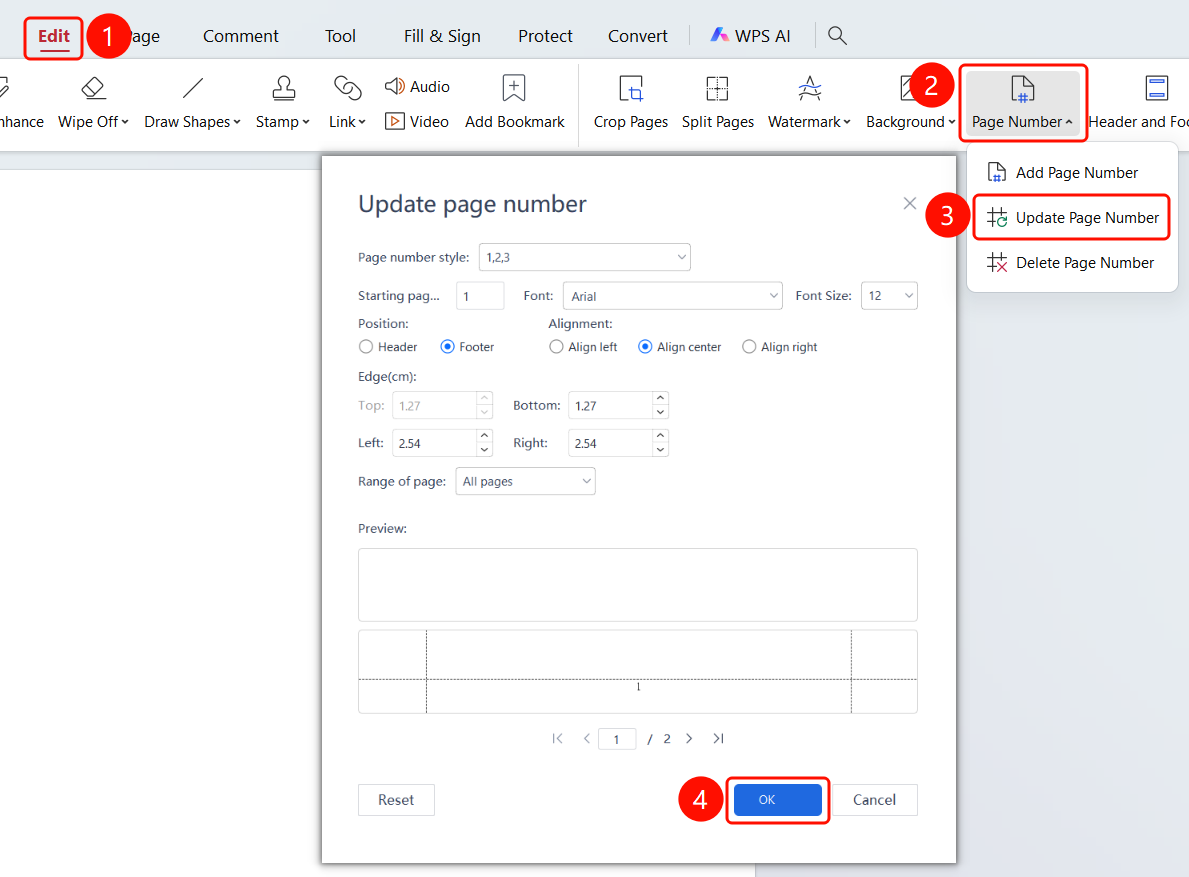
Edit tab > Page Number drop-down menu > Update Page Numbers
- Open the PDF file to which you want to add page numbers.
- Click the Edit tab in the top ribbon.
- Click the Page Number drop-down button in the ribbon.
- Click Update Page Numbers.
- In the Update Page Numbers dialog, reconfigure the page number style, font, font size, start page number, page number position, alignment, margins, and application range.
- Click OK to complete the update.
Delete Page Numbers
Feature Entry
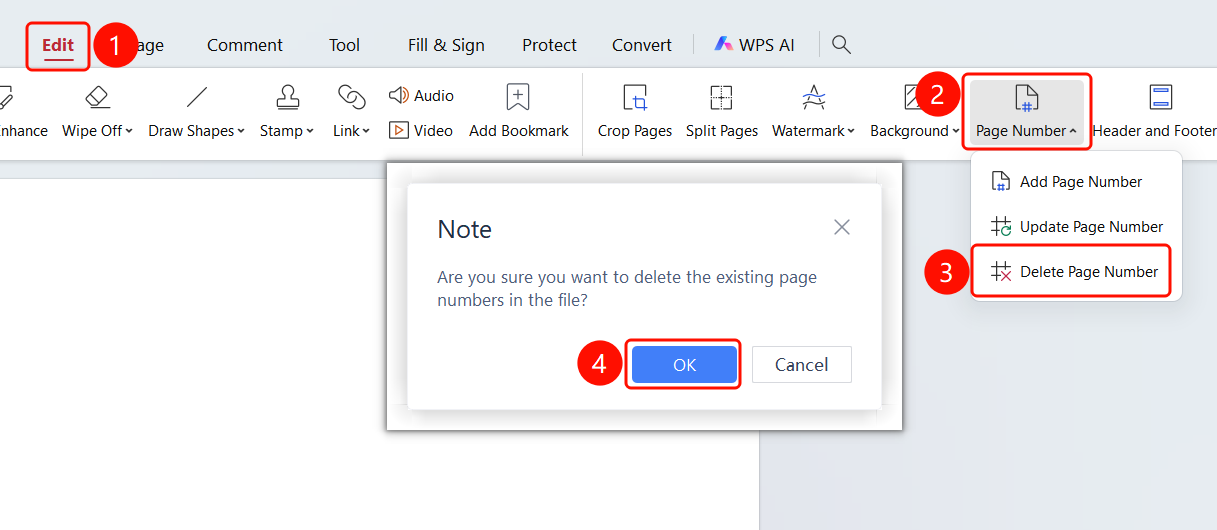
Edit tab > Page Number drop-down menu > Delete Page Numbers
- Open the PDF file to which you want to add page numbers.
- Click the Edit tab in the top ribbon.
- Click the Page Number drop-down button in the ribbon.
- Click Delete Page Numbers.
- A Note dialog appears, displaying "Are you sure you want to delete the existing page numbers?"
- Click OK (F) to delete the page numbers.
FAQ
Question 1: What formats are supported for page numbers?
- Solution: Various formats are supported, including digits and Roman numerals.
Question 2: How do I adjust the position of page numbers?
- Solution: Set the page number position (header/footer) and alignment in the Add Page Numbers or Update Page Numbers dialog.
Question 3: How do I set the starting page number?
- Solution: Set the starting page number value in the Add Page Numbers or Update Page Numbers dialog.