Feature Summary
Batch print multiple PDF documents. You can add multiple files and configure print settings.
Feature Details
| Dimension | Description |
|---|---|
| Subscription Limit | Subscription required |
| Version Limit | No version limit |
Steps
Access Batch Print from Ribbon
Entry
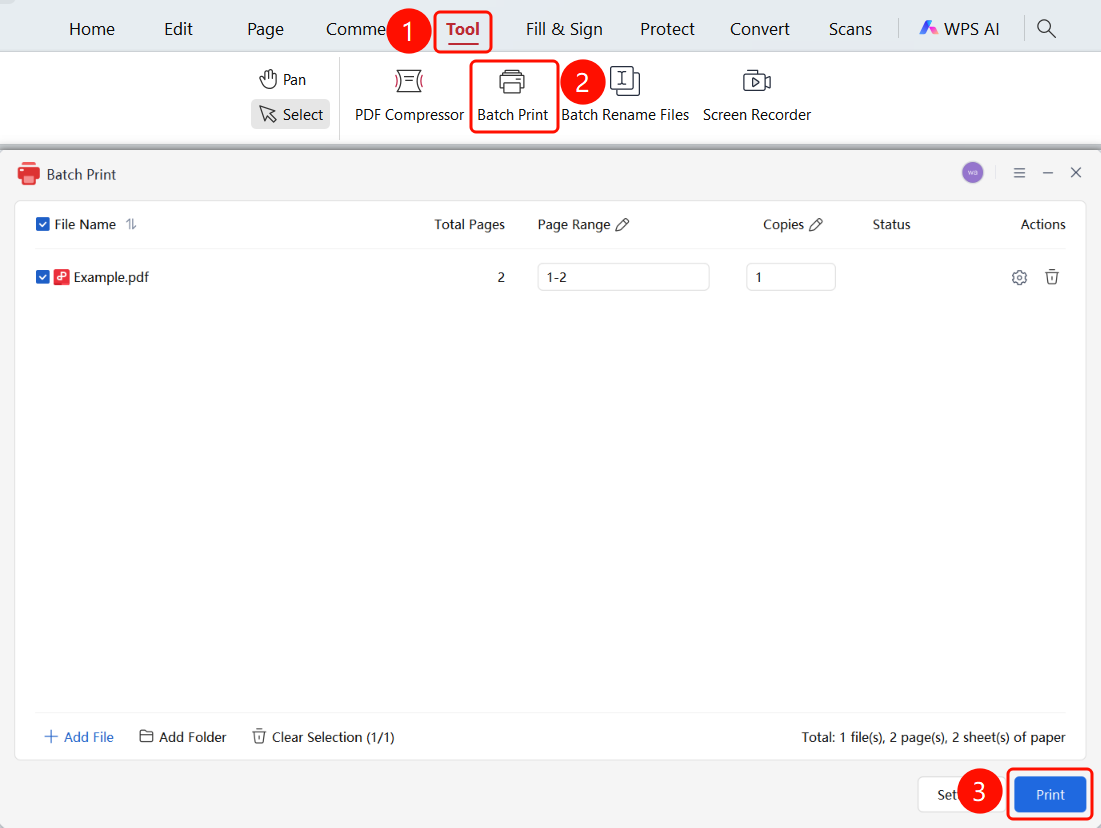
Tools tab > Batch Print button
- Open the PDF files you want to batch print.
- Click the Tools tab on the top ribbon.
- Click Batch Print in the ribbon.
- Click Print to start batch printing.
Access Batch Print from File Menu
Entry
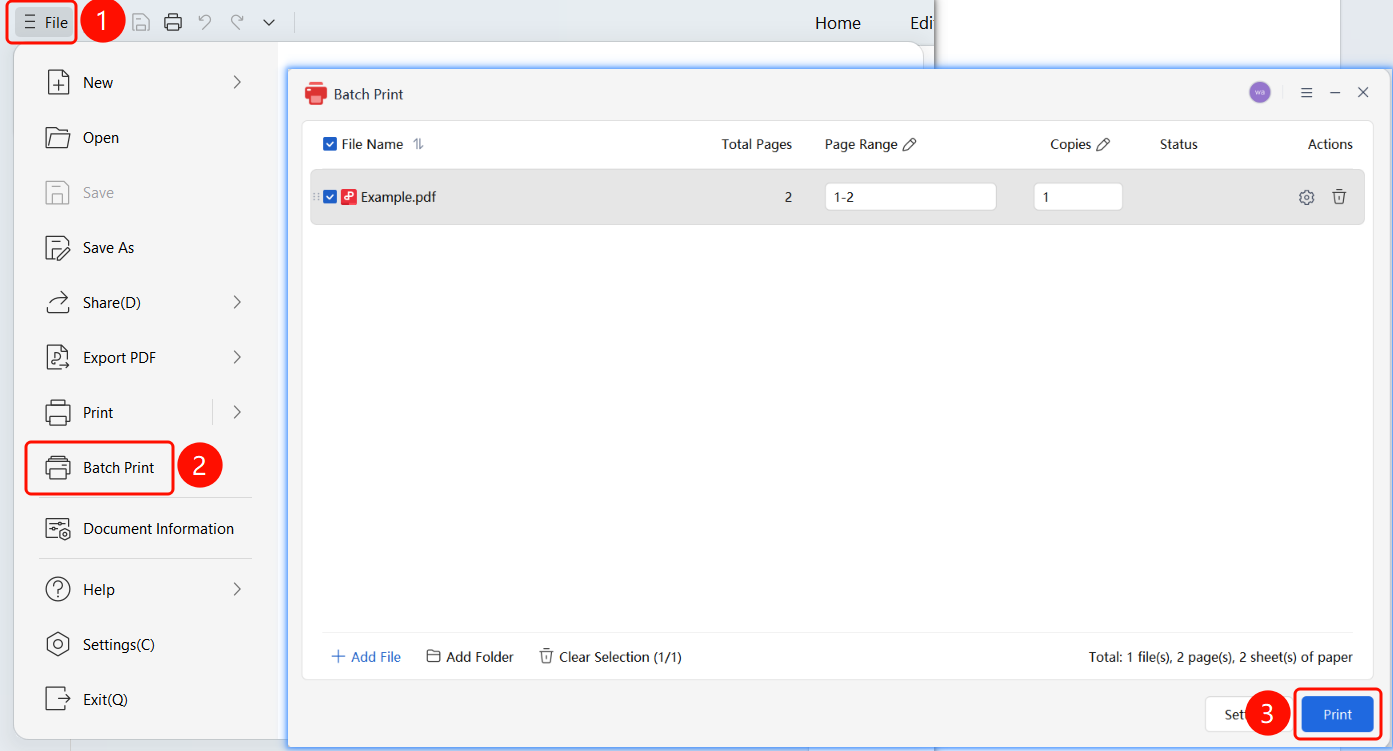
File menu > Batch Print option
- Click the File menu in the upper-left corner.
- Click Batch Print in the dropdown menu.
- Click Print to start batch printing.
Print Settings
Entry
Print Settings dialog box
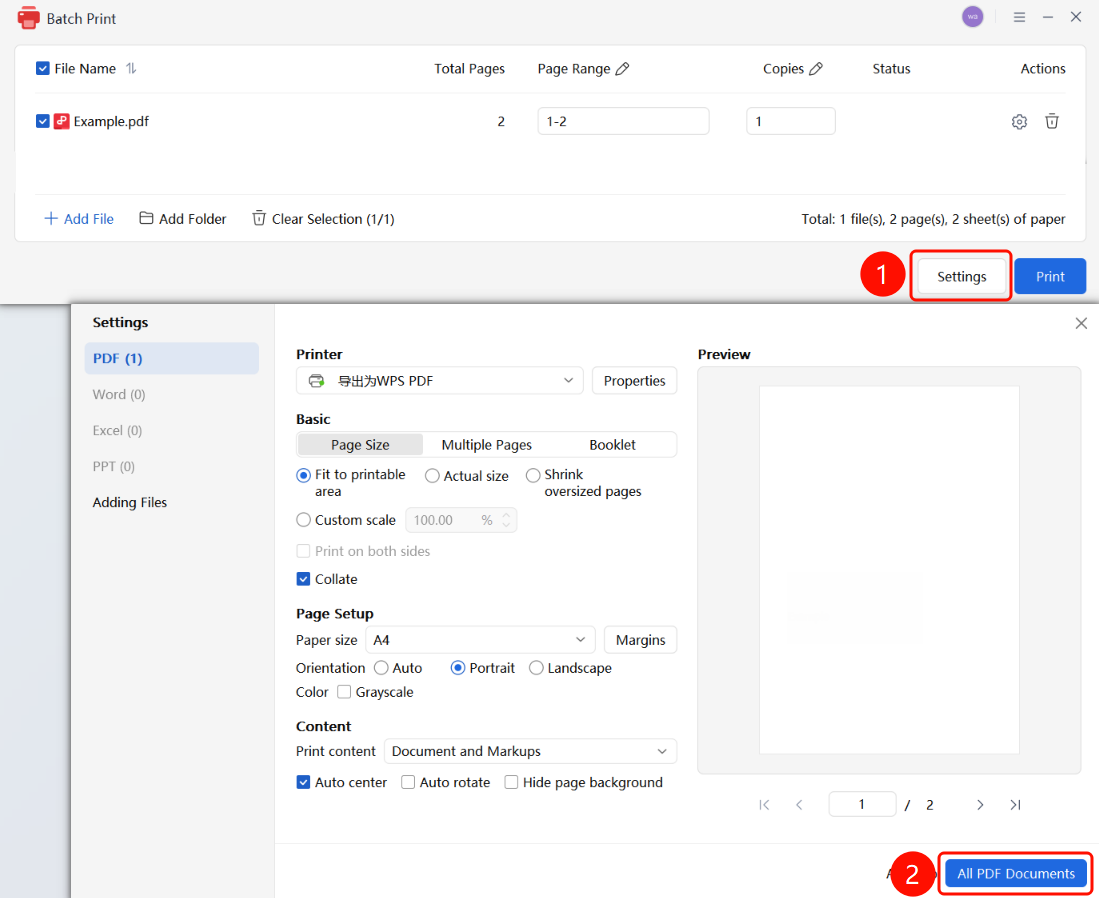
Click Batch Print Settings in the batch print window.
In the Print Settings dialog box, you can configure the following:
- Printer: Select a printer and configure its properties.
- Basic Settings: Page size, multiple pages per sheet, and booklet.
- Scale Options: Fit to printable area, actual size, shrink oversized pages, and custom scale.
- Print Method: Double-sided printing and collate.
- Page Settings: Paper size, margins, orientation, color, and grayscale printing.
- Content Settings: Print content (documents and markups), auto-center, auto-rotate, and hide page background.
Click Apply to All PDF Documents to save the settings.
FAQ
Q1: Does batch printing support multiple files?
- Solution: Yes. You can click + Add Files to add multiple PDF files for batch printing.
Q2: How do I set the print page range for each file?
- Solution: Enter the page range in the Print Page Range column of the file list, such as "1-5" or "1,3,5".