Feature Summary
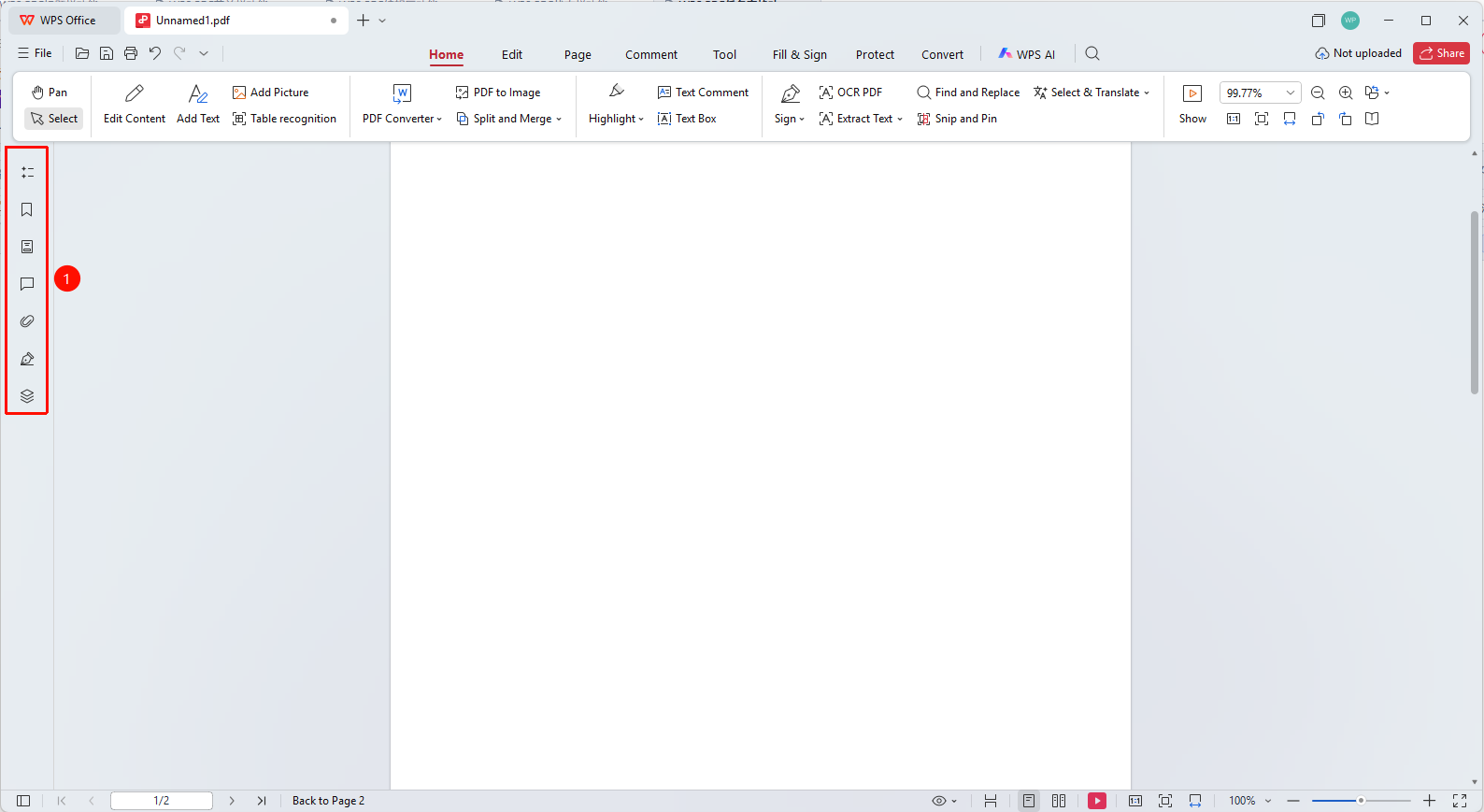
The task pane is located on the left side of the editing area, providing quick access to auxiliary features such as bookmarks, thumbnails, and attachments.
Feature Description
| Feature Dimension | Description |
|---|---|
| Membership Restriction | Need to subscribe to membership to edit PDF files |
| Version Restriction | No version restriction |
Operation Steps
Understanding the Task Pane
Feature Entry
The task pane area on the left side of the interface
- The task pane is located on the left side of the editing area and is a collapsible sidebar
- The top displays the name of the currently active feature (e.g., 「Bookmarks」 )
- Contains the feature's content display area and operation 「Buttons」
- Click the 「×」 「Button」 at the top to close the task pane
Switching Task Pane Features
Feature Entry
The icon buttons on the left side of the task pane
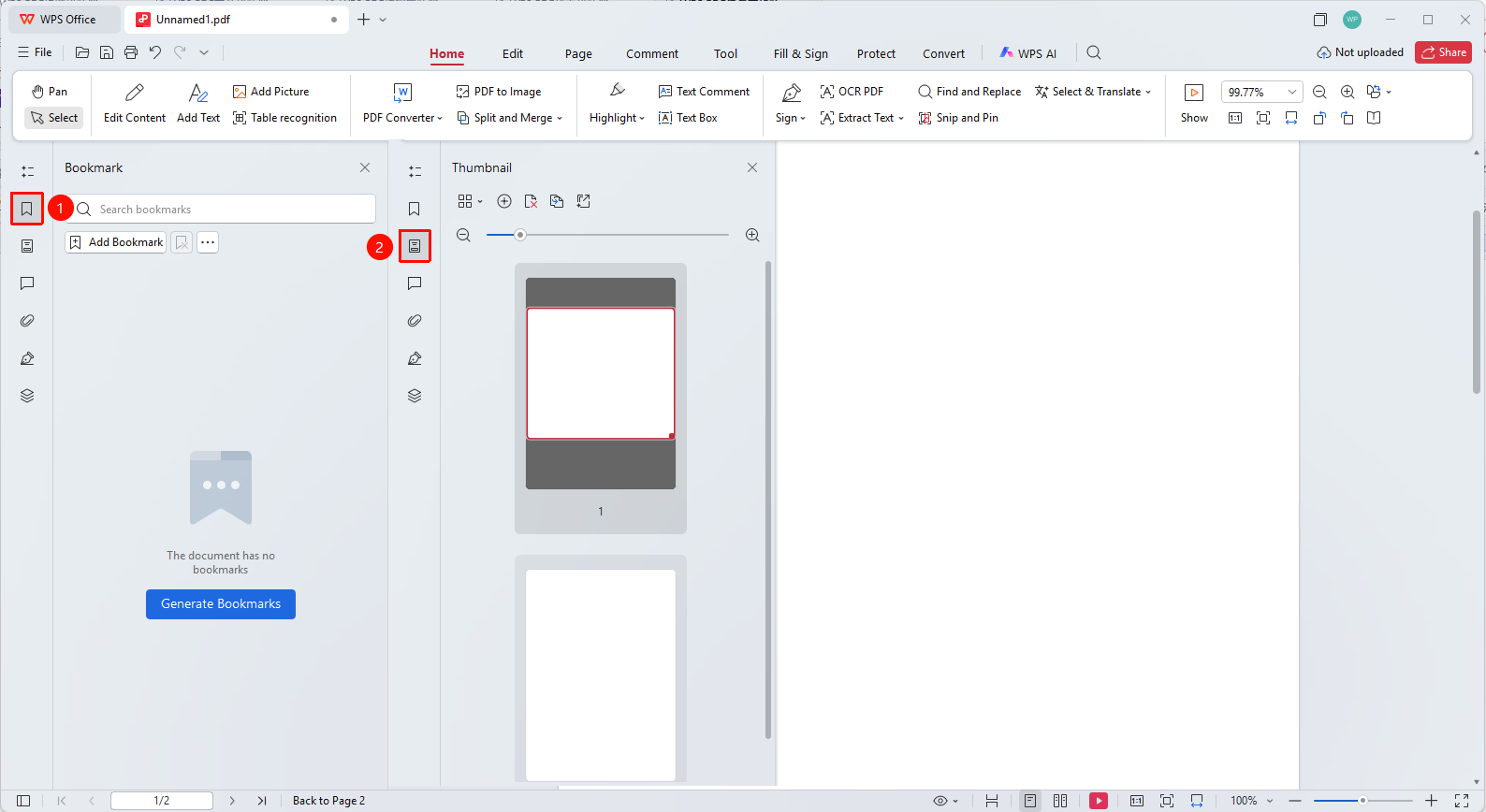
- Click the icons on the left side of the task pane to switch between different features
- 「Bookmarks」 feature: Manage document bookmarks, supporting adding, deleting, and generating bookmarks
- 「Thumbnails」 feature: Display thumbnail previews of all pages
- 「Attachments」 feature: Manage attachment files embedded in the document
- 「Comments」 feature: View and manage all annotations in the document
Using the Bookmarks Feature
Feature Entry
The 「Bookmarks」 feature in the task pane
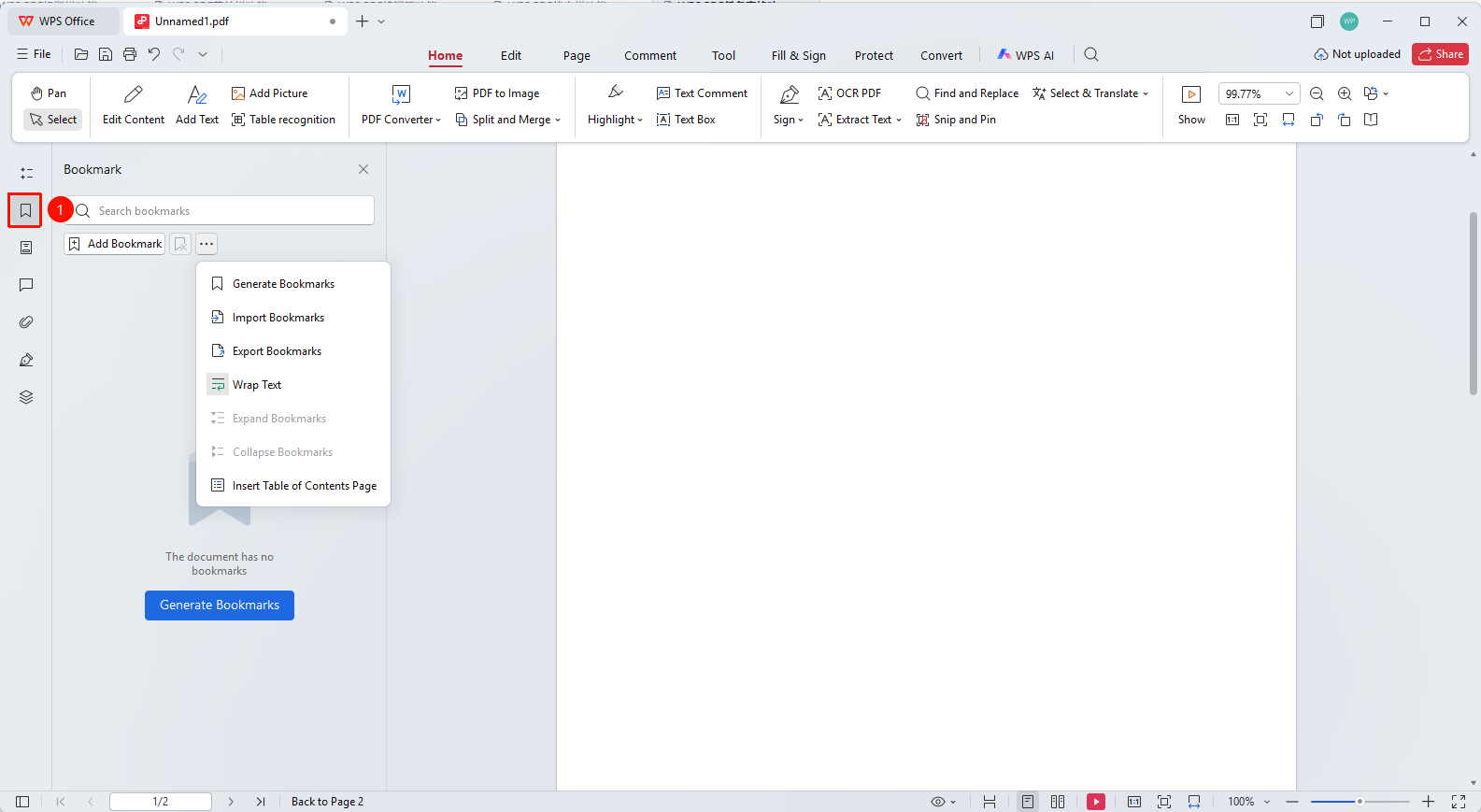
- Click the 「Bookmarks」 icon to switch to the bookmarks feature
- Use the search box to quickly find bookmarks
- Click the 「Add Bookmark」 button to add a bookmark for the current page
- Click the 「Generate Bookmarks」 button to automatically identify headings and generate bookmarks
- Click an existing bookmark to quickly jump to the corresponding page
FAQ
Q1: What should I do if the task pane cannot be displayed?
Please check if you are in Read Mode. The task pane may be hidden in Read Mode. Switch to Edit Mode to display it.
Q2: How to quickly open the task pane?
You can use the shortcut key F4 to quickly show or hide the task pane.
Q3: What is the use of the bookmarks feature?
Bookmarks can help you quickly navigate to specific sections of the document, similar to a table of contents feature, suitable for long document navigation.
Notes
- The width of the task pane can be adjusted by dragging its edge
- Closing the task pane provides a larger editing area
- Different feature tabs provide different auxiliary functions