=
Guide to Using Save and Save As Feature in WPS PDF
Feature Summary
The Save feature is used to save changes to the current document to the original file, while the Save As feature can save the document as a new file or in a different format.
Feature Description
| Feature Dimension | Description |
|---|---|
| Membership Restriction | A membership is required to subscribe to editing PDF files |
| Version Restriction | No version restriction |
Steps
Save Document
Feature Entry
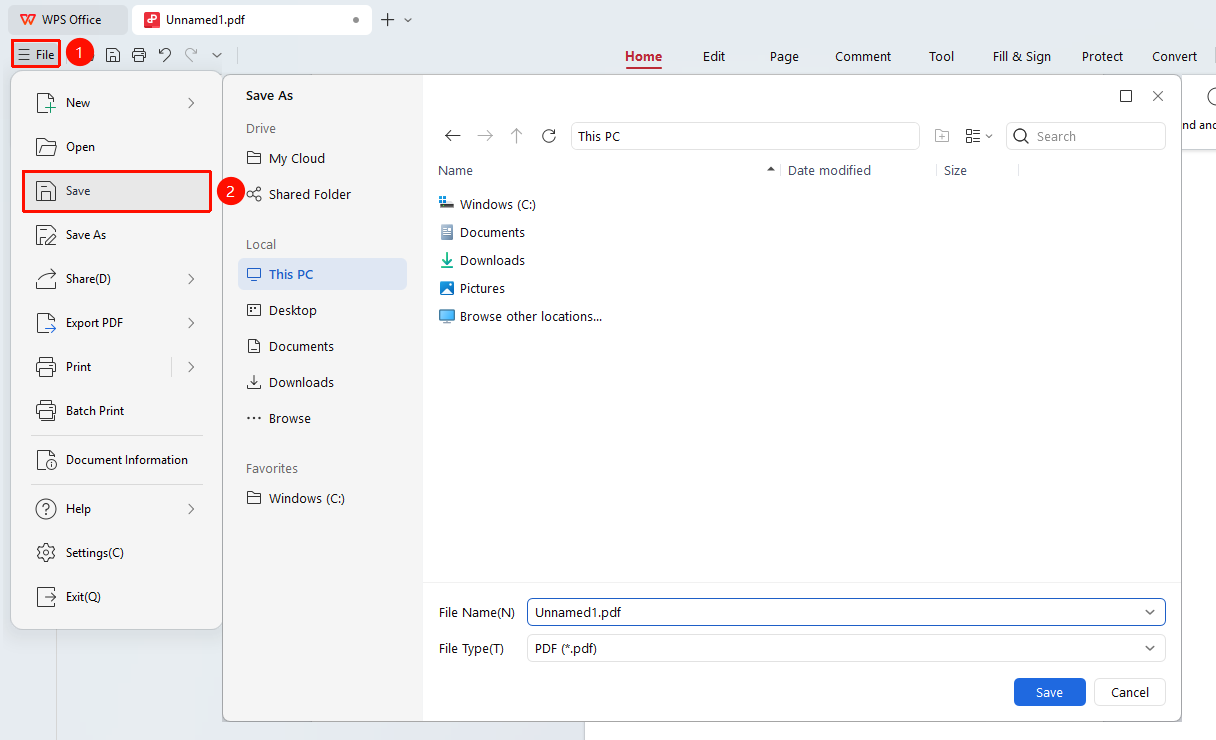
"File" menu → "Save" option
- Click the "File" menu and select the "Save" option
- Or use the shortcut Ctrl+S to save quickly
- When saving for the first time, the "Save As" dialog box will pop up, allowing you to choose the save location and file name
- Subsequent saves will directly overwrite the original file without popping up the dialog box
Save as New File
Feature Entry
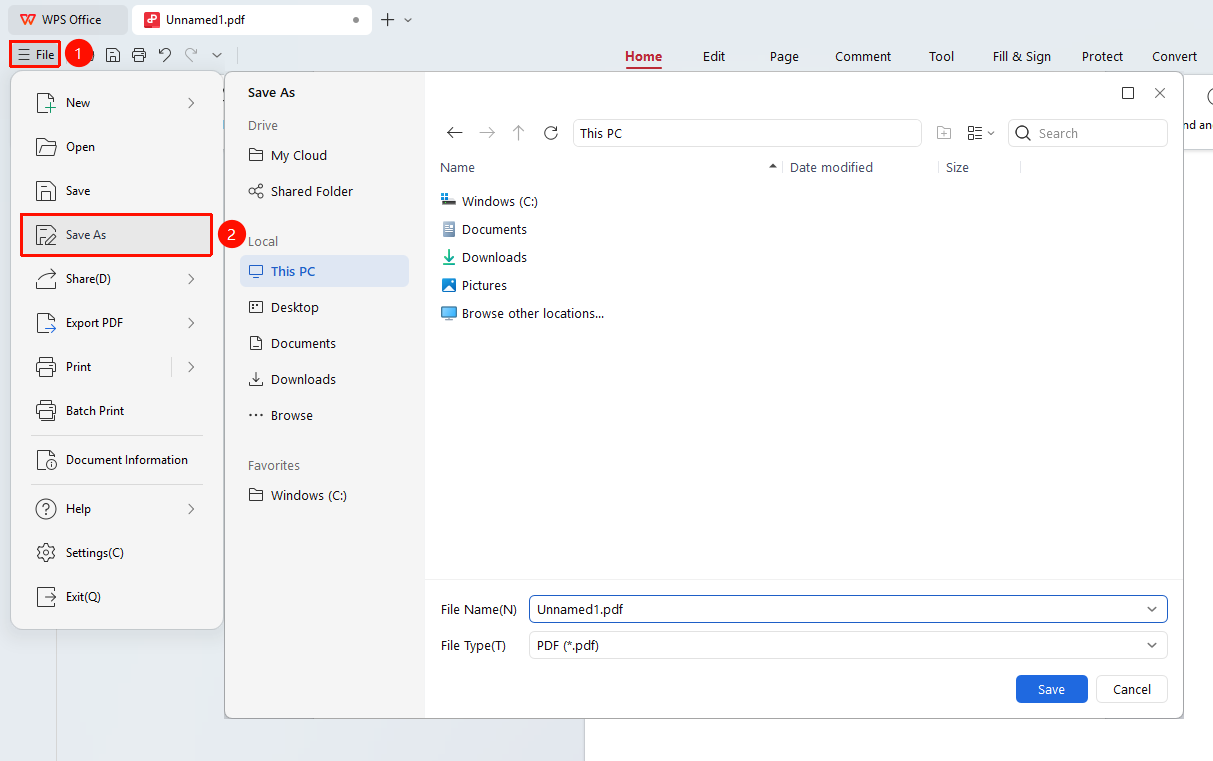
"File" menu → "Save As" option
- Click the "File" menu and select the "Save As" option
- Choose the save location in the pop-up dialog box
- Enter a new file name
- Select the save format (PDF, image, etc.)
- Click the "Save" button to complete the Save As operation
FAQ
Question 1: What should I do if it says "File is in use" when saving?
Please check if any other program is currently opening the file, close the other program, and try again.
Question 2: How do I save a PDF as an image format?
Use the "Save As" feature and select PNG or JPG format in the format selection.
Question 3: Where is the saved file?
It is saved in the "Documents" folder by default. You can view and modify the save path in the "Save As" dialog box.
Notes
- It is recommended to save documents regularly to prevent data loss
- "Save As" creates a new file, leaving the original file unchanged
- Saving in other formats may result in the loss of some features or formatting