Feature Summary
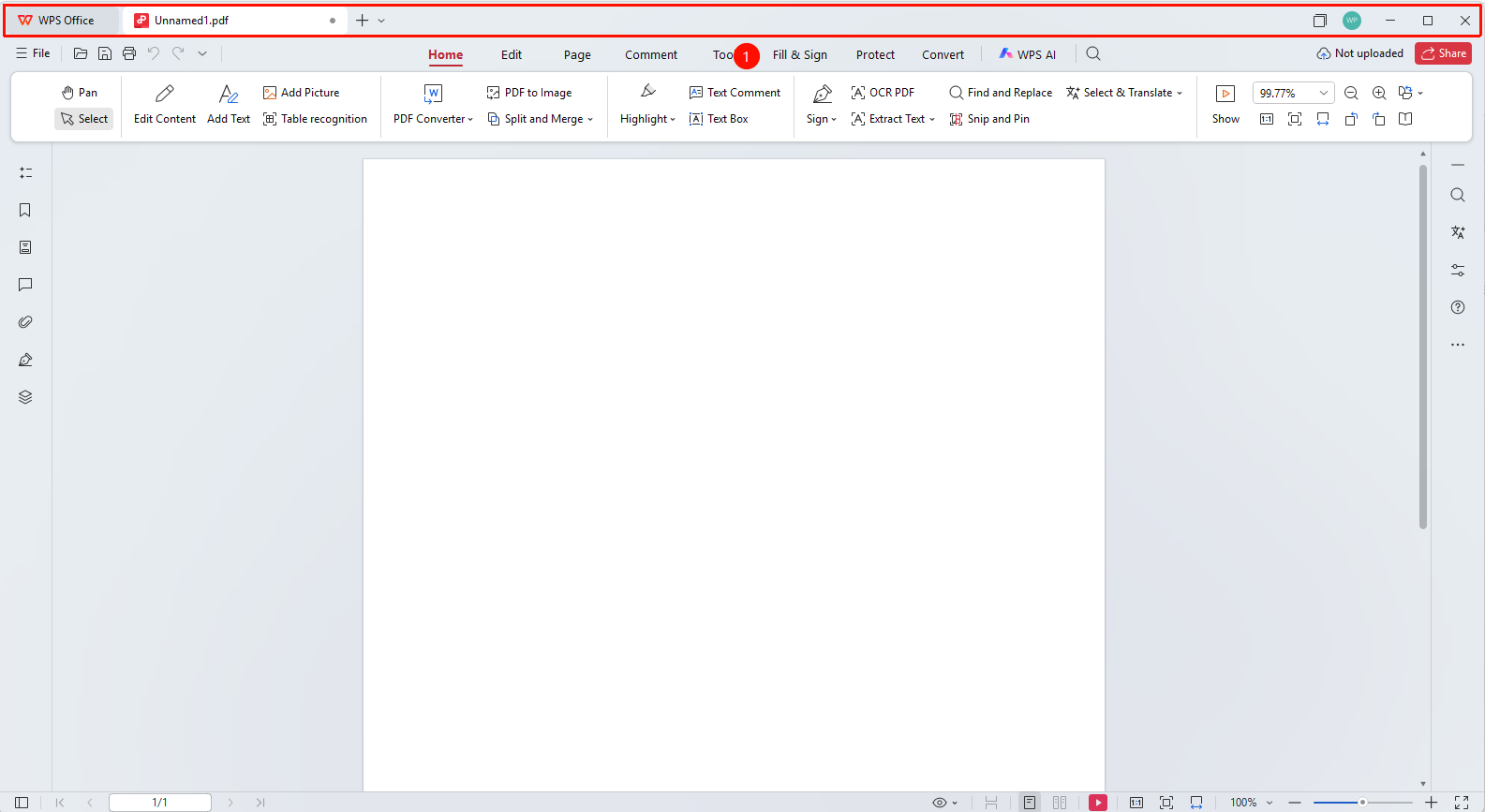
The title bar is located at the top of the WPS PDF window, displaying the name of the currently open document and window control buttons.
Feature Description
| Feature Dimension | Description |
|---|---|
| Membership Restriction | A membership is required to subscribe to the PDF editing feature |
| Version Restriction | No version restriction |
Steps
Understanding the Title Bar
Feature Entry
The topmost area of the window
- The title bar is located at the very top of the WPS PDF window
- The WPS Office icon and the current document name (e.g., 「Untitled 1.pdf」 ) are displayed on the left
- Document tabs are displayed in the middle, supporting multiple documents open simultaneously
- Window control 「buttons」 are displayed on the right: Minimize, Maximize/Restore, Close
Switching Document Tabs
Feature Entry
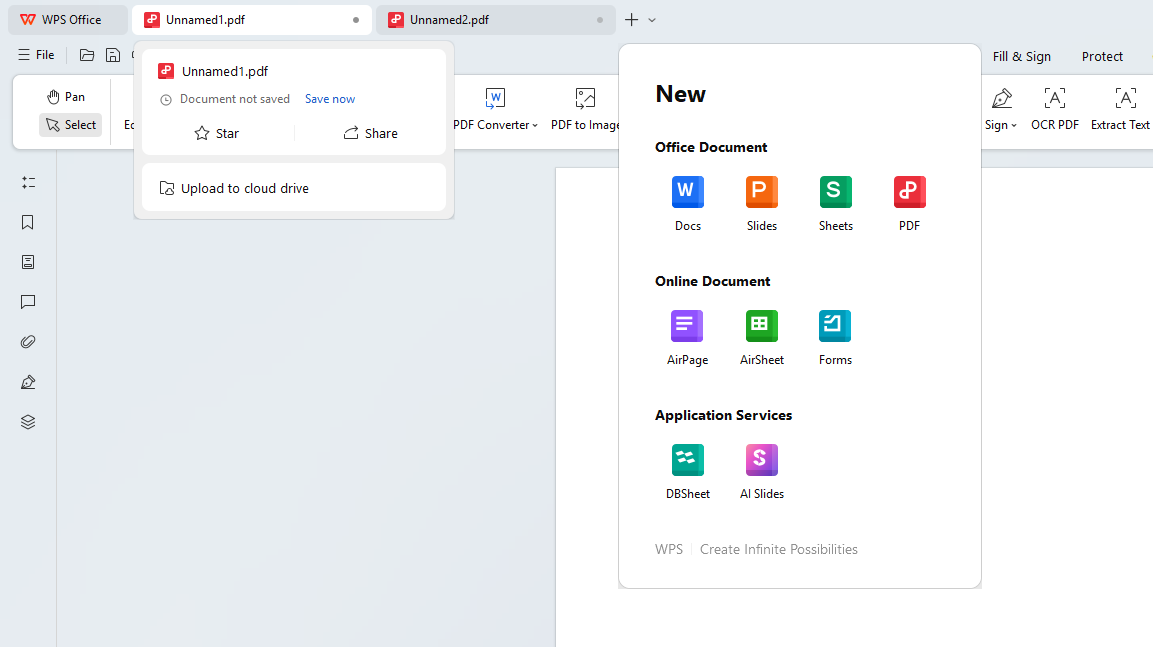
Document tabs in the title bar
- Click different document tabs to switch between open documents
- Click the 「「+」 button on the right side of the tab」 to create a new blank document
- Click the 「「×」 button on the tab」 to close the current document
FAQ
Q1: How to open multiple PDF documents simultaneously?
Click the 「+」 button in the title bar to create a new PDF document, or open other PDF files via the 「File」 menu. Each document will be displayed as an independent tab.
Q2: What should I do if the document name is not fully displayed?
Hover the mouse over the tab to view the full file name and path.
Notes
- The title bar displays the modification status of the document. An asterisk mark will appear when there are unsaved changes.
- Document tabs support drag-and-drop reordering.
- You can drag a tab to detach the document into an independent window.