Feature Summary
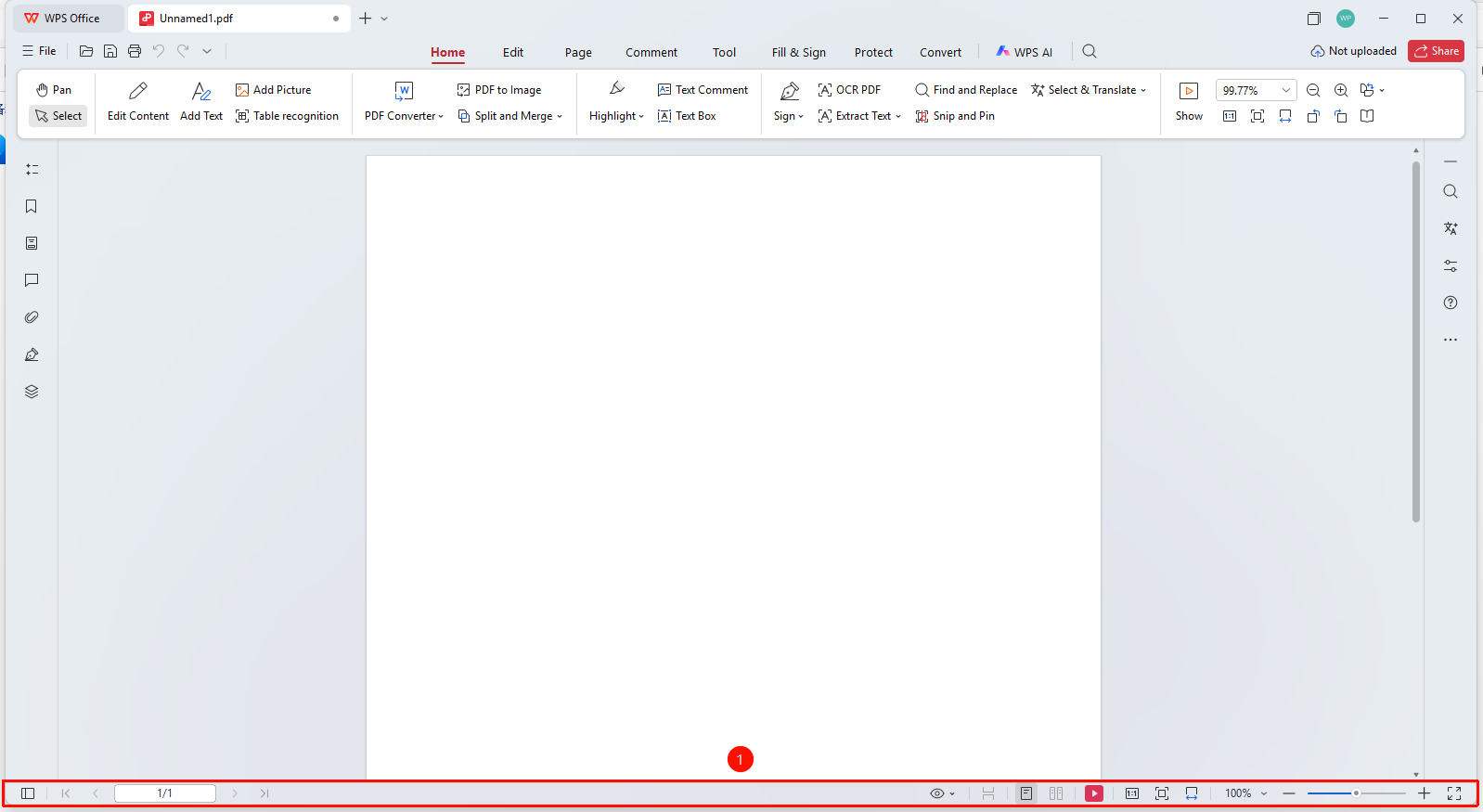
The status bar is located at the bottom of the window, displaying information and control options such as document page count, zoom ratio, and view mode.
Feature Description
| Feature Dimension | Description |
|---|---|
| Membership Restriction | You need to subscribe to a membership to edit PDF files |
| Version Restriction | No version restriction |
Operation Steps
Understanding the Status Bar
Feature Entry
The status bar area at the very bottom of the window
- The status bar is located at the very bottom of the WPS PDF window
- The left side displays the current page number and total page count (e.g., 「1/1」 )
- The middle area displays page navigation 「buttons」 (Previous Page, Next Page)
- The right side displays zoom ratio and view mode options
Adjusting the Zoom Ratio
Feature Entry
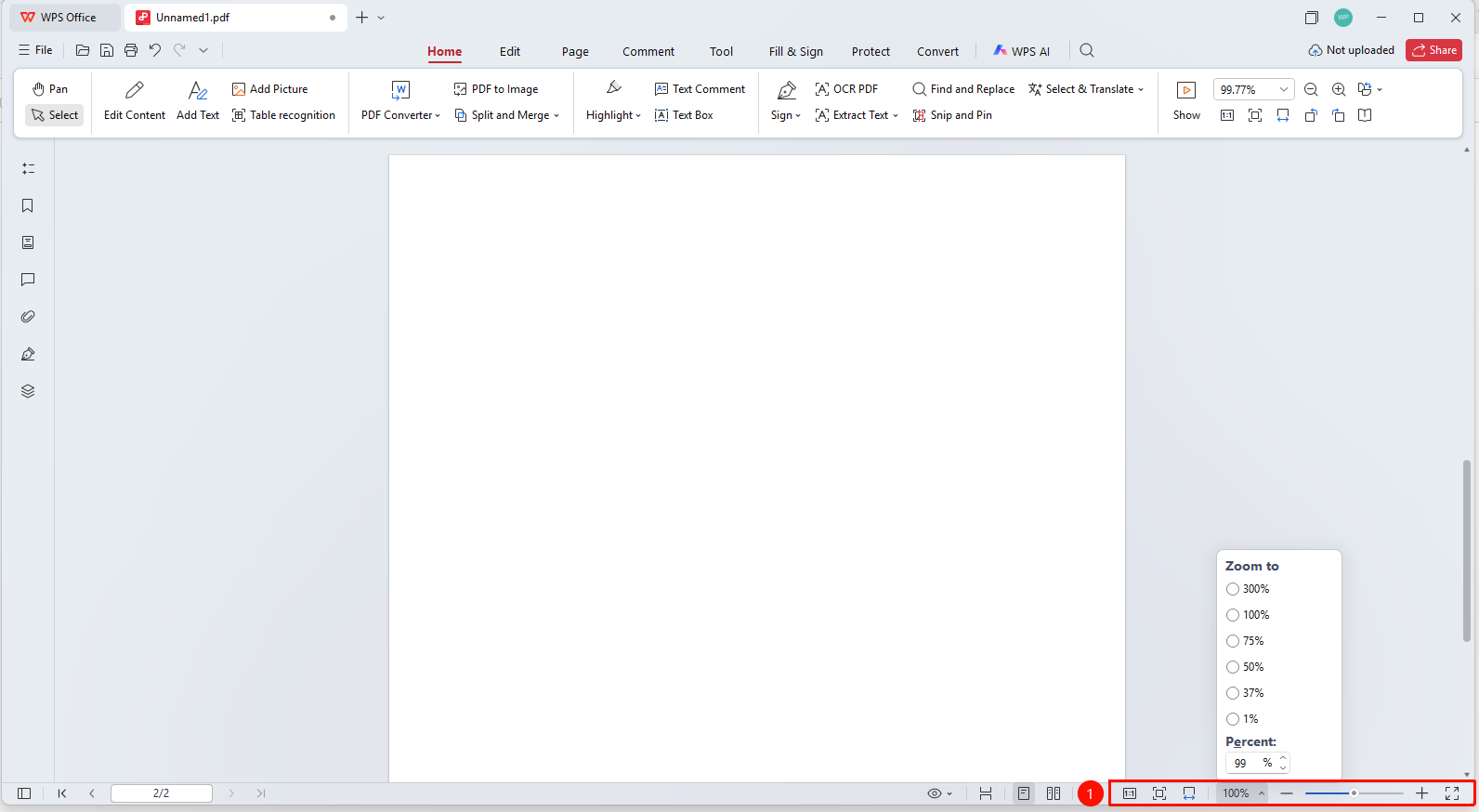
The zoom control on the right side of the status bar
- Click the zoom ratio number on the right side of the status bar (e.g., 「127%」 ) to enter a custom ratio
- Use the 「-」 and 「+」 「buttons」 to gradually zoom out or zoom in on the page
- Drag the zoom slider to quickly adjust the zoom ratio
Switching View Modes
Feature Entry
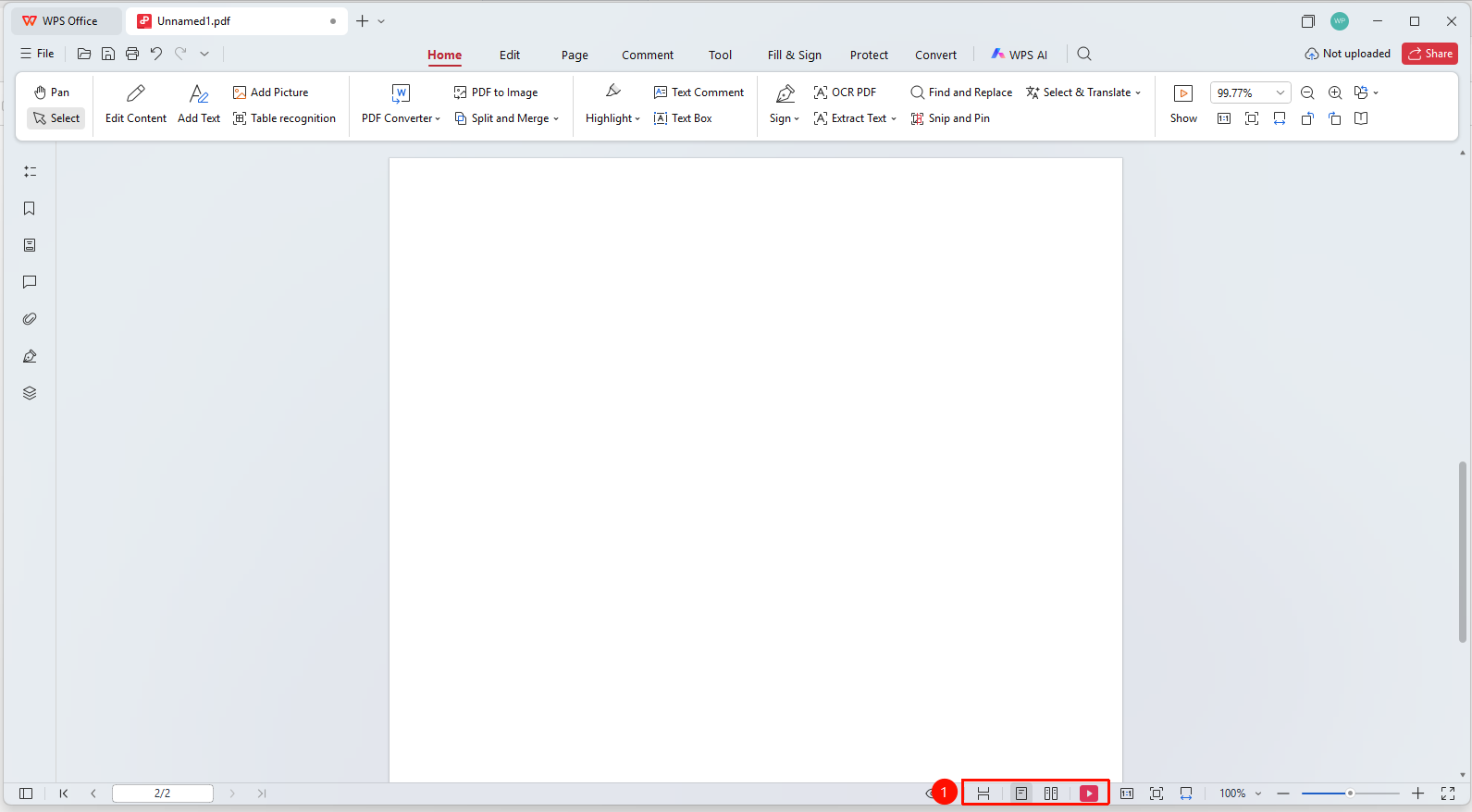
The view mode buttons on the right side of the status bar
- Click the 「different view modes」 「buttons」 to switch the page display method
- Supports single-page display, two-page display, continuous scrolling, and other modes
- Select the view mode most suitable for the current reading scenario
FAQ
Q1: How to quickly zoom the page to 100%?
Double-click the zoom ratio number in the status bar, or use the Ctrl+0 shortcut to quickly reset to 100%.
Q2: What should I do if the status bar displays "Loading"?
Loading takes time when the document is large. Please wait for the loading to complete before operating.
Q3: How to hide the status bar to get more reading space?
The current version does not support hiding the status bar, but you can use "Edit Mode" to maximize the reading area.
Notes
- The page number display in the status bar supports manual input to jump to a specified page
- The zoom ratio affects the display effect of the document but does not change the print size
- Different view modes are suitable for different reading and editing scenarios