Feature Summary
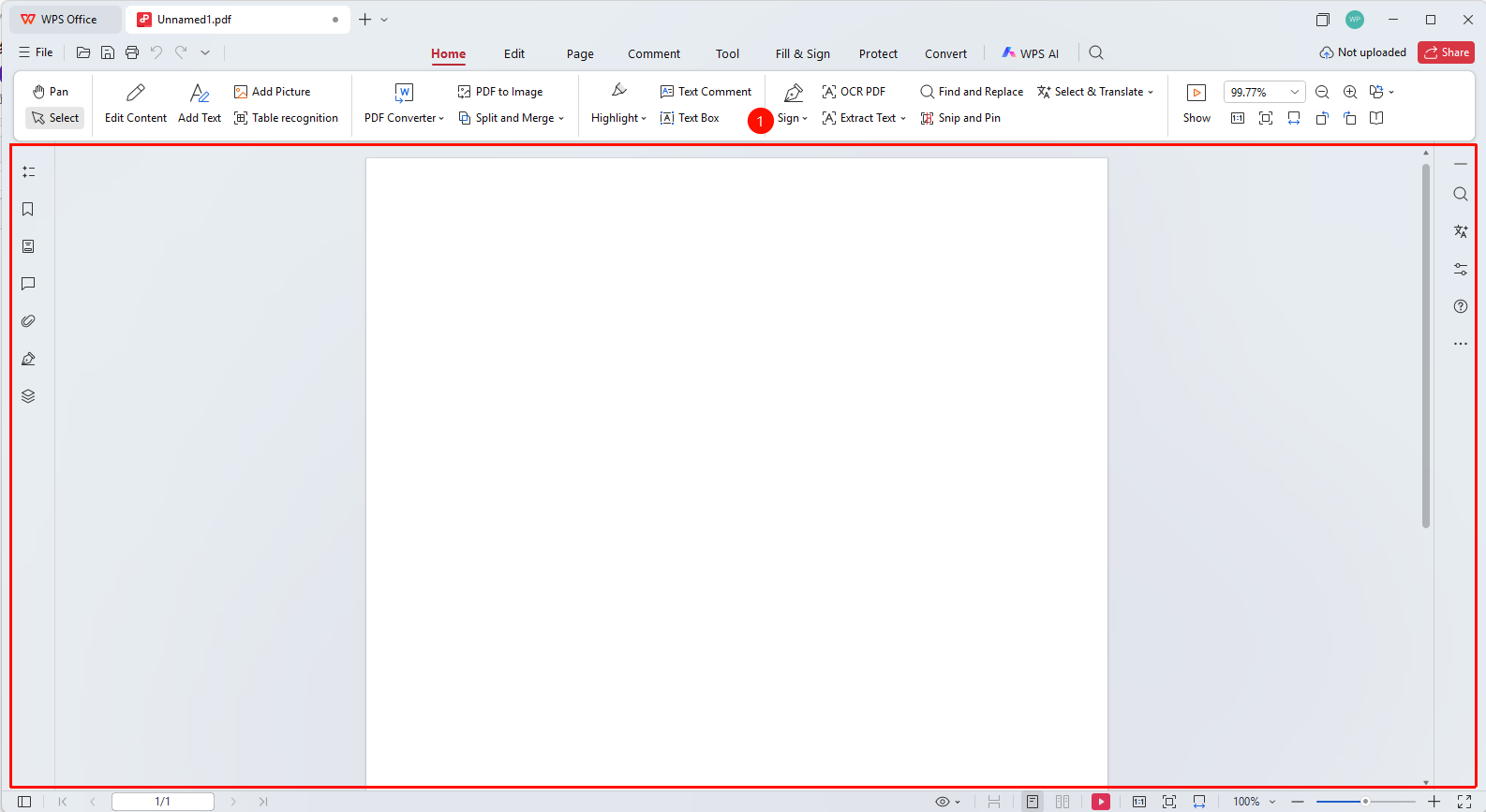
The editing area is the core area of WPS PDF, used to display and edit PDF document content.
Feature Description
| Feature Dimension | Description |
|---|---|
| Membership Restriction | Need to subscribe to membership to edit PDF files |
| Version Restriction | No version restriction |
Operation Steps
Understanding the Editing Area
Feature Entry
The document display area in the center of the interface
- The editing area is located in the center of the interface and is the largest area
- Used to display the content of the currently opened PDF document
- Document content is presented here and can be directly viewed and edited
Scrolling Through the Document
Feature Entry
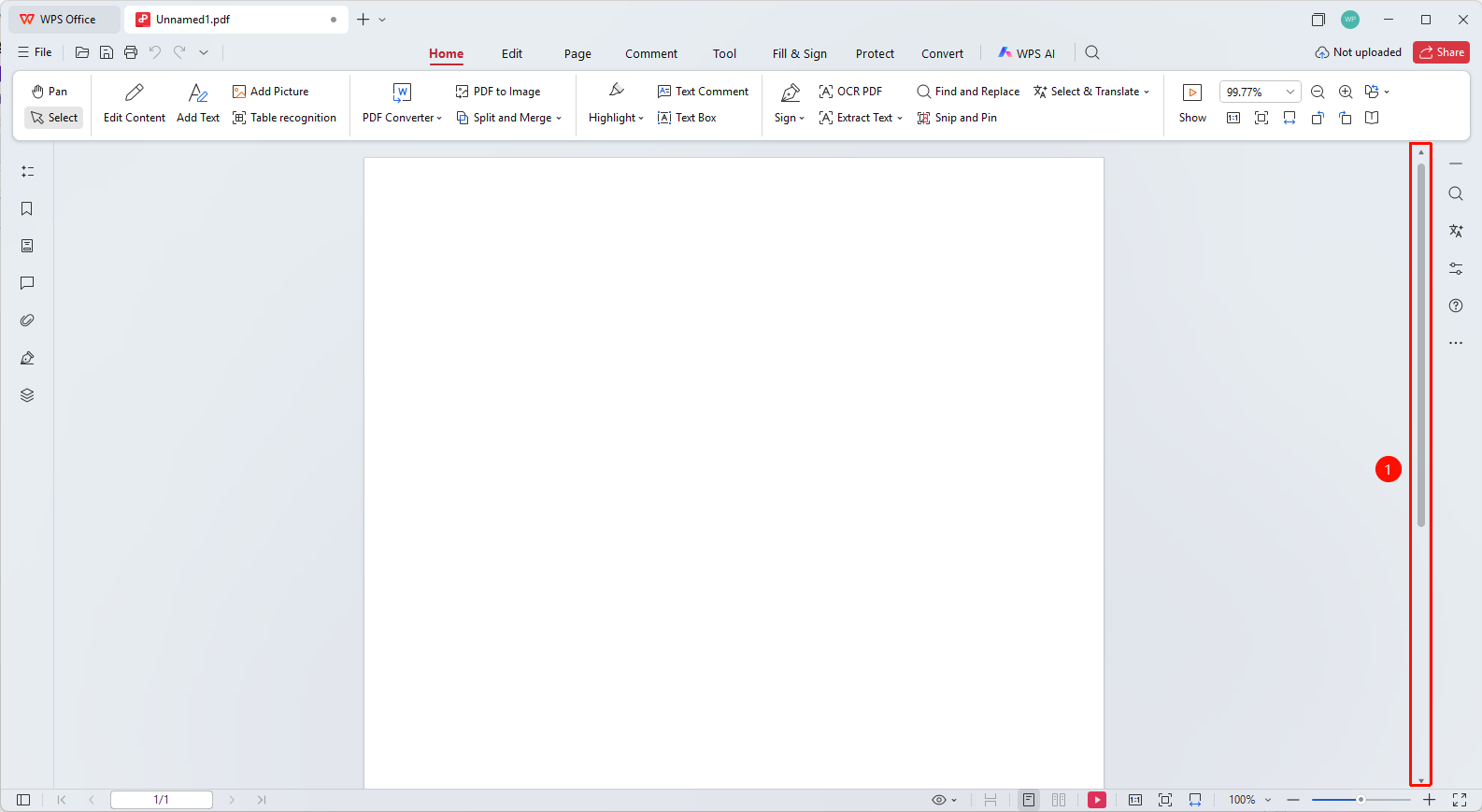
The scroll bar on the right side of the editing area
- Use the mouse wheel to scroll up and down the page
- Drag the vertical scroll bar on the right to quickly navigate
- Use the Page Up/Page Down keys to flip through pages
Editing Document Content
Feature Entry
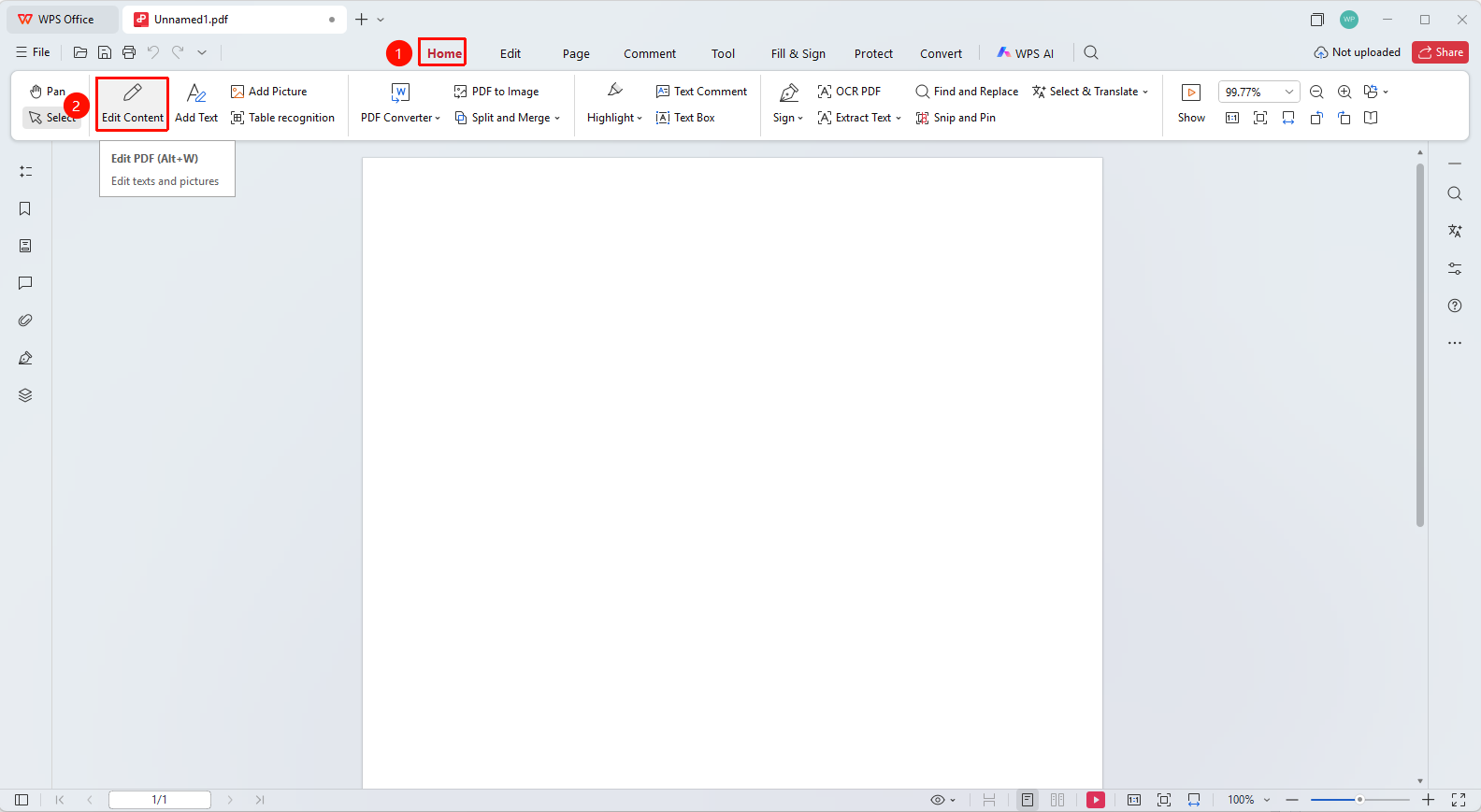
Click the 'Edit Content' button in the ribbon
- Click the 'Edit Content' button in the 'Home' tab to enter Read Mode
- In Read Mode, you can modify text, images, shapes, and other content
- Click an element in the document to select and edit it
- After finishing editing, click the 'Exit Editing' button to exit Read Mode
FAQ
Q1: What should I do if the editing area is blank?
The document may be loading. Please wait for the loading to complete. If it remains blank for a long time, try reopening the document.
Q2: What should I do if I cannot edit the document content?
Please click the 'Edit Content' button to enter Read Mode. Some scanned PDFs require OCR recognition before they can be edited.
Notes
- The editing area supports directly clicking to select text and images for editing
- Large documents may take a longer time to load
- Editing operations are displayed in real time in the editing area