Feature Summary
The Save feature is used to save changes to the current document to the original file, while the Save As feature allows you to save the document as a new file or in a different format.
Feature Description
| Feature Dimension | Description |
|---|---|
| Membership Restriction | You need to subscribe to a membership to edit PDF files |
| Version Restriction | No version restriction |
Steps
Save Document
Feature Entry
"File" menu → "Save" option
- Click the "File" menu and select the "Save" option
- Or use the shortcut Command+S to save quickly
- When saving for the first time, the "Save As" dialog box will pop up, allowing you to select the save location and file name
- Subsequent saves will directly overwrite the original file without popping up the dialog box
Save As New File
Feature Entry
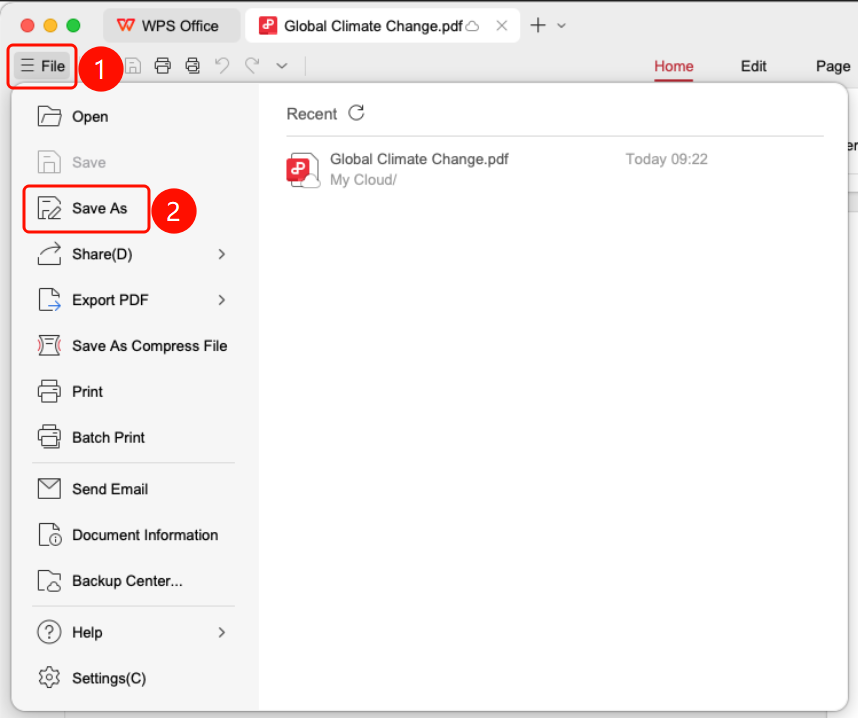
"File" menu → "Save As" option
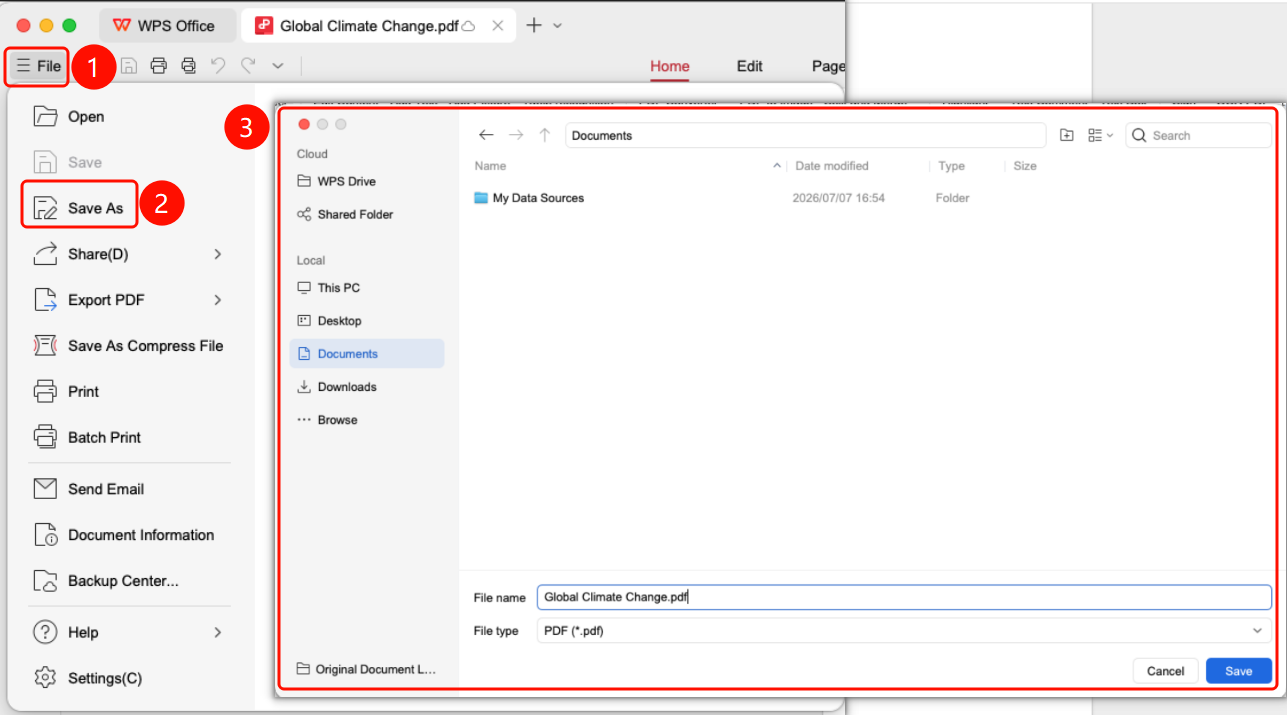
- Click the "File" menu and select the "Save As" option
- Select the save location in the pop-up dialog box
- Enter a new file name
- Select the save format (PDF, image, etc.)
- Click the "Save" button to complete the Save As operation
FAQ
Q1: What should I do if it says "File is in use" when saving?
Please check if another program is opening the file, close the other program, and try again.
Q2: How do I save a PDF as an image format?
Use the "Save As" feature and select PNG or JPG format in the format selection.
Q3: Where is the saved file?
By default, it is saved in the "Documents" folder. You can view and modify the save path in the "Save As" dialog box.
Notes
- It is recommended to save documents regularly to prevent data loss
- "Save As" creates a new file, leaving the original file unchanged
- Saving in other formats may result in the loss of some features or formatting