Feature Summary
Apply header and footer effects to text in PDF documents to improve document readability.
Feature Description
| Feature Dimension | Description |
|---|---|
| Membership Restriction | A membership is required to subscribe to the feature for editing PDF files |
| Version Restriction | No version restriction |
Steps
Add Header and Footer
Feature Entry
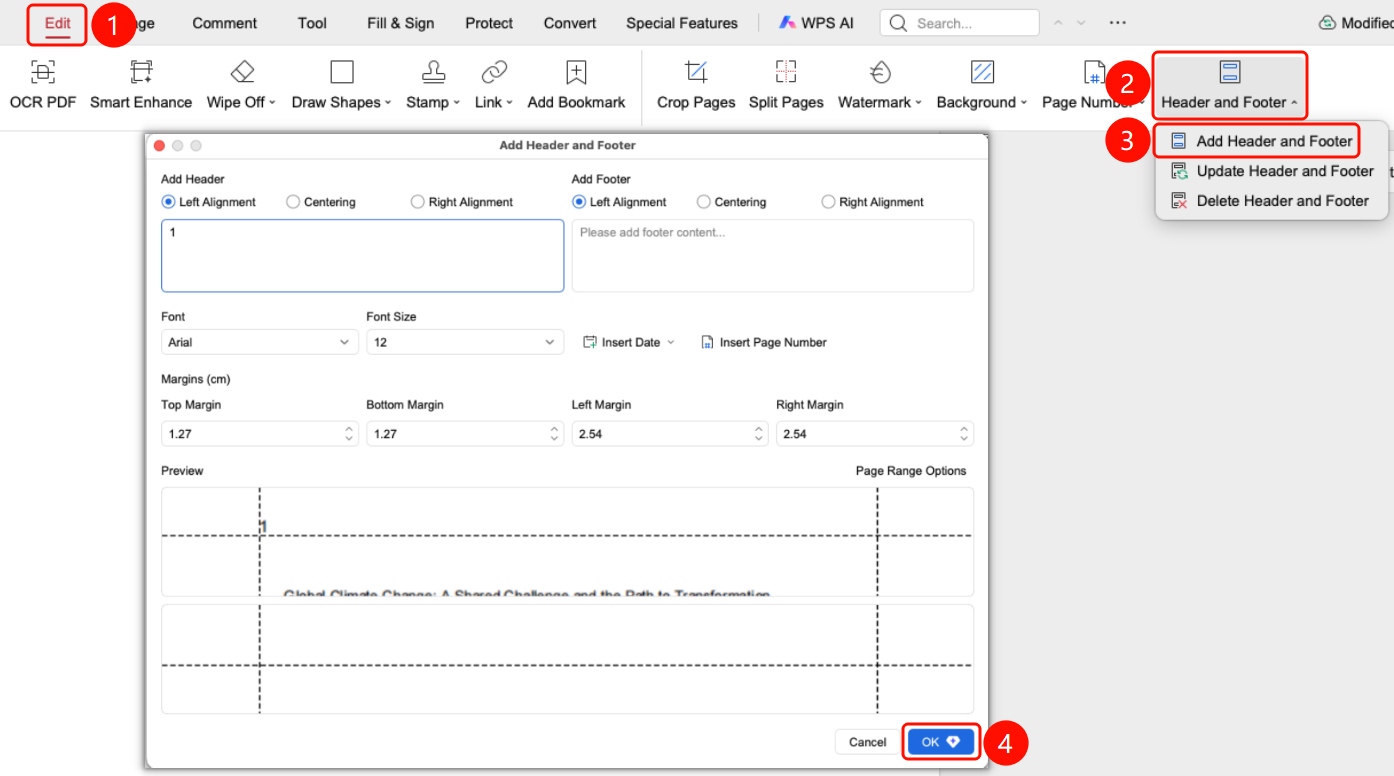
「Edit」 tab → 「Header & Footer」 dropdown menu → 「Add Header & Footer」
- Open the PDF file to which you want to add a header and footer
- Click the 「Edit」 tab in the top ribbon
- Click the 「Header & Footer」 dropdown button in the ribbon
- Click 「Add Header & Footer」
- Open the 「Add Header & Footer」 dialog box to set the following content
- Add Header
- Add Footer
- Font
- Font Size
- Insert Date
- Insert Page Number
- Page Margins
- Page Range Options
- Click the 「Confirm Add」 button to complete the addition
Update Header and Footer
Feature Entry
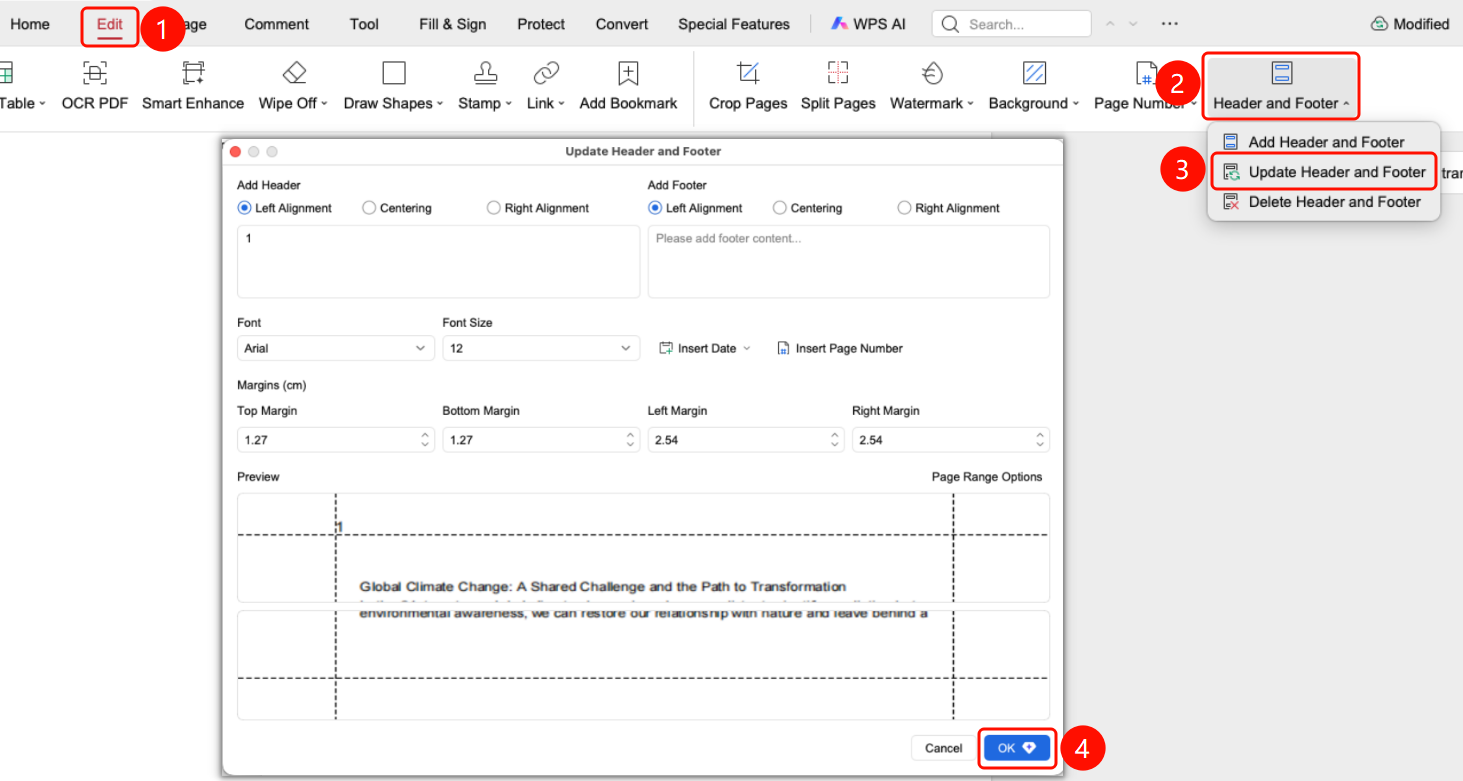
「Edit」 tab → 「Header & Footer」 dropdown menu → 「Update Header & Footer」
- Open the PDF file to which you want to add a header and footer
- Click the 「Edit」 tab in the top ribbon
- Click the 「Header & Footer」 dropdown button in the ribbon
- Click 「Update Header & Footer」
- Open the 「Update Header & Footer」 dialog box to reset the header and footer content, font, font size, insert date/page number, page margins, and page range options
- Click the 「Confirm Add」 button to complete the update
Delete Header and Footer
Feature Entry
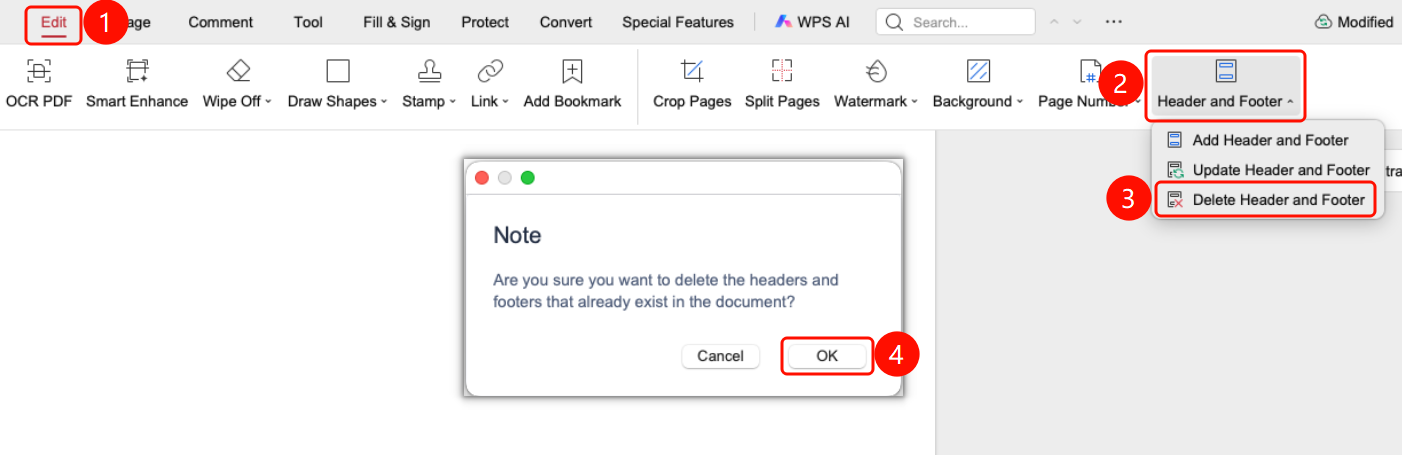
「Edit」 tab → 「Header & Footer」 dropdown menu → 「Delete Header & Footer」
- Open the PDF file to which you want to add a header and footer
- Click the 「Edit」 tab in the top ribbon
- Click the 「Header & Footer」 dropdown button in the ribbon
- Click 「Delete Header & Footer」
- Click the 「OK」 button to delete the header and footer
FAQ
Q1: Will the header and footer affect printing?
- Solution: The header and footer will be printed along with the document.