Feature Summary
The Number Format feature is used to set how numbers are displayed in cells, such as currency, percentage, date, scientific notation, etc., making data presentation more standardized and easier to read.
Feature Description
| Feature Dimension | Description |
|---|---|
| Membership Restriction | Some features require a membership subscription |
| Version Restriction | No version restrictions |
Operation Steps
Set Number Format via the Ribbon
Feature Entry
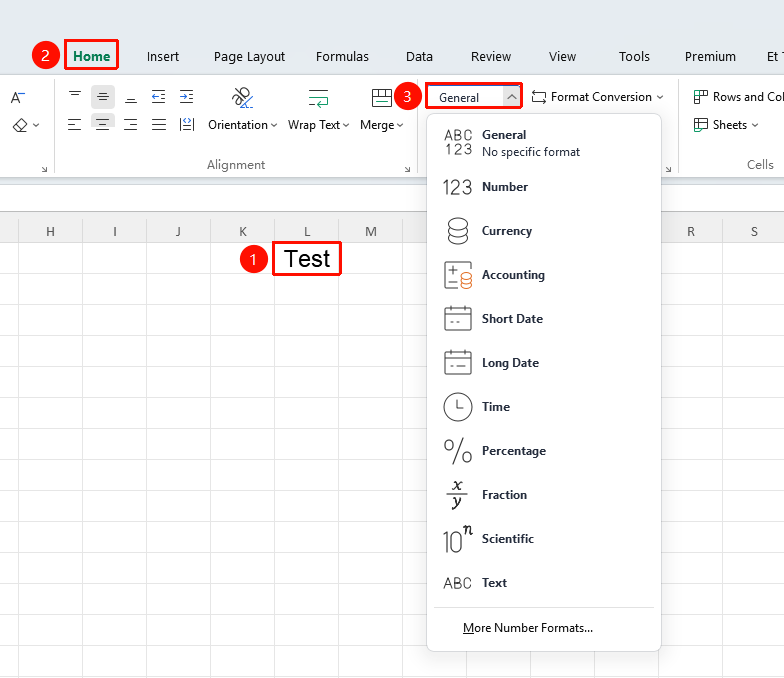
"Home" tab → "Number Format" dropdown menu
- Select the cells you want to format
- Click the "Number Format" dropdown menu in the Home tab
- Choose the desired format (General, Number, Currency, Accounting, Date, Time, Percentage, Fraction, Scientific, Text)
Set Number Format via Right-Click
Feature Entry
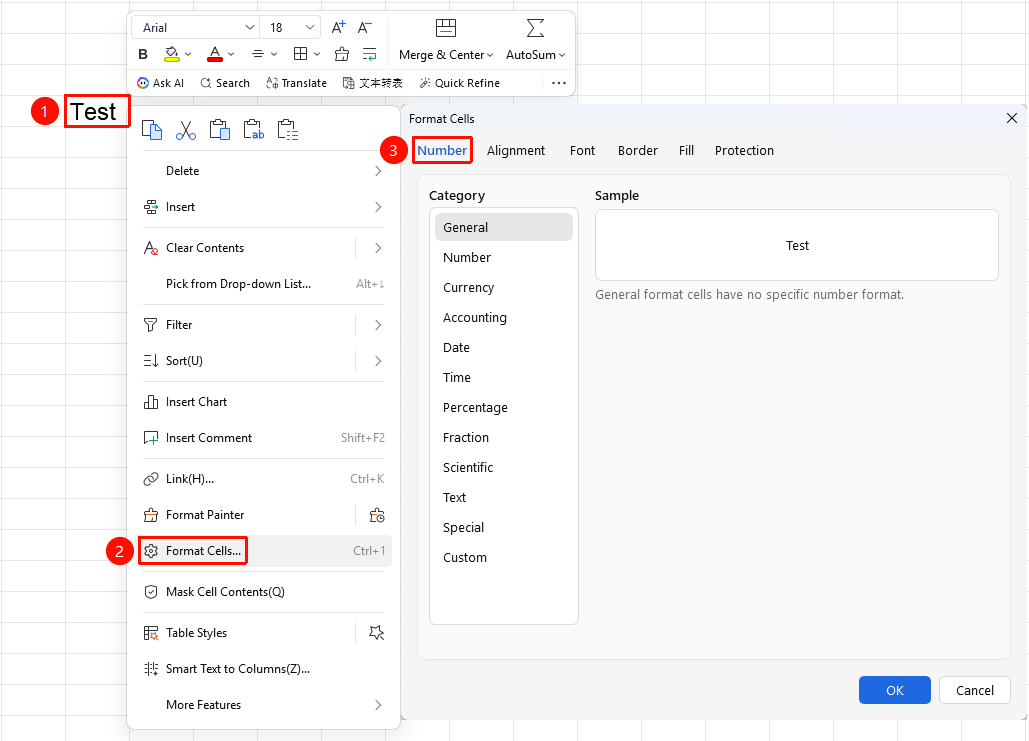
Right-click menu → "Format Cells" → "Number" tab
- Select the target cells, right-click and choose the Format Cells option
- In the pop-up window, switch to the "Number" tab
- Choose the desired format (General, Number, Currency, Accounting, Date, Time, Percentage, Fraction, Scientific, Text)
Custom Number Format
Feature Entry
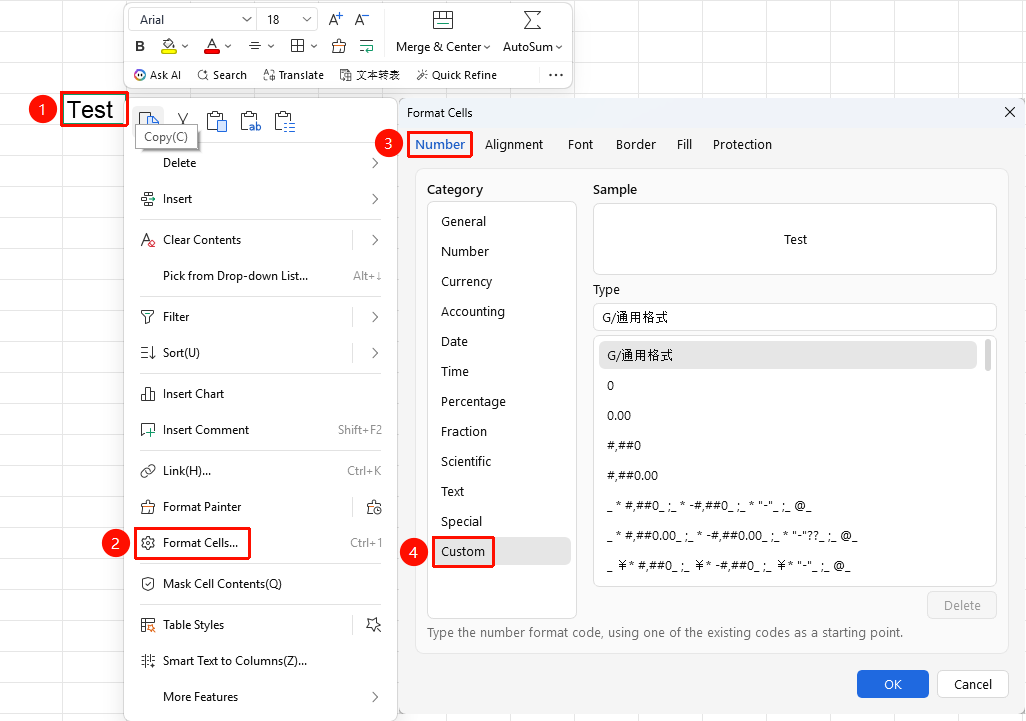
Right-click menu → "Format Cells" → "Number" tab
- Select the target cells, right-click and choose the Format Cells option
- In the pop-up window, switch to the "Number" tab
- Select "Custom", enter the format code, and click OK
Quickly Set Currency Symbol
Feature Entry
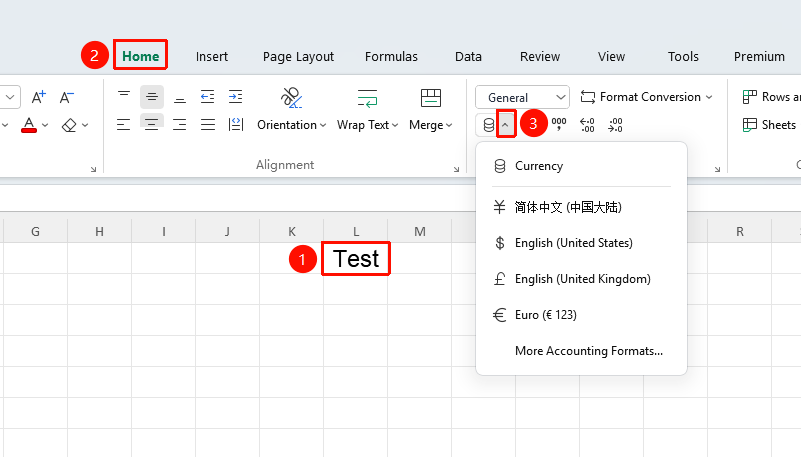
"Home" tab → Dropdown menu next to the "Chinese Currency Symbol" button
- Select the cells you want to format
- Click the dropdown menu next to the "Chinese Currency Symbol" button
- Choose the desired currency symbol
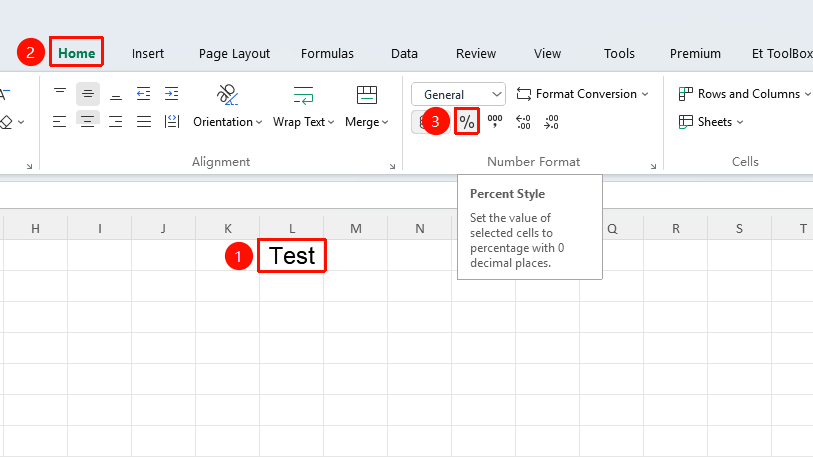
Quickly Set Percentage
Feature Entry
"Home" tab → "Percent Style" button
- Select the cells you want to format
- In the Home tab, click the "Percent Style" button to convert to percentage
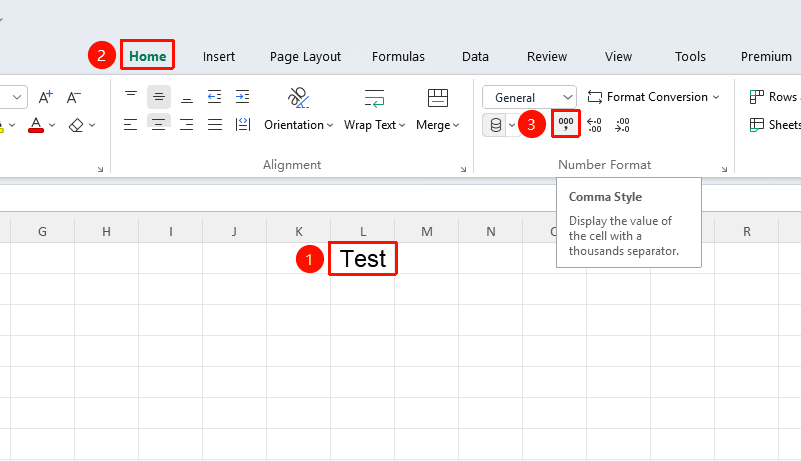
Quickly Set Thousands Separator Style
Feature Entry
"Home" tab → "Thousands Separator Style" button
- Select the cells you want to format
- In the Home tab, click the "Thousands Separator Style" to add a thousands separator
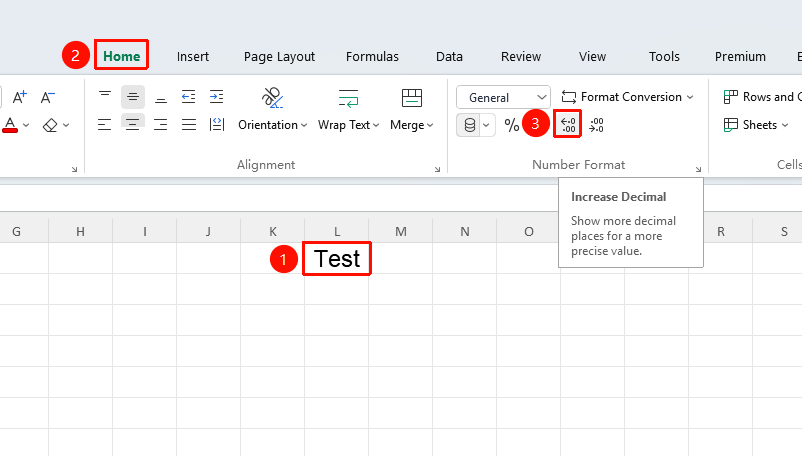
Quickly Increase Decimal Places
Feature Entry
"Home" tab → "Increase Decimal Places" button
- Select the cells you want to format
- In the Home tab, click the "Increase Decimal Places" to increase decimal places
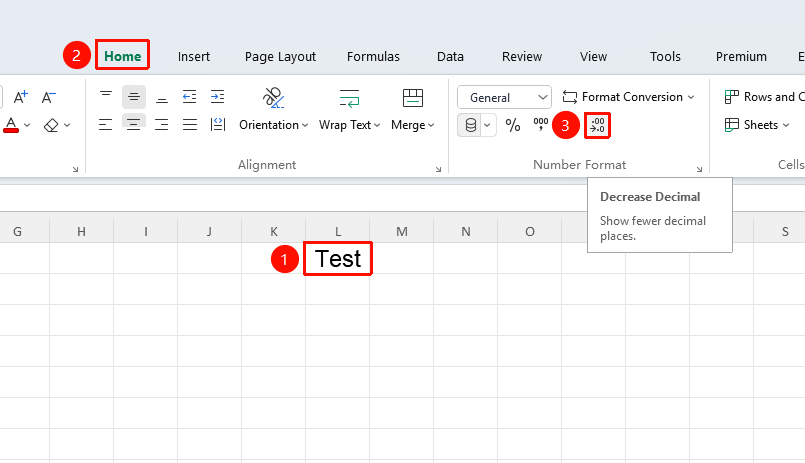
Quickly Decrease Decimal Places
Feature Entry
"Home" tab → "Decrease Decimal Places" button
- Select the cells you want to format
- In the Home tab, click the "Decrease Decimal Places" to decrease decimal places
Frequently Asked Questions
Question 1: What should I do if numbers are displayed in scientific notation?
- Solution: Select the cells and change the format to "Number" or "Text", or set a custom format to 0.
Question 2: How to keep decimal places?
- Solution: Select "Number" in the number format and set the decimal places; or use the "Increase Decimal Places" and "Decrease Decimal Places" buttons to adjust.
Notes
- Number format only changes the display mode, not the actual value
- Numbers in text format cannot be used in calculations
- Multiple display formats are available for dates and times