Feature Summary
The COM Add-in feature is used to manage add-in programs based on COM technology. It allows you to add third-party extension components, providing more powerful feature support for WPS Slides.
Feature Description
| Feature Dimension | Description |
|---|---|
| Membership Restriction | No membership restriction |
| Version Restriction | Available only on Windows version |
Steps
Open COM Add-ins
Feature Entry ①
"Tools" tab → "Advanced Features" → "COM Add-ins"
- Click the top "Tools" tab
- Select "COM Add-ins"
- Manage COM add-ins in the pop-up dialog
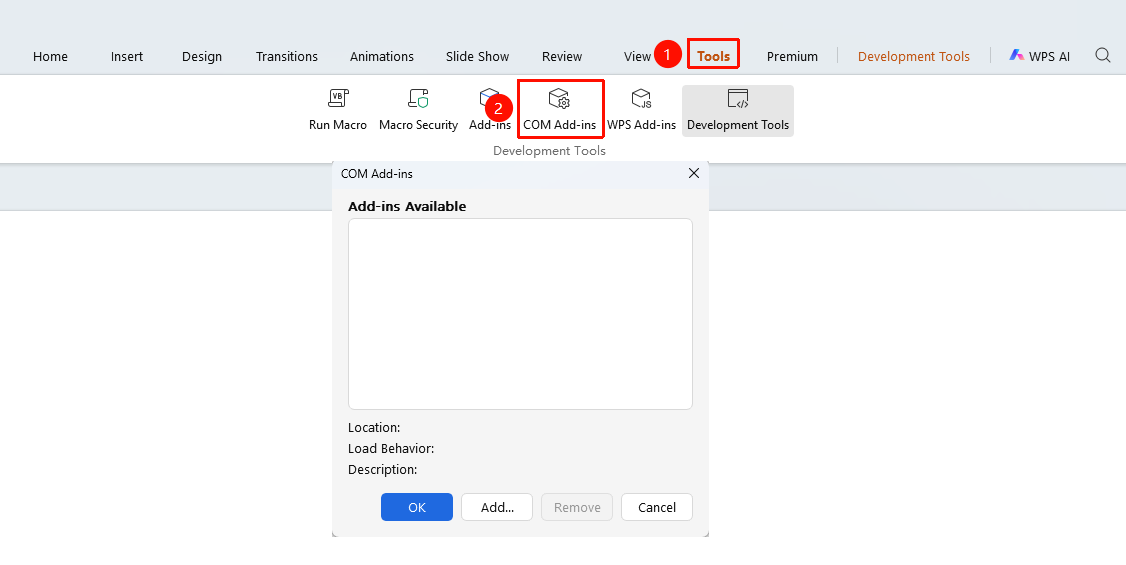
Developer Tools Tab
Feature Entry ②
"Developer Tools" tab → "COM Add-ins"
- Click the top "Developer Tools" tab
- Find and click the "COM Add-ins" button
- Manage COM add-ins in the pop-up dialog
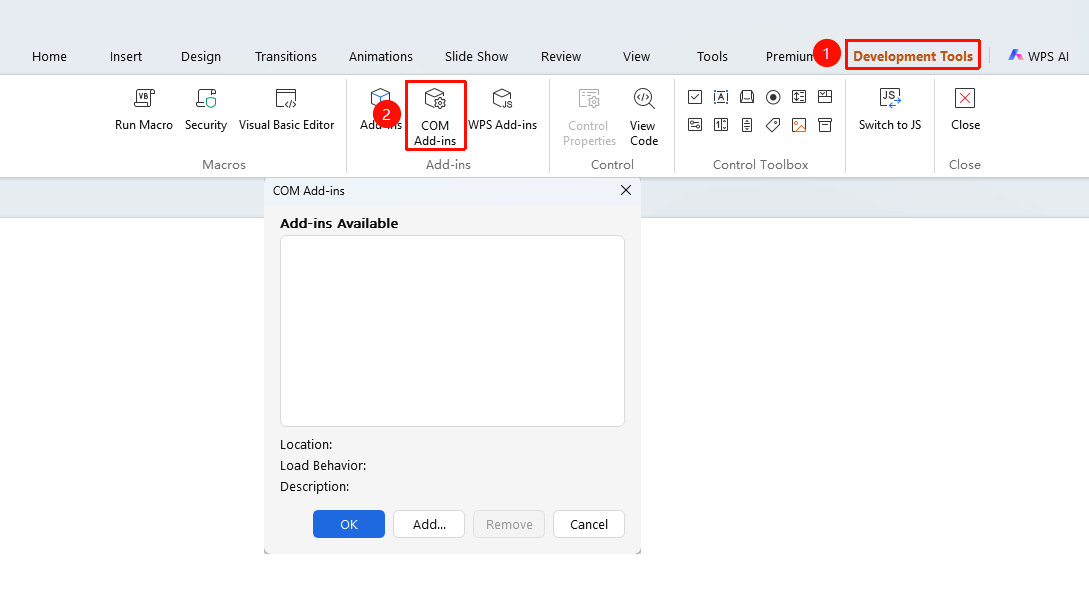
The 「Development Tools」 tab needs to be enabled by clicking the 「Development Tools」 option under the 「tools」 tab

FAQ
Question 1: The COM Add-in list is empty?
- Solution: No COM add-ins are installed on the system. You need to install the corresponding plug-in first.
Question 2: COM Add-in failed to load?
- Solution: Check if the add-in is compatible with the current WPS version, and try re-registering the add-in.
Question 3: What is the file format of a COM Add-in?
- Solution: COM add-ins are usually files in .dll or .ocx format, which need to be registered in the system before use.
Notes
- COM add-ins must be registered in the system to function properly
- Only install COM add-ins from reliable sources
- COM add-ins are usually installed by third-party software
- Too many add-ins may affect software startup speed