Feature Summary
In WPS Slides collaboration mode, copy and paste slides to quickly create slides with the same content or format.
Feature Description
| Feature Dimension | Description |
|---|---|
| Membership Restriction | No membership restriction |
| Version Restriction | No version restriction |
Steps
Copy Slides
Feature Entry
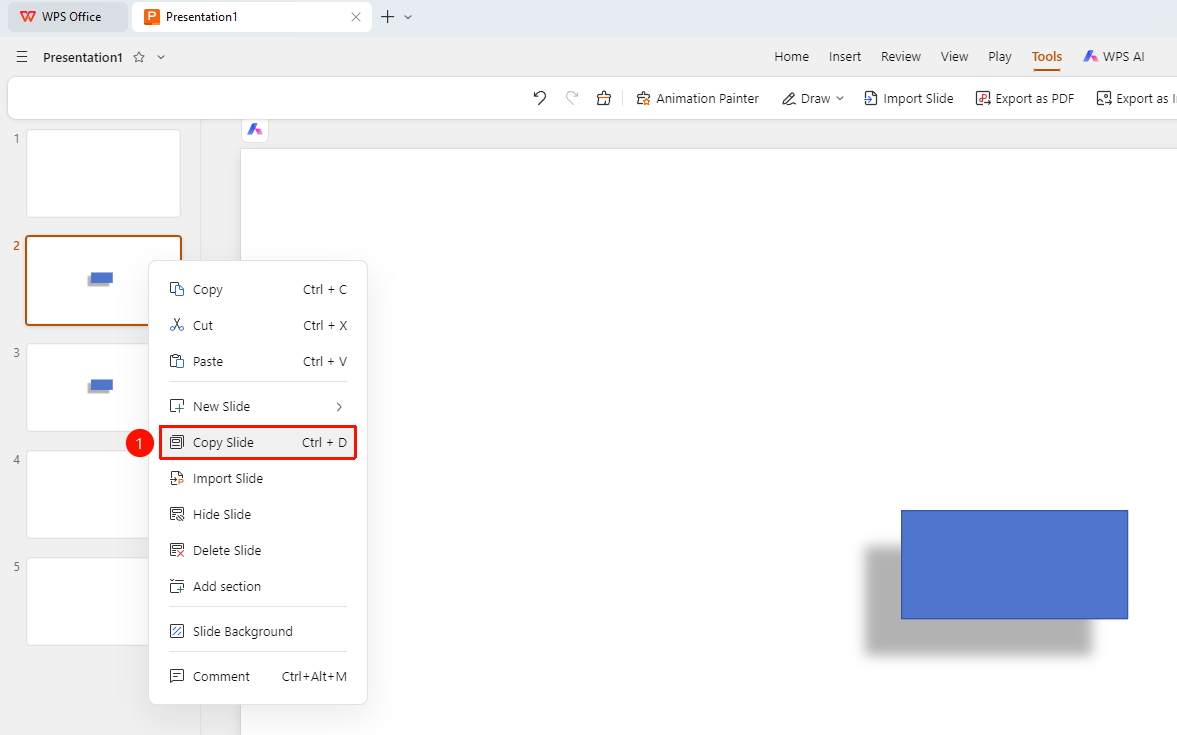
Left slide thumbnails → Right-click menu → "Copy Slide" option
- In the left slide thumbnail area, right-click the slide you want to copy
- In the pop-up right-click menu, select the "Copy Slide" option
- The system will automatically create an identical slide after the current slide
Custom Paste Slides
Feature Entry
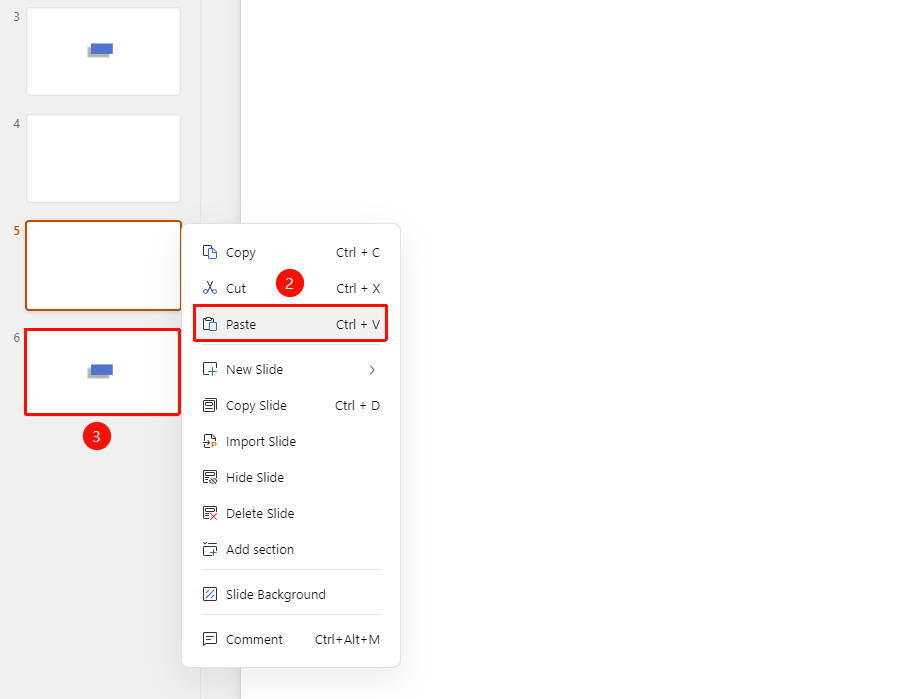
Left slide thumbnails → Right-click menu → "Copy", "Paste" options
- In the left slide thumbnail area, right-click the slide you want to copy
- In the pop-up right-click menu, select the "Copy" option
- Position the cursor where you want to paste the slide, then right-click
- In the pop-up right-click menu, select the "Paste" option
- The copied slide will be pasted at the cursor position
After "Copy" the slide, you can paste it into other Slides documents

FAQ
Q1: What is the difference between Copy Slide and Copy & Paste?
- Solution: "Copy Slide" automatically inserts a duplicate at the current position, while Copy & Paste requires you to manually select the paste location.
Q2: How do I copy a slide to another presentation?
- Solution: Click Copy in the slide right-click menu, then switch to the target presentation and paste.
Notes
- Copying a slide will retain all content and formatting of the original slide
- The copied slide will be inserted after the original slide