Feature Summary
In WPS Slides collaboration mode, set text indentation, including first line indent and hanging indent, to optimize paragraph formatting.
Feature Description
| Feature Dimension | Description |
|---|---|
| Member Restrictions | No member restrictions |
| Version Restrictions | No version restrictions |
Operating Steps
Set Indentation
Feature Entry
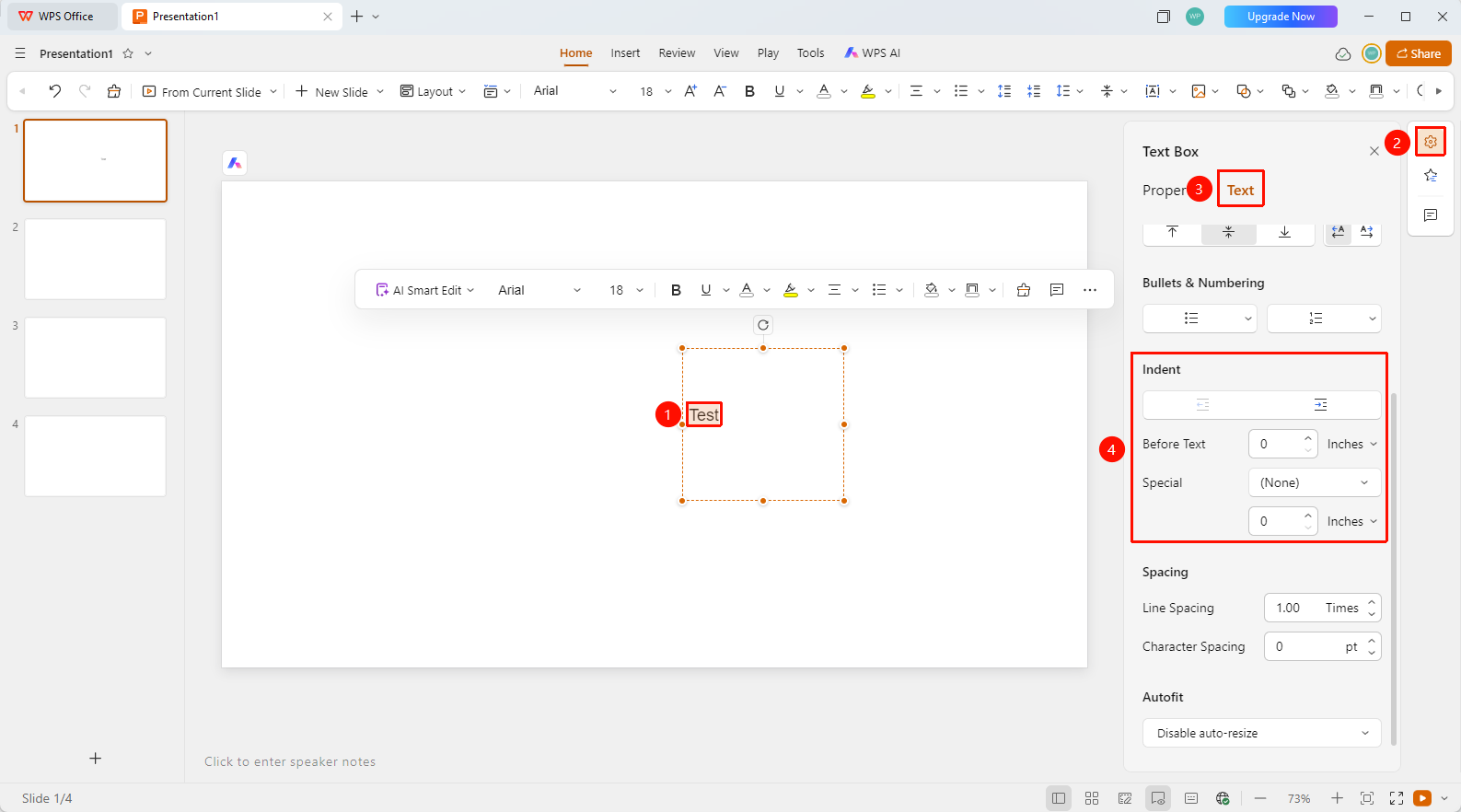
Right task pane > Format > Text tab > Indentation area
Select the text you want to indent.
Click the Format icon in the right task pane.
Switch to the Text tab.
In the Indentation area, you can configure the following:
- Increase/Decrease Indent: Increase or decrease the indentation based on the set indent step.
- Before Text: Set the indent step on the left side of the paragraph (unit: cm, pt, etc.).
- Special: Choose an indentation type.
- (None): Do not use special indentation.
- First Line Indent: Indent the first line of the paragraph to the right.
- Hanging Indent: Indent all lines of the paragraph to the right except the first line.
- Unit: Select the unit of measurement required for the special format.
FAQ
Question 1: What is the difference between first line indent and hanging indent?
- Solution: First line indent indents only the first line to the right (such as leaving two blank spaces at the beginning of a Chinese paragraph). Hanging indent indents all lines except the first line (such as in reference list formats).
Question 2: How do I quickly set a first line indent of two characters?
- Solution: Select "First Line Indent" in the indentation settings and set the appropriate indentation distance.
Question 3: What should I do if the indentation settings do not take effect?
- Solution: Confirm that you have correctly selected the text, and check if other paragraph formatting overrides it.
Notes
- First line indent is commonly used for Chinese body paragraphs.
- Hanging indent is commonly used for lists and references.
- We recommend keeping a consistent indentation style throughout the presentation.