Feature Summary
COM Add-ins support adding third-party COM components to extend WPS Sheets functionality, suitable for scenarios requiring integration of external tools or specialized features.
Feature Description
| Feature Dimension | Description |
|---|---|
| Membership Restriction | No membership restriction |
| Version Restriction | No version restriction |
Operation Steps
Open COM Add-ins
Feature Entry
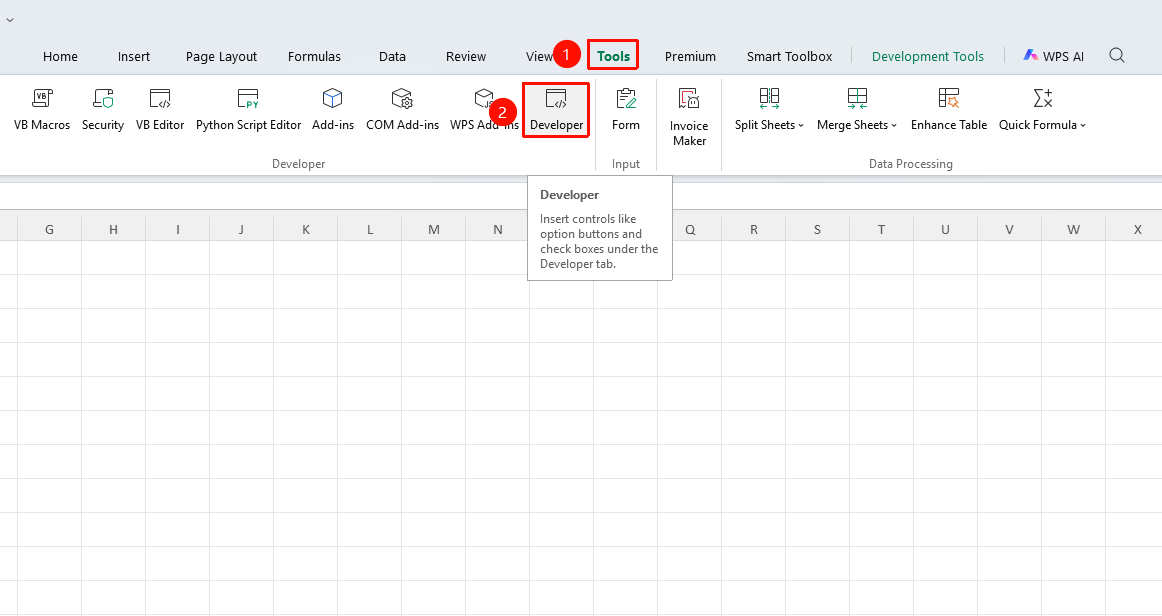
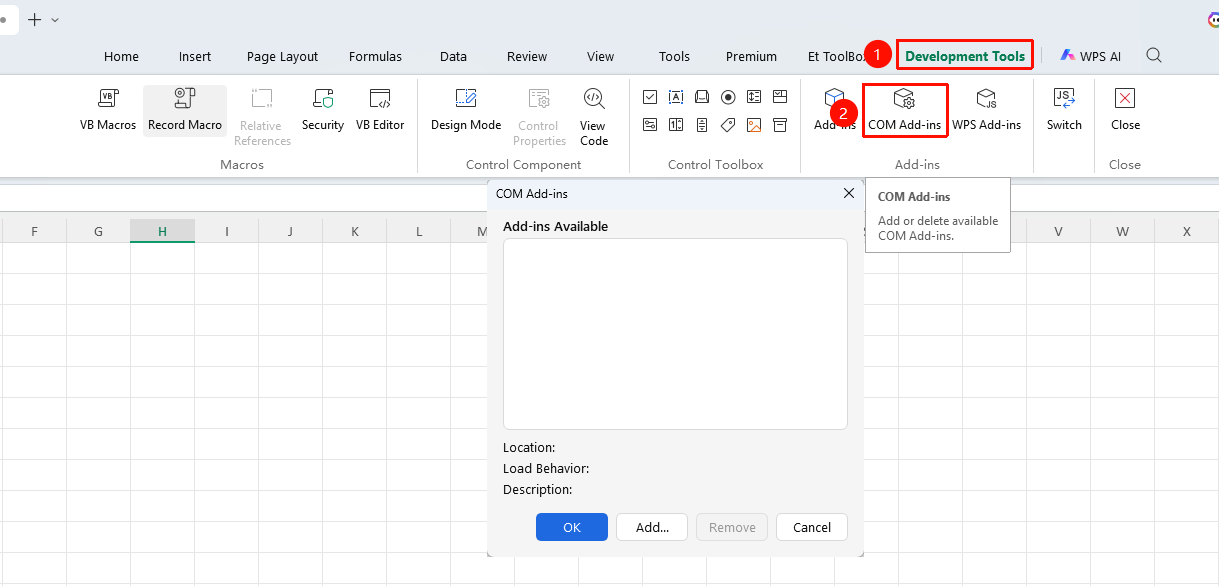
"Tools" tab → "Developer Tools" button → "Developer Tools" tab → "COM Add-ins" button
- Click the "Tools" tab at the top, locate and click the "Developer Tools" button to bring up the "Developer Tools" tab at the top
- Click the "COM Add-ins" button in the Developer Tools tab
Add COM Add-in
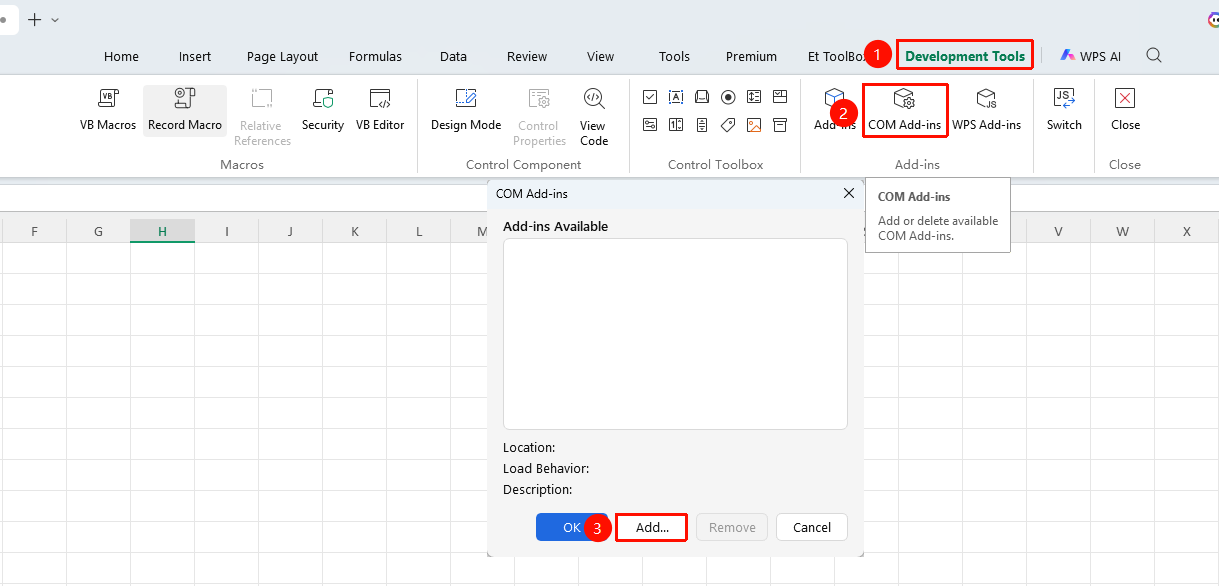
- Click the "Add" button in the COM Add-ins window
- In the file selection window, locate and select the
.dllor.xlamadd-in file to be added - Click "Open" to complete the addition
- The new add-in appears in the list; check the box to enable it
Disable/Remove COM Add-in
- Uncheck the box in the COM Add-ins list to temporarily disable it
- Select the add-in and click "Remove" to delete it from the list
Frequently Asked Questions
Q1: What is the difference between COM Add-ins and regular add-ins?
- Solution: COM Add-ins are low-level extensions implemented through COM component technology, offering more powerful functionality but requiring corresponding system component support; regular add-ins (such as .xla format) are spreadsheet-level plugins.
Q2: What should I do if WPS reports an error after adding a COM Add-in?
- Solution: The add-in version may be incompatible. Uncheck the problematic add-in in the COM Add-ins window and contact the plugin developer for a compatible version.
Q3: How can I view all installed COM Add-ins?
- Solution: Open "Developer Tools" → "COM Add-ins"; the window list displays all registered COM Add-ins and their enabled status.
Notes
- Only add COM Add-ins from trusted sources to avoid system security risks