Feature Summary
The superscript and subscript features are used to shrink text and place it above or below the baseline, commonly used in mathematical formulas, chemical equations, footnote markers, and similar scenarios.
Feature Description
| Feature Dimension | Description |
|---|---|
| Membership Restriction | No membership restriction |
| Version Restriction | No version restriction |
Operation Steps
Setting Superscript via the Format Cells Dialog
Feature Entry
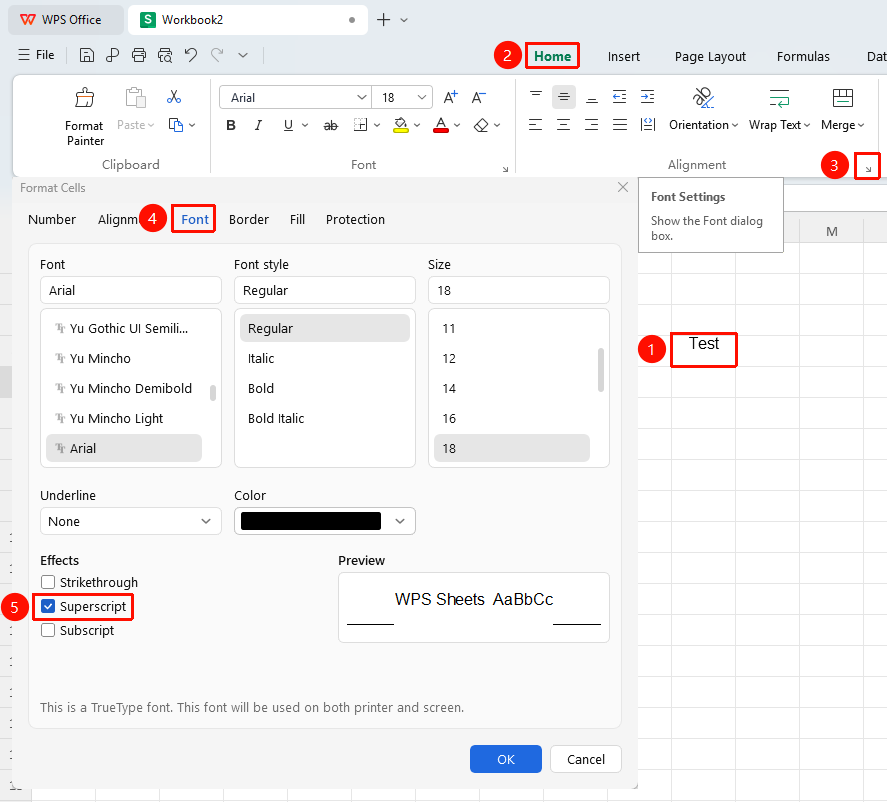
"Home" tab → "Font Settings" arrow icon → "Superscript" checkbox
- Select the cell or partial text within a cell that you want to set as superscript
- Click the Font Settings arrow icon in the Home tab
- In the pop-up dialog, check the "Superscript" checkbox and click OK
Setting Superscript via Right-Click Format Cells
Feature Entry
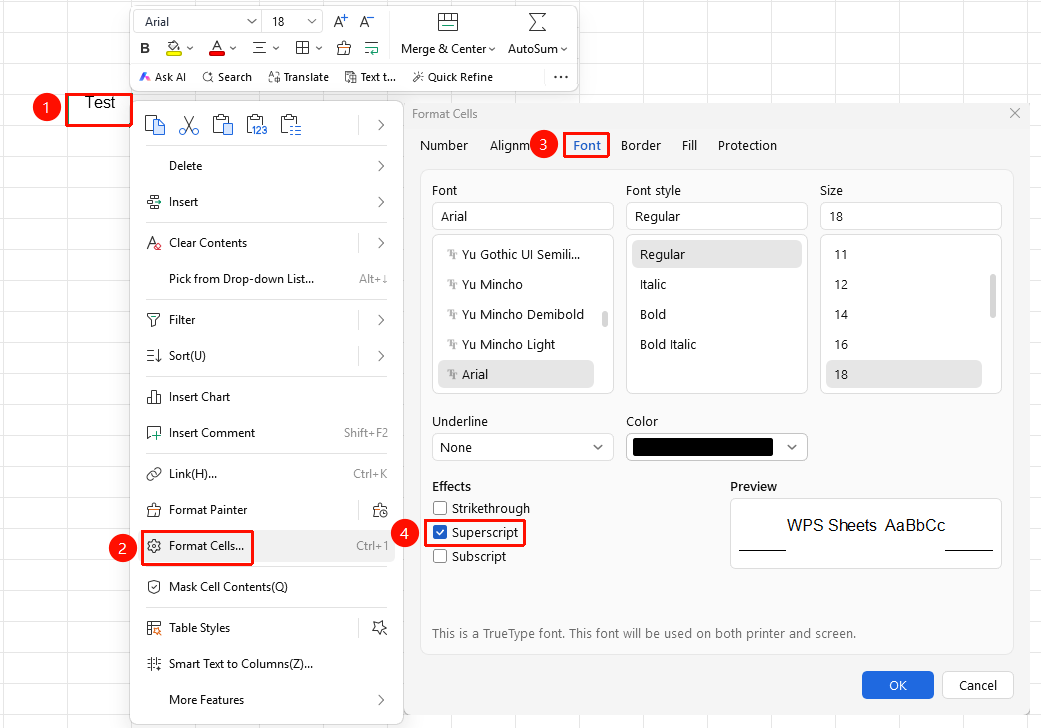
Right-click menu → "Format Cells" button → "Font" tab → "Superscript" checkbox
- Select the target cell, right-click and choose the Format Cells option
- Switch to the Font tab
- Check the "Superscript" checkbox and click OK
Setting Subscript via the Format Cells Dialog
Feature Entry
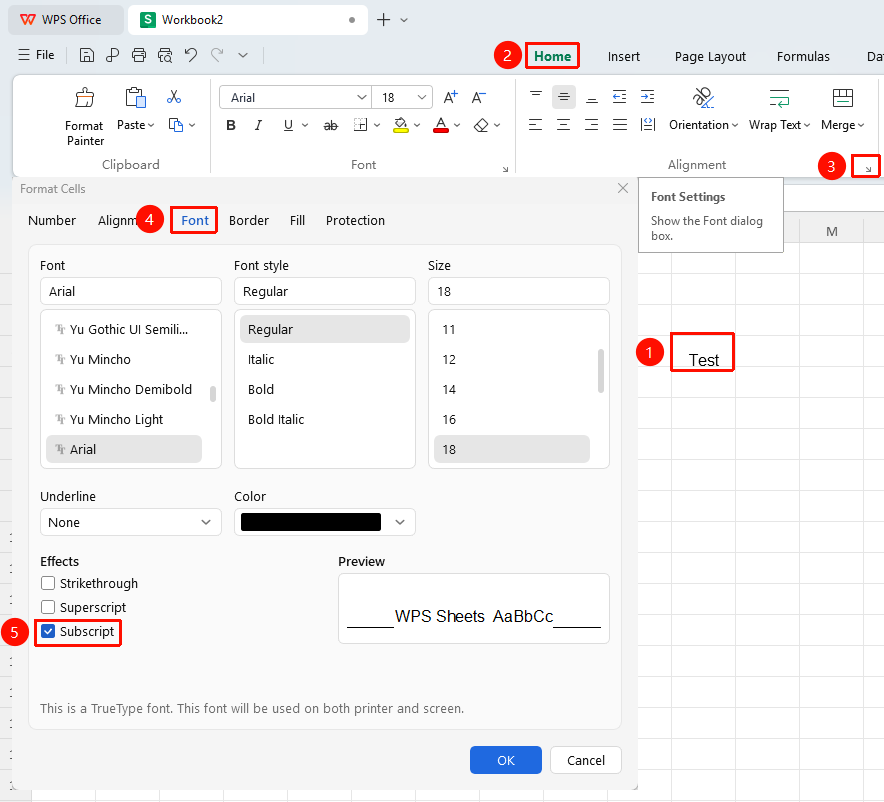
"Home" tab → "Font Settings" arrow icon → "Subscript" checkbox
- Select the cell or partial text within a cell that you want to set as subscript
- Click the Font Settings arrow icon in the Home tab
- In the pop-up dialog, check the "Subscript" checkbox and click OK
Setting Subscript via Right-Click Format Cells
Feature Entry
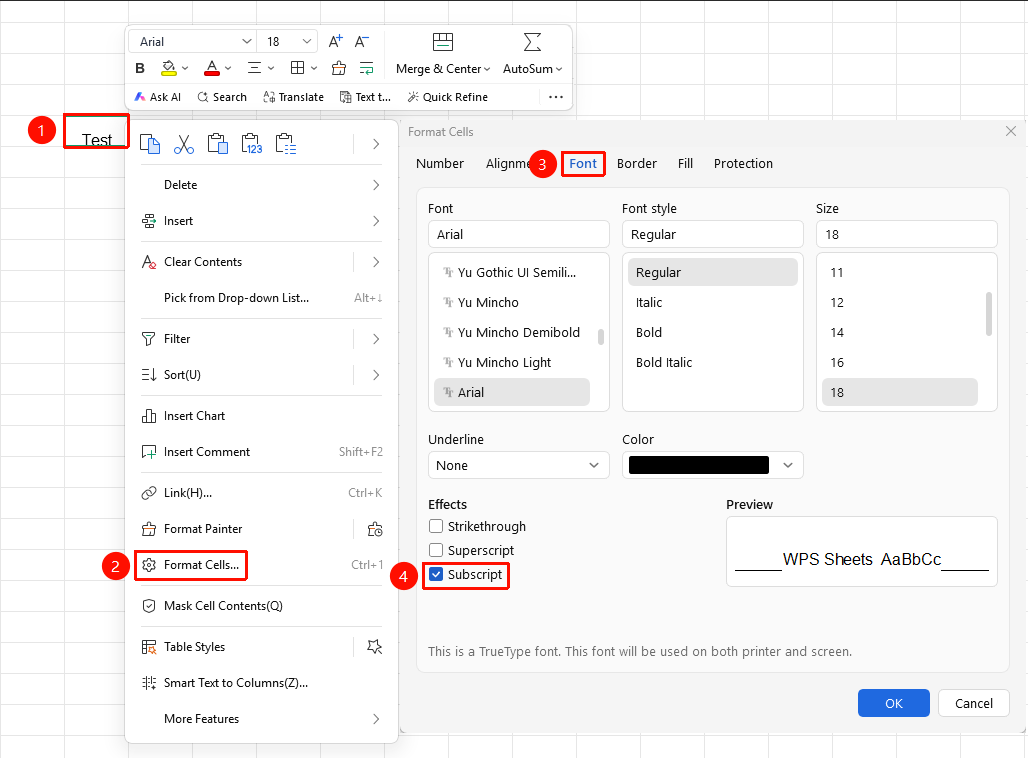
Right-click menu → "Format Cells" button → "Font" tab → "Subscript" checkbox
- Select the target cell, right-click and choose the Format Cells option
- Switch to the Font tab
- Check the "Subscript" checkbox and click OK
Notes
- Superscript is often used for mathematical expressions such as squares and cubes (e.g., m², cm³)
- Subscript is often used for chemical formulas (e.g., H₂O) and footnote markers
- After setting superscript/subscript, the text will automatically shrink