Feature Summary
The underline feature is used to add a horizontal line below text in a cell, commonly used to emphasize important content or indicate links.
Feature Description
| Feature Dimension | Description |
|---|---|
| Membership Restriction | No membership restriction |
| Version Restriction | No version restriction |
Steps
Adding Underline via the Ribbon Button
Feature Entry
"Home" tab → "Underline" button
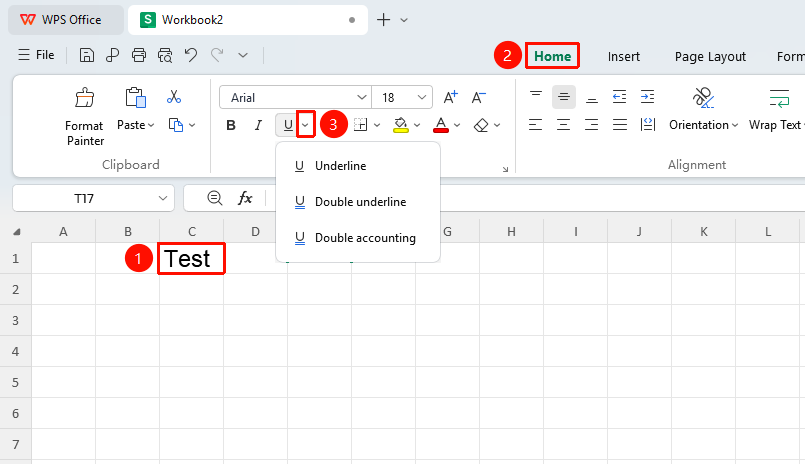
- Select the cell or partial text within a cell that you want to underline
- Click the Underline button in the Home tab
- Click the dropdown arrow next to the button to select an underline style (single underline, double underline, and so on.)
Adding Underline via the Format Cells Dialog
Feature Entry
"Home" tab → "Font Settings" arrow icon → "Underline" dropdown menu
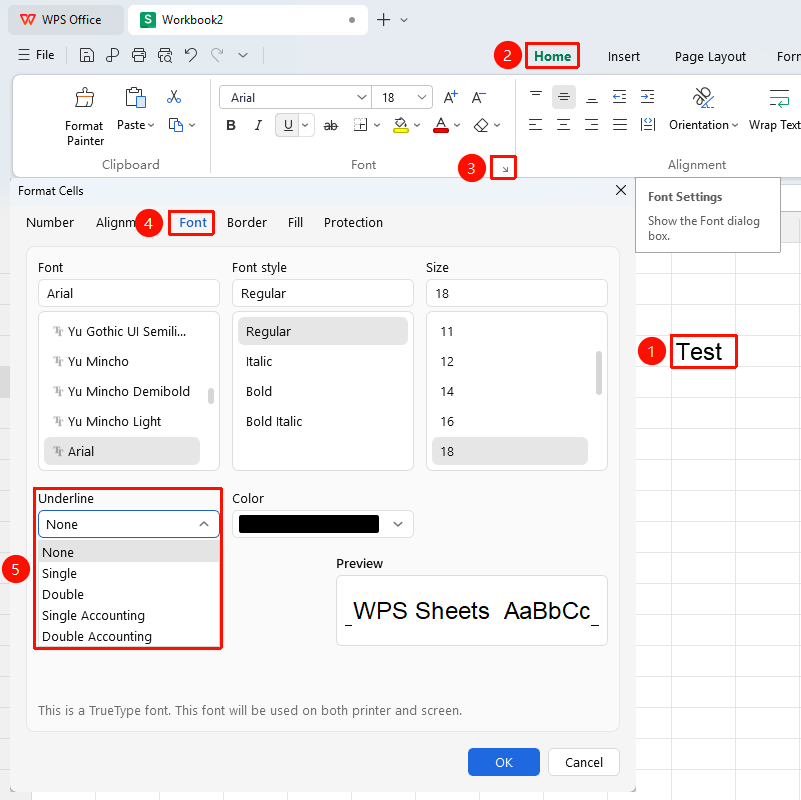
- Select the cell or partial text within a cell that you want to underline
- Click the Font Settings arrow icon in the Home tab
- In the pop-up dialog, click the Underline dropdown menu
- After selecting the underline style, click OK
Adding Underline via Right-Click Cell Formatting
Feature Entry
Right-click menu → "Format Cells" button → "Font" tab → "Underline" dropdown menu
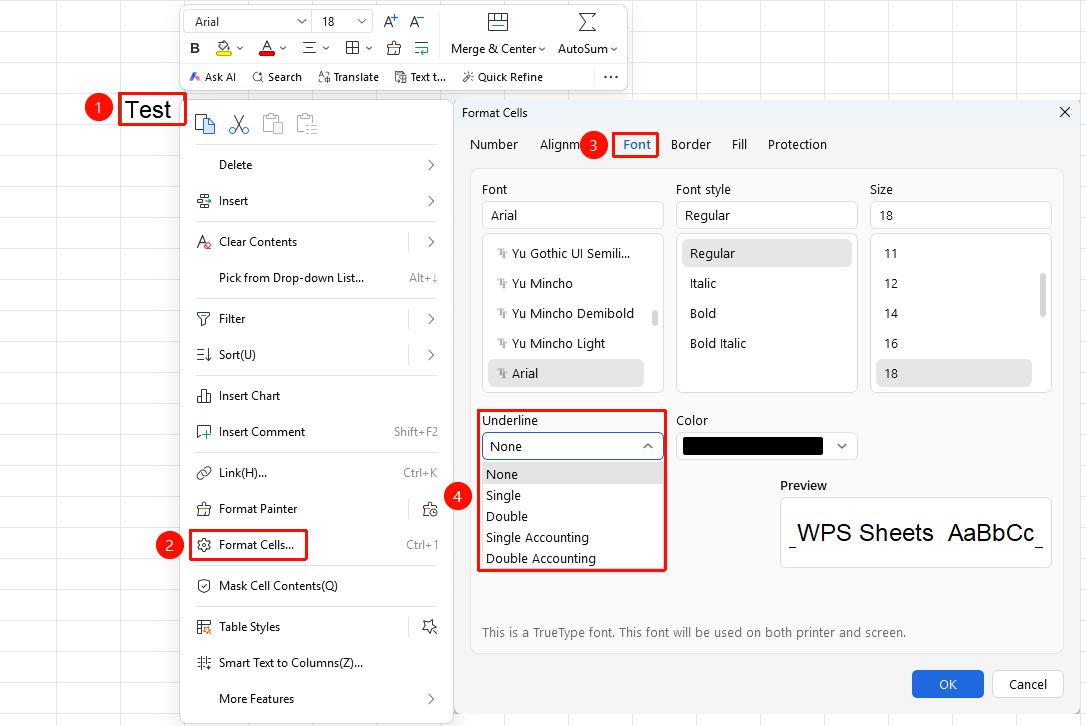
- Select the target cell, right-click and select the Format Cells button
- Switch to the Font tab
- Click the Underline dropdown menu
- After selecting the underline style, click OK
Underline Shortcut:
Ctrl+U