Feature Summary
The dropdown list feature is used to create selectable dropdown menus in cells, supporting both manual option entry and importing options from cells. It helps users quickly enter fixed-option data, avoids manual input errors, and improves data entry efficiency.
Feature Description
| Feature Dimension | Description |
|---|---|
| Membership Restriction | No membership restriction |
| Version Restriction | No version restriction |
Steps
Insert Dropdown List (Graphical Operation)
Feature Entry
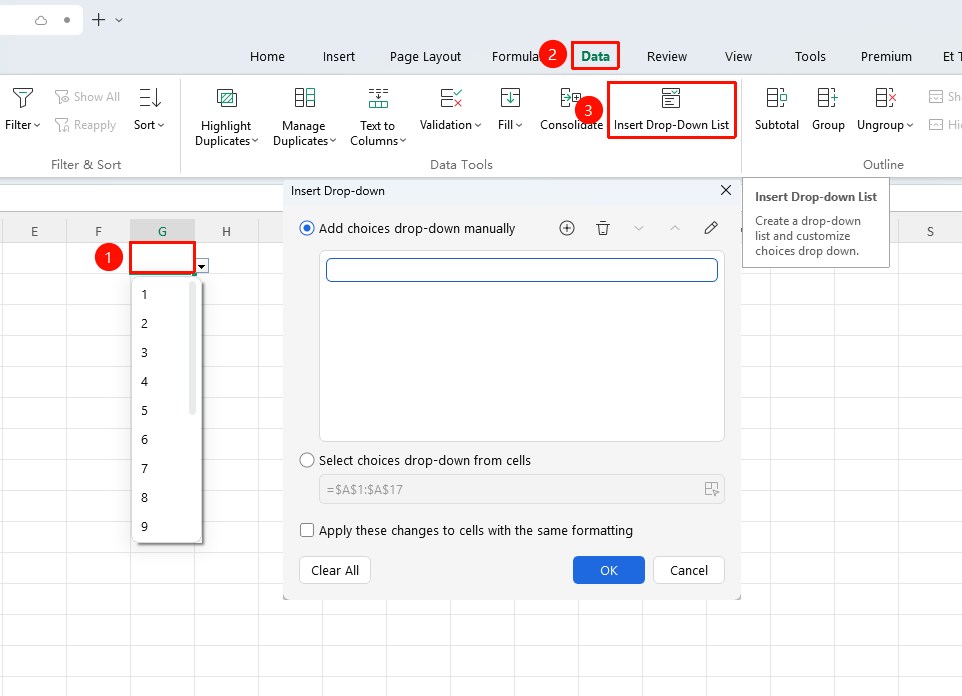
"Data" tab → "Dropdown List" button
- Select the cell or cell range where you want to add a dropdown list
- Click the Dropdown List button in the Data tab
- Choose a configuration method:
- Manually Add Options: Select Manually Add Dropdown Options → Click the + button to add a new option, and enter the content one by one
- Import Options from Cells: Select Choose Dropdown Options from Cells, then select the cell range where all options have been pre-entered
- You can adjust the order of options using the up and down arrows. Select an option and click delete to remove it
- Click OK to apply
Create Dropdown List via Data Validation
Feature Entry
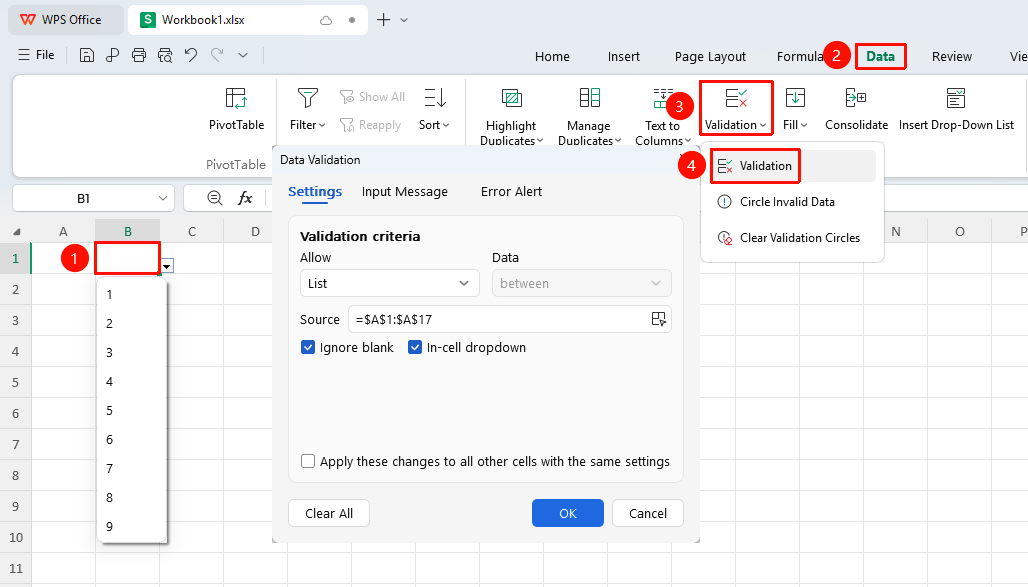
"Data" tab → "Validation" button → "List" option
- Select the target cell
- Click the Validation button in the Data tab
- In the pop-up window, switch to the Settings tab
- Select the List option in the Allow dropdown box
- Enter the dropdown options in the Source input box. Multiple options must be separated by commas (,)
- Click OK to complete the setup. Click the dropdown arrow on the right side of the cell to select content
FAQ
Q1: What should I do if the dropdown list options display abnormally?
- Solution: Check if the dropdown list options contain duplicates and remove the duplicate content.
Q2: Can the dropdown list support multiple selections?
- Solution: The default WPS dropdown list only supports single selection. Multiple selections can be achieved through macros or third-party plugins.
Q3: How to combine with conditional formatting to achieve intelligent color-coding of options?
- Solution: You can combine with conditional formatting to achieve intelligent color-coding of options.
Notes
- The insert dropdown list feature supports two modes: manually adding options and importing from cells
- The advantage of importing options from cells is that subsequent modifications to options only require modifying the original cell range, and the dropdown list will update automatically
- When creating a dropdown list via data validation, multiple options must be separated by commas (,)
- Named range dropdown lists can achieve global updates with a single modification, making them suitable for scenarios where options are reused in multiple places and modified frequently