Feature Summary
The Theme feature allows you to uniformly set the font, color, and effect style of a spreadsheet with a single click, quickly achieving a visually consistent and attractive spreadsheet design.
Feature Description
| Feature Dimension | Description |
|---|---|
| Membership Restriction | No membership restriction |
| Version Restriction | No version restriction |
Operation Steps
Apply Built-in Theme
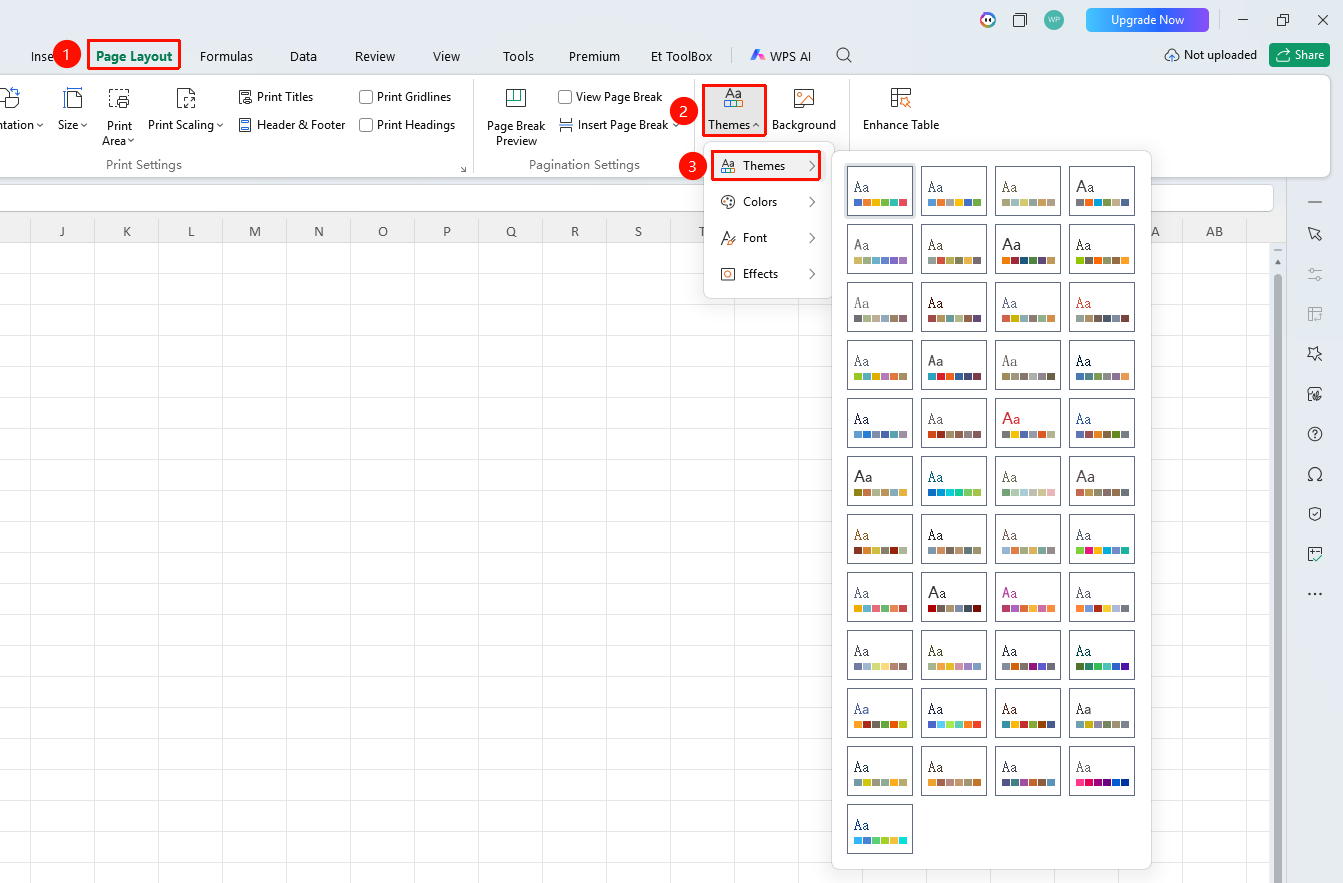
Feature Entry
"Page" tab → "Theme" dropdown list → "Theme" button
- Click the "Theme" dropdown list in the Page tab
- Select the "Theme" button in the dropdown list
- Choose a preset theme style from the menu
- Click the selected theme to uniformly modify the spreadsheet's font, color scheme, and effect style with one click
Customize Theme Colors
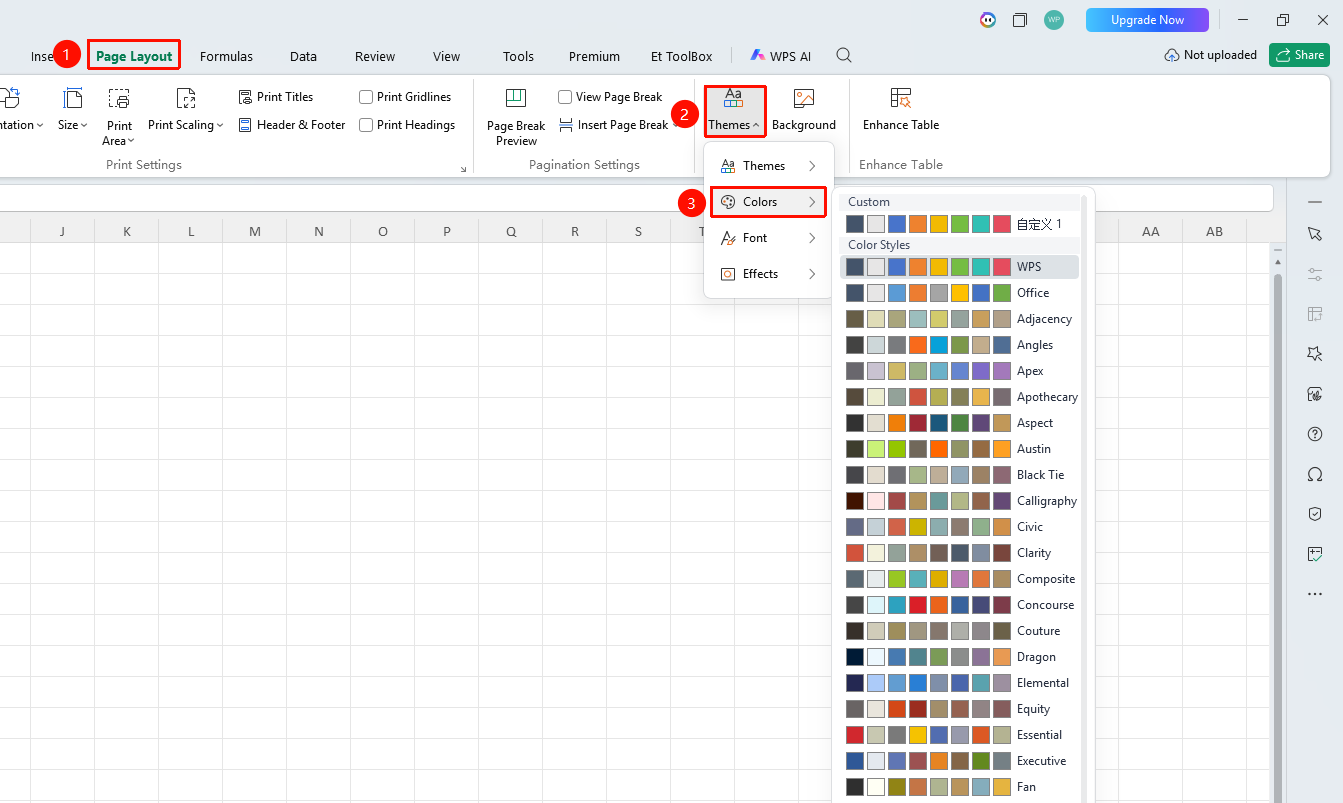
Feature Entry
"Page" tab → "Theme" dropdown list → "Color" button
- Click the "Theme" dropdown list in the Page tab
- Select the "Color" button in the dropdown list
- Choose a preset color style from the menu
- Click the "Custom Color" option to set your own theme color scheme
Customize Theme Font
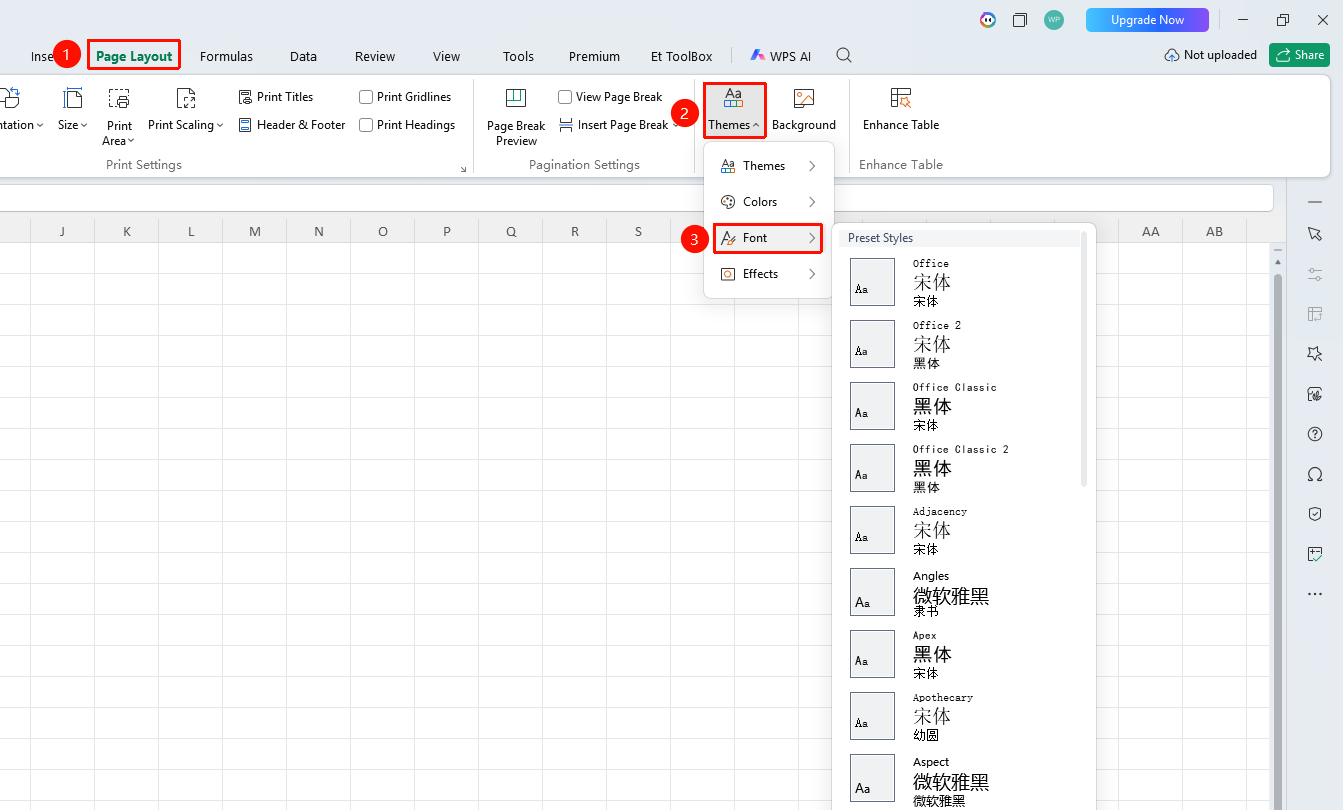
Feature Entry
"Page" tab → "Theme" dropdown list → "Font" button
- Click the "Theme" dropdown list in the Page tab
- Select the "Font" button in the dropdown list
- Choose a preset font style from the menu
- Click the "Custom Font" option to set your own theme font
Customize Theme Effects
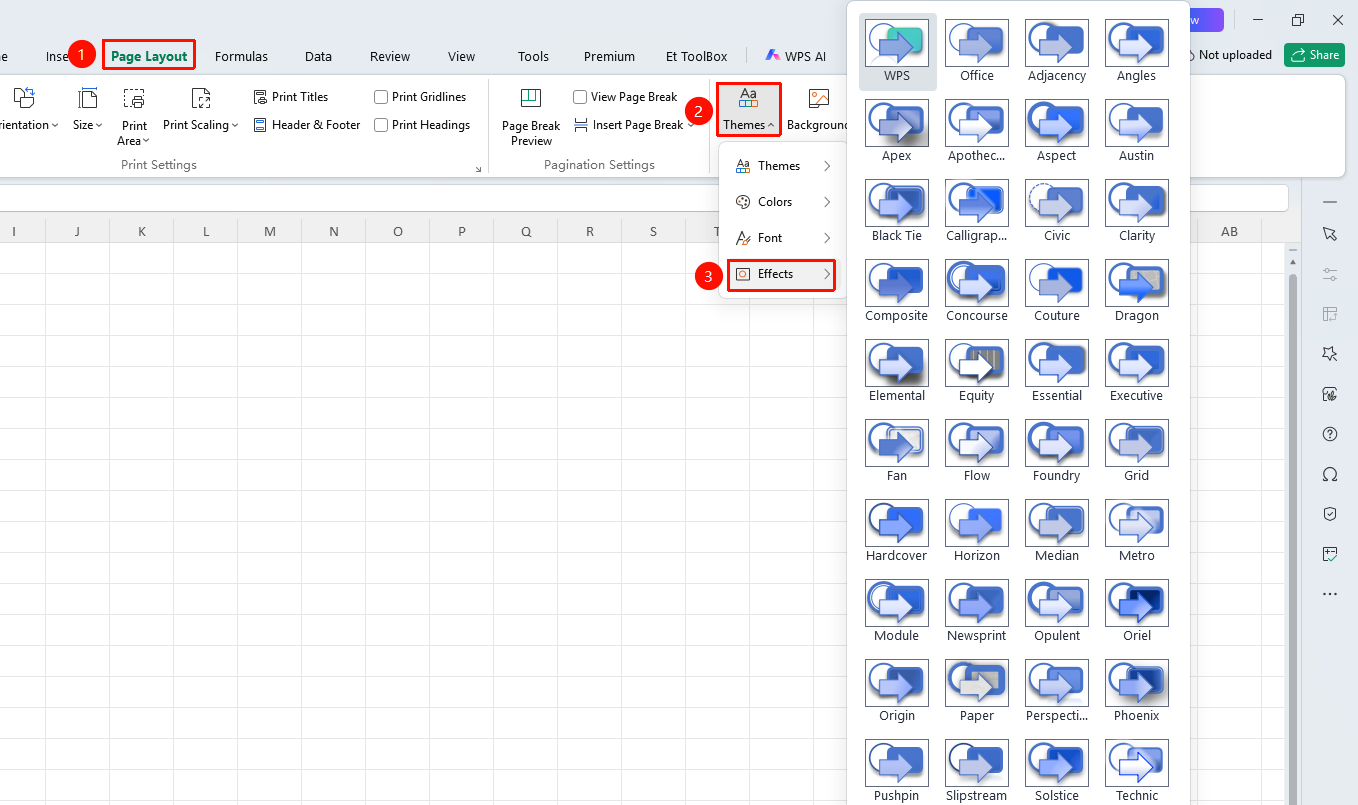
Feature Entry
"Page" tab → "Theme" dropdown list → "Effect" button
- Click the "Theme" dropdown list in the Page tab
- Select the "Effect" button in the dropdown list
- Choose a theme effect from the menu
Frequently Asked Questions
Question 1: After applying a theme, will previously manually set formatting be overwritten?
- Solution: It will not be completely overwritten. The theme will modify global styles such as font and color scheme, but manually set cell formatting (such as bold, merged cells) will be retained.
Question 2: How to restore the default theme?
- Solution: Click "Page" → "Theme", select a theme in the dropdown list, and click the topmost "Office" or "Default" theme to restore.
Notes
- The theme applies to the entire workbook and can affect the appearance of multiple worksheets simultaneously
- Using themes in combination with table styles allows you to quickly create professional reports