Feature Summary
Protect Workbook is used to lock the overall structure of the workbook, preventing others from adding, deleting, moving, renaming, or hiding sheets.
Feature Description
| Feature Dimension | Description |
|---|---|
| Membership Restriction | No membership restriction |
| Version Restriction | No version restriction |
Operation Steps
Enabling Workbook Protection
Feature Entry
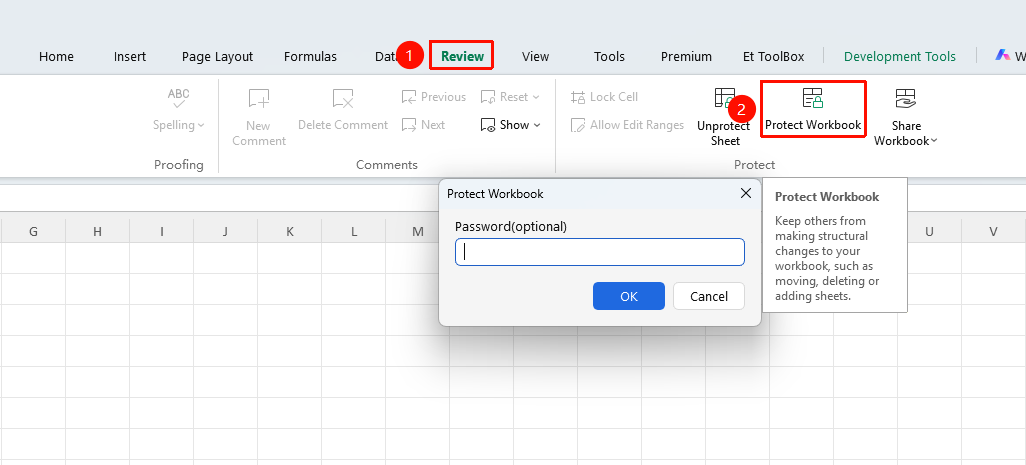
"Review" tab → "Protect Workbook" button
- Click the "Protect Workbook" button in the Review tab
- In the pop-up window, check "Structure" (locks operations such as adding, deleting, moving, renaming, and hiding sheets)
- You can also check "Window" (locks window size and position)
- Enter the protection password, confirm the password, and click OK
- Save the file for the settings to take effect
Removing Workbook Protection
Feature Entry
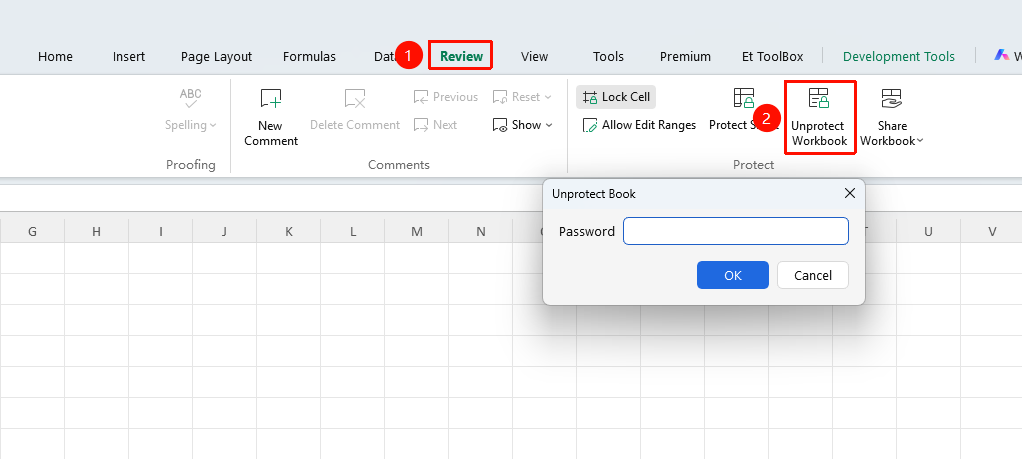
"Review" tab → "Unprotect Workbook" button
- Click the "Unprotect Workbook" button in the Review tab
- Enter the password set during protection
- Click OK to remove the protection
Frequently Asked Questions
Q1: What is the difference between Protect Workbook and Protect Sheet?
- Solution: Protect Sheet controls cell editing permissions within a single sheet; Protect Workbook controls the structure of the entire workbook (adding, deleting, moving sheets, and so on).
Q2: Can I still edit cell content after protecting the workbook?
- Solution: Yes. Protect Workbook only controls structural operations at the sheet level and does not affect cell-level editing. To restrict cell editing, you need to set up Protect Sheet separately.
Q3: How do I protect only the workbook structure without locking the window?
- Solution: In the Protect Workbook pop-up window, check only "Structure" and leave "Window" unchecked.
Notes
- Protect Workbook protects the structure at the workbook level, not the cell content
- Protecting both the sheet and the workbook simultaneously achieves comprehensive data security protection