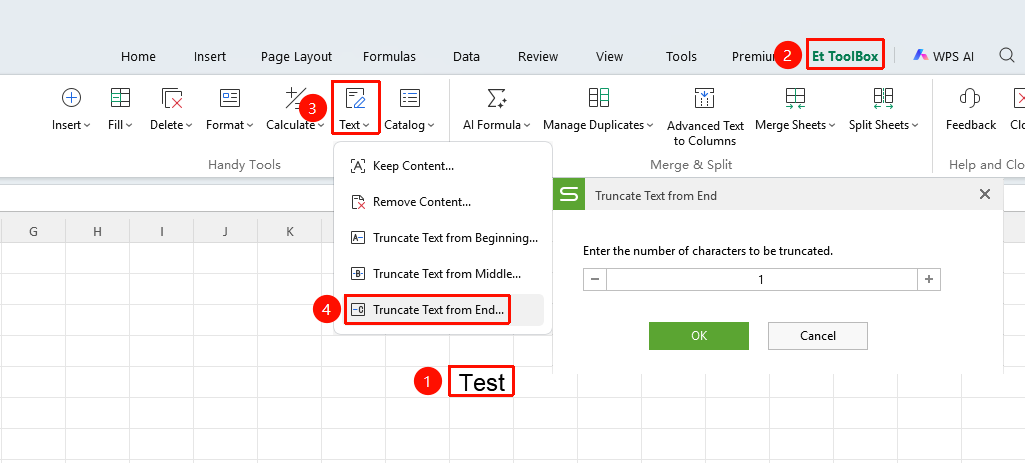
Feature Summary
The Keep/Extract Text to Cell feature is used to uniformly extract or remove content from text across multiple cells, improving text editing efficiency.
Feature Description
| Feature Dimension | Description |
|---|---|
| Membership Restriction | Membership required |
| Version Restriction | No version restriction |
Operation Steps
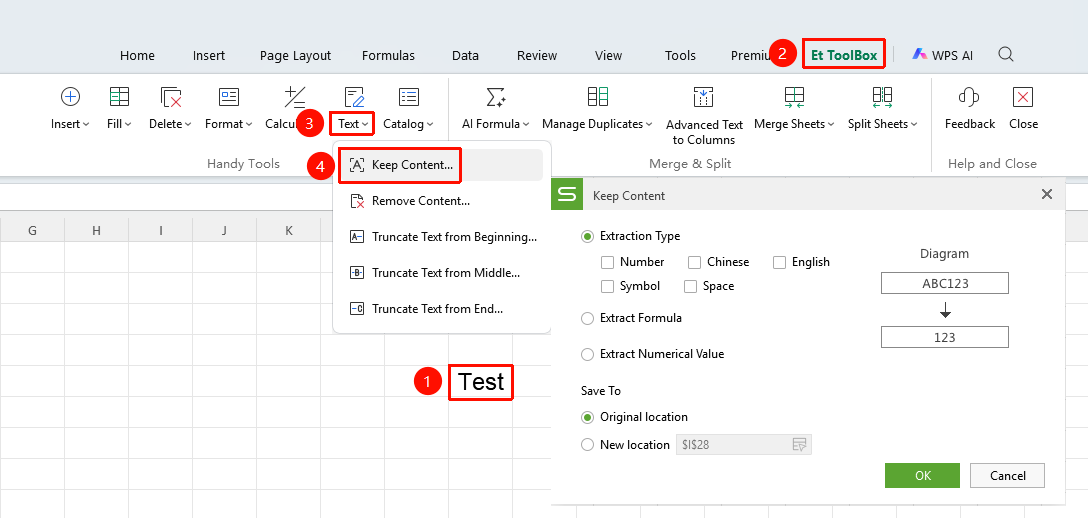
Keep Content
Feature Entry
"Member Exclusive" tab → "Smart Toolbox" option → "Smart Toolbox" tab → "Text" dropdown menu → "Keep Content" option
- Select the cell range to process
- Click the Member Exclusive tab
- Select the Smart Toolbox option to open the Smart Toolbox tab
- Click the Text dropdown menu and select the "Keep Content" option
- Batch extract specified types of content from cells (e.g., keep only Chinese, numbers, or English) and delete all other content
- Click OK
Remove Content
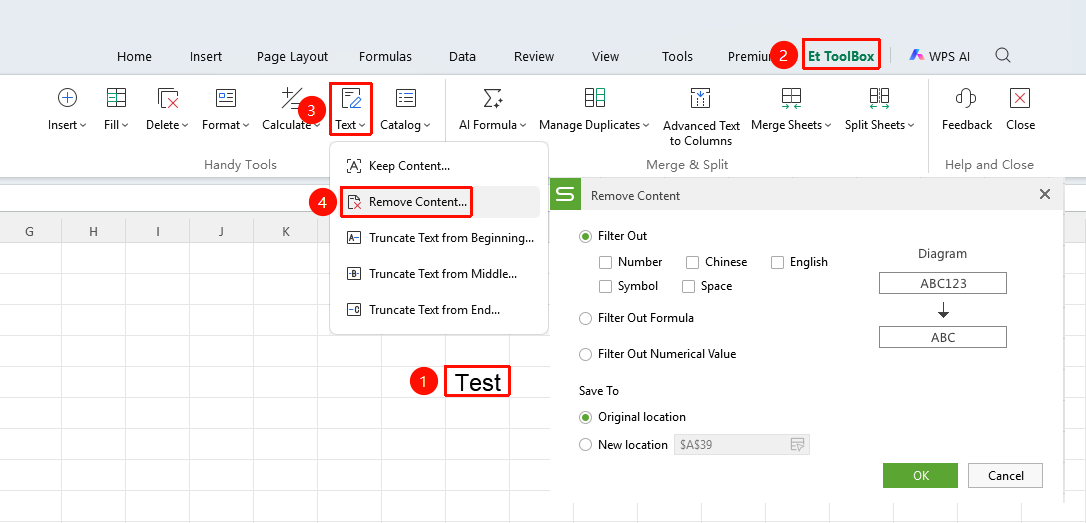
Feature Entry
"Member Exclusive" tab → "Smart Toolbox" option → "Smart Toolbox" tab → "Text" dropdown menu → "Remove Content" option
- Select the cell range to process
- Click the Member Exclusive tab
- Select the Smart Toolbox option to open the Smart Toolbox tab
- Click the Text dropdown menu and select the "Remove Content" option
- Batch delete specified types of content from cells (e.g., delete Chinese, numbers, or English) and keep the rest of the content
- Click OK
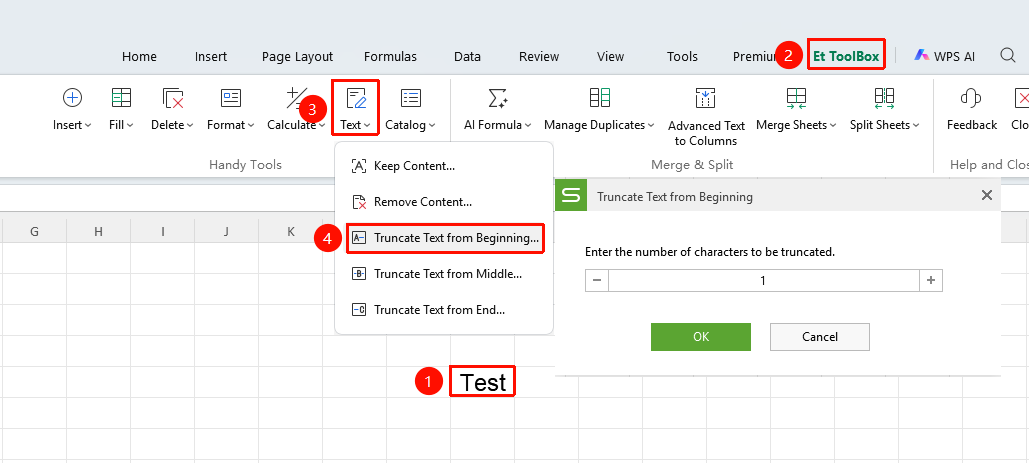
Extract Text from Beginning
Feature Entry
"Member Exclusive" tab → "Smart Toolbox" option → "Smart Toolbox" tab → "Text" dropdown menu → "Extract Text from Beginning" option
- Select the cell range to process
- Click the Member Exclusive tab
- Select the Smart Toolbox option to open the Smart Toolbox tab
- Click the Text dropdown menu and select the "Extract Text from Beginning" option
- Extract a specified number of characters from the beginning of the cell text, suitable for extracting fixed prefixes
- Click OK
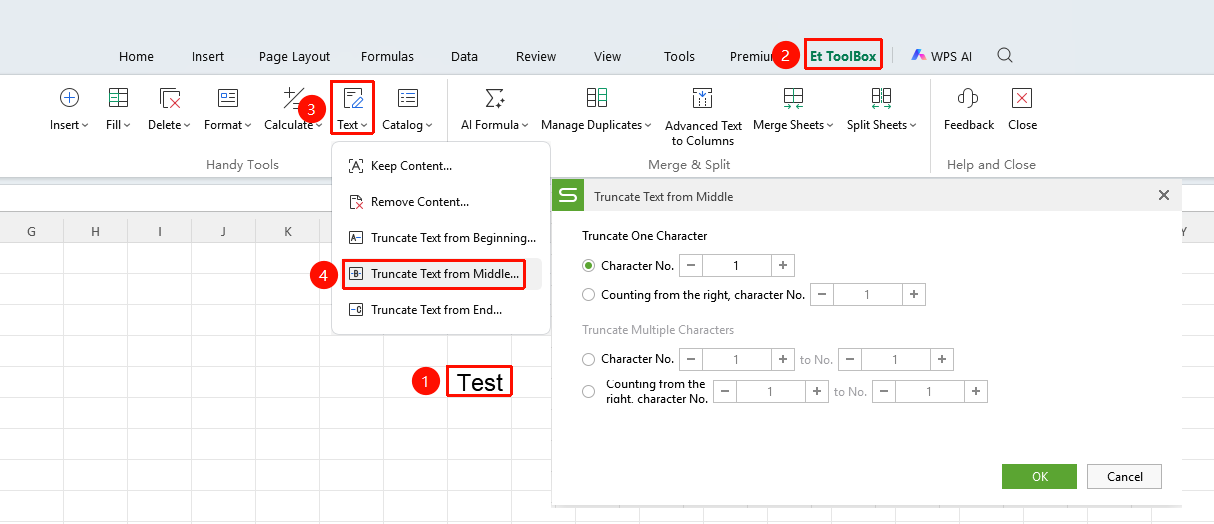
Extract Text from Middle
Feature Entry
"Member Exclusive" tab → "Smart Toolbox" option → "Smart Toolbox" tab → "Text" dropdown menu → "Extract Text from Middle" option
- Select the cell range to process
- Click the Member Exclusive tab
- Select the Smart Toolbox option to open the Smart Toolbox tab
- Click the Text dropdown menu and select the "Extract Text from Middle" option
- Extract a specified length of characters from a specified starting position in the cell text, suitable for extracting middle segments
- Click OK
Extract Text from End
Feature Entry
"Member Exclusive" tab → "Smart Toolbox" option → "Smart Toolbox" tab → "Text" dropdown menu → "Extract Text from End" option
- Select the cell range to process
- Click the Member Exclusive tab
- Select the Smart Toolbox option to open the Smart Toolbox tab
- Click the Text dropdown menu and select the "Extract Text from End" option
- Extract a specified number of characters from the end of the cell text, suitable for extracting fixed suffixes
- Click OK