Feature Summary
Allow Edit Ranges is used to set independent editing permissions and passwords for different ranges, enabling refined collaborative editing control.
Feature Description
| Feature Dimension | Description |
|---|---|
| Membership Restrictions | No membership restrictions |
| Version Restrictions | No version restrictions |
Steps
Create a New Allow Edit Range
Feature Entry
"Review" tab → "Allow Users to Edit Ranges" button → "New" button
- Confirm that the current worksheet is not protected
- Click Allow Users to Edit Ranges in the Review tab
- Click the New button
- In the pop-up dialog, use the mouse to drag and select the range to be opened for editing in the cell reference input box
- Set an independent range password for this range (can be different from the worksheet protection password)
- Click OK
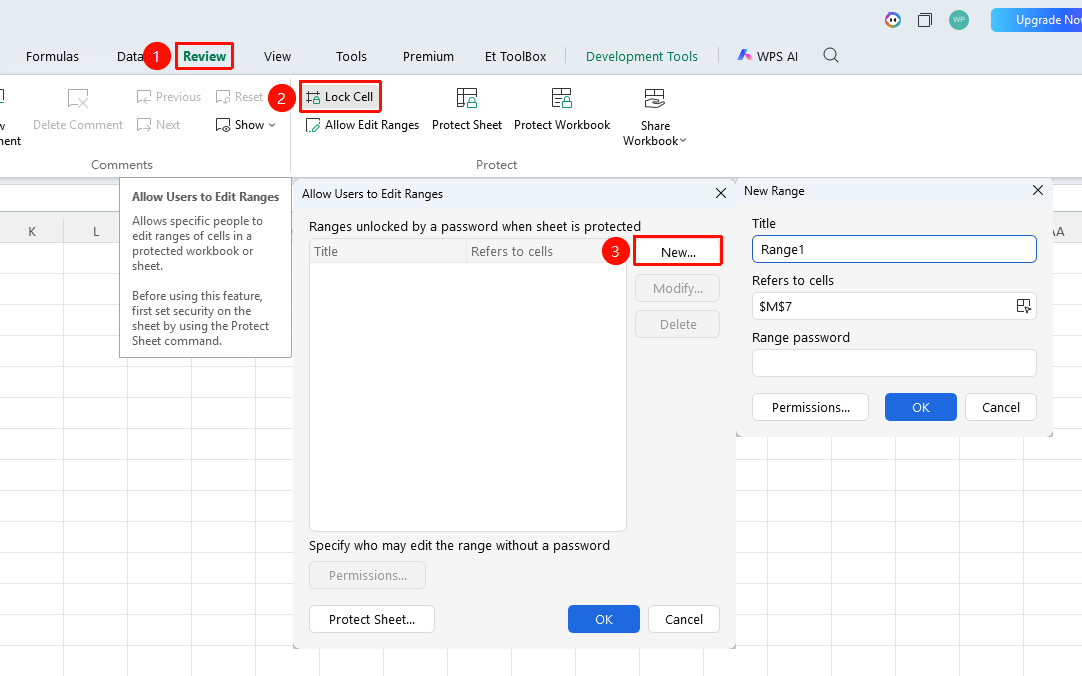
Multi-Range Permission Settings
- Repeat the above steps to create new ranges for each area requiring independent permissions
- Set different passwords for each range
- After all settings are complete, click Protect Sheet in the pop-up window
- Set the overall worksheet protection password and confirm
FAQ
Q1: What is the difference between the Allow Edit Range password and the worksheet protection password?
- Solution: The range password only controls editing permissions for that specific range; knowing the password allows editing that range. The worksheet protection password is used to remove overall protection. The two are set independently.
Q2: How do I delete an Allow Edit Range that has already been set?
- Solution: First unprotect the worksheet, then open the "Allow Users to Edit Ranges" window, select the unwanted range, and click "Delete".
Q3: What if a user does not know the range password?
- Solution: The range password is optional. If password control is not needed, you can skip setting a password when creating a new range, only controlling the scope of protection.
Notes
- Before setting this feature, confirm that the worksheet is not protected
- This feature works best when used in conjunction with "Lock Cells" and "Protect Sheet"