Feature Summary
The full-screen display feature hides interface elements such as the ribbon and status bar, maximizing the spreadsheet editing area so you can focus on viewing and editing data.
Feature Description
| Feature Dimension | Description |
|---|---|
| Membership Restriction | No membership restriction |
| Version Restriction | No version restriction |
Operation Steps
Entering Full-Screen Display
Feature Entry ①
"View" tab → "Full-Screen Display"
- Click the "Full-Screen Display" button in the "View" tab
- The interface will enter full-screen mode, hiding elements such as the ribbon and status bar
- The spreadsheet editing area will be maximized
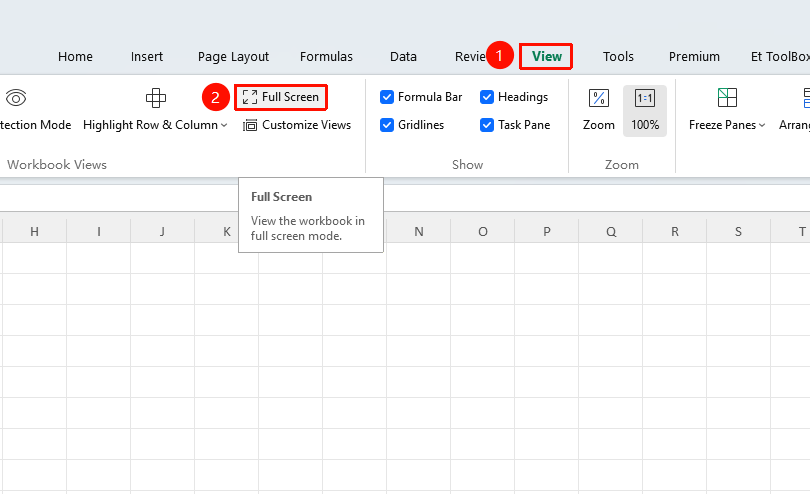
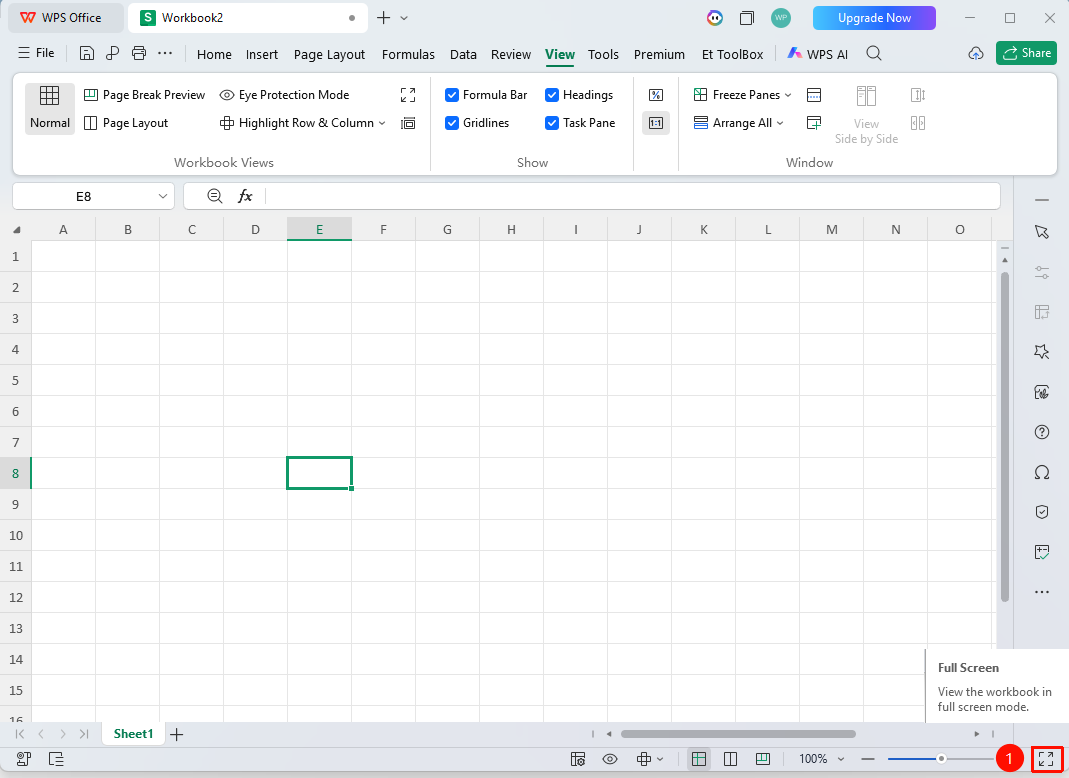
Feature Entry ②
Bottom-right corner of the status bar → "Full-Screen Display"
- Click the "Full-Screen Display" button at the bottom-right corner of the status bar
- Enter full-screen mode
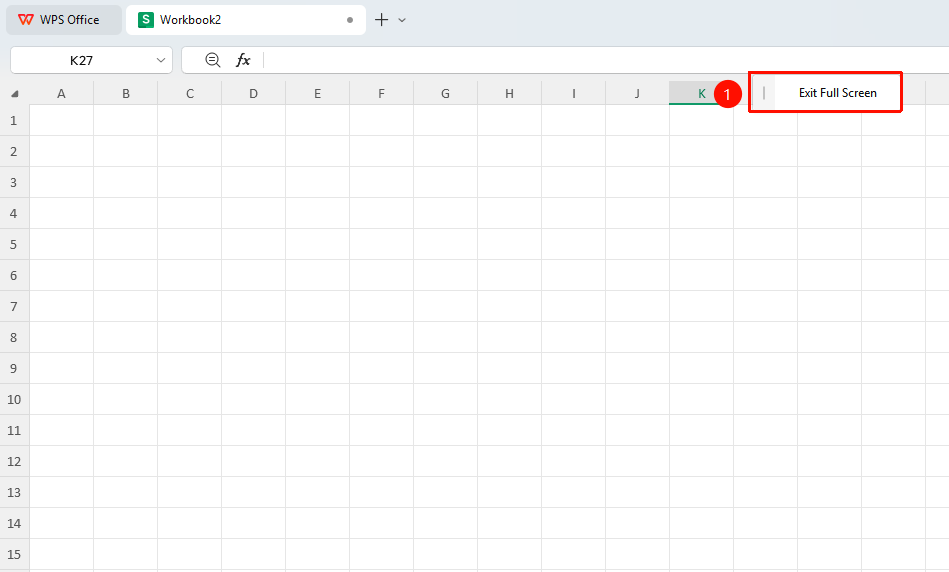
Exiting Full-Screen Display
Feature Entry
Press the Esc key to exit
- In full-screen mode, press the Esc key on the keyboard
- The interface will return to the normal display mode
Notes
- Full-screen display only affects the interface display and will not change spreadsheet data
- Keyboard shortcuts can still be used in full-screen mode
- It is recommended to use full-screen display when you need to focus on viewing data