Feature Summary
Shared Workbook allows multiple users to edit the same spreadsheet file simultaneously, enabling collaborative data editing and efficient collaboration through WPS Cloud Documents.
Feature Description
| Feature Dimension | Description |
|---|---|
| Membership Restrictions | No membership restrictions |
| Version Restrictions | No version restrictions |
Operation Steps
Traditional Sharing Method
Feature Entry
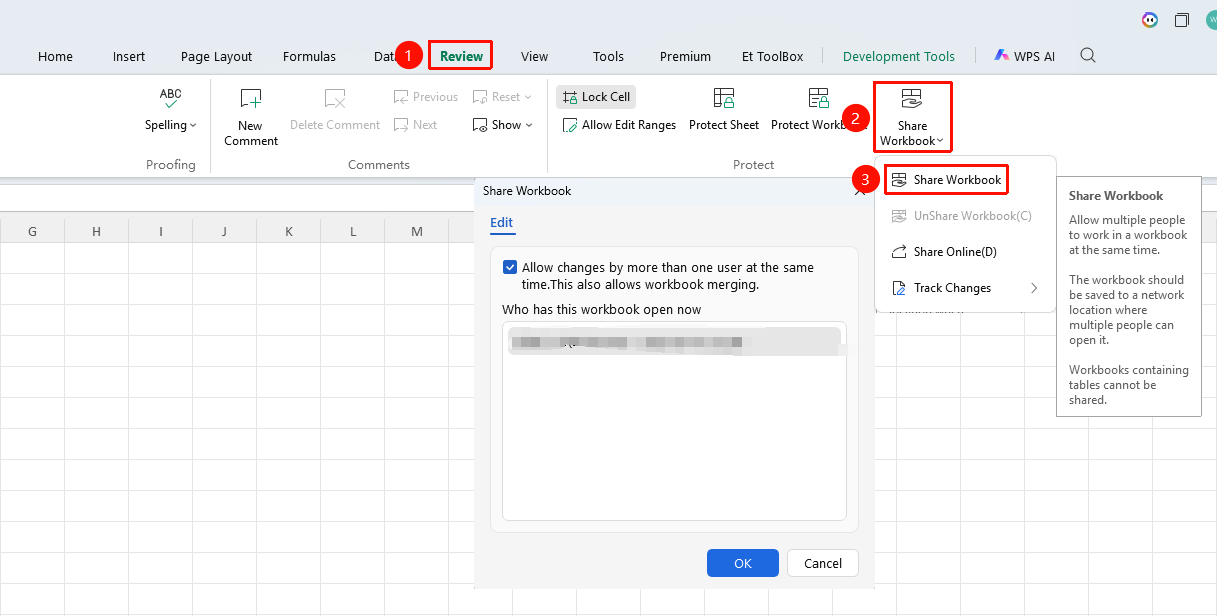
"Review" tab → "Share Workbook" button
- Open the WPS spreadsheet file you want to share
- Click the "Share Workbook" button in the Review tab
- In the pop-up window, check "Allow multiple users to edit simultaneously, and allow workbook merging"
- Set advanced options as needed (update revision time, save conflict handling method)
- Click OK and save the file to a shared folder
Frequently Asked Questions
Q1: What is the difference between Shared Workbook and Cloud Document collaboration?
- Solution: Traditional sharing requires being on the same local network and accessing via a shared folder; Cloud Document collaboration is implemented through the cloud, supporting access anytime and anywhere. It is recommended to use the Cloud Document method.
Q2: How to handle data conflicts when multiple users edit simultaneously?
- Solution: Conflict handling strategies can be set in the advanced options of Shared Workbook (such as 'Save changes by the user who overwrites' or 'Users keep their respective changes'). The Cloud Document method will automatically merge conflicts.
Q3: What are the functional limitations of Shared Workbook?
- Solution: In shared mode, operations such as merging cells, conditional formatting, data validation, and inserting illustrations cannot be performed. If you need to use these features, please cancel the shared state first.
Notes
- It is recommended to use the WPS Cloud Document method for collaboration, which has more complete functionality
- Traditional sharing is only suitable for local network environments