Feature Summary
The Freeze Panes feature locks specified rows or columns in a worksheet so they remain visible while scrolling, making it easier to reference headers or key columns when viewing large datasets.
Feature Description
| Feature Dimension | Description |
|---|---|
| Membership Restrictions | No membership restrictions |
| Version Restrictions | No version restrictions |
Operation Steps
Freeze Top Row via the View Tab
Feature Entry
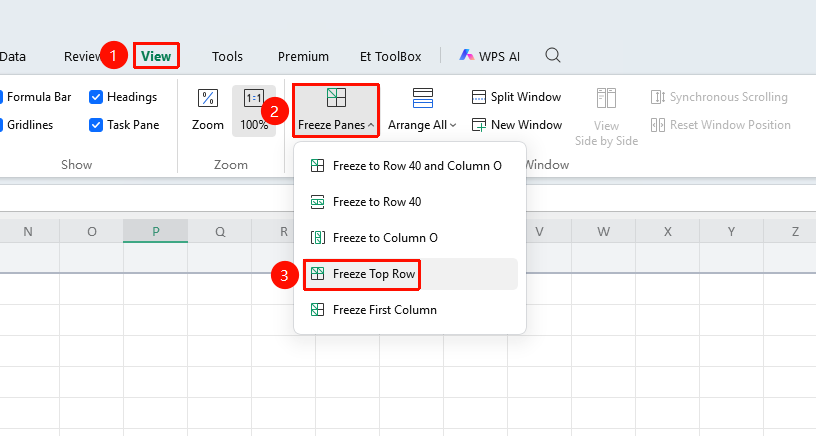
"View" tab → "Freeze Panes" dropdown menu → "Freeze Top Row" option
- Click the View tab
- Click the Freeze Panes dropdown menu
- Select the "Freeze Top Row" button
- The top row remains visible when scrolling down
Freeze First Column via the View Tab
Feature Entry
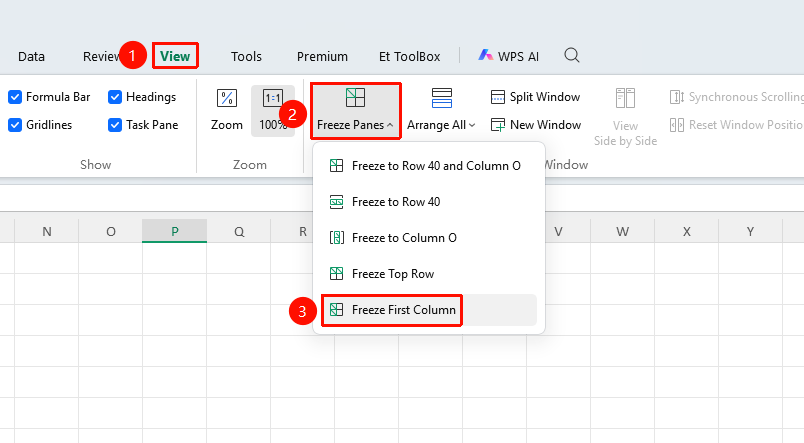
"View" tab → "Freeze Panes" dropdown menu → "Freeze First Column" option
- Click the View tab
- Click the Freeze Panes dropdown menu
- Select the "Freeze First Column" button
- The first column remains visible when scrolling right
Freeze a Specified Area via the View Tab
Feature Entry
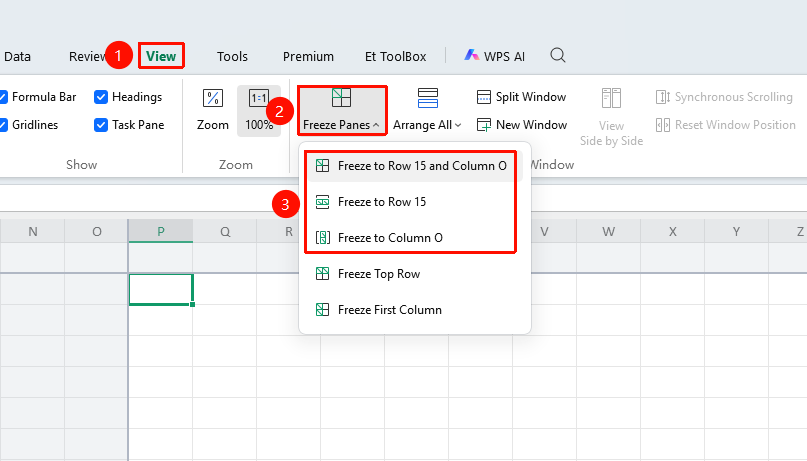
"View" tab → "Freeze Panes" dropdown menu
- Select the cell to the bottom-right of the area you want to freeze
- Click the View tab
- Click the Freeze Panes dropdown menu
- Select the freeze area:
- Freeze to Row x
- Freeze to Column x
- Freeze to Row x, Column x
Unfreeze Panes via the View Tab
Feature Entry
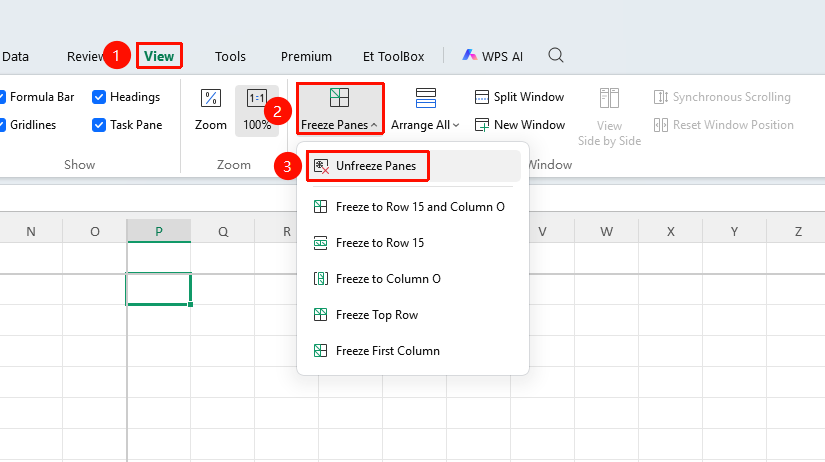
"View" tab → "Freeze Panes" dropdown menu → "Unfreeze Panes" button
- Click the View tab
- Click the Freeze Panes dropdown menu
- Select the "Unfreeze Panes" button
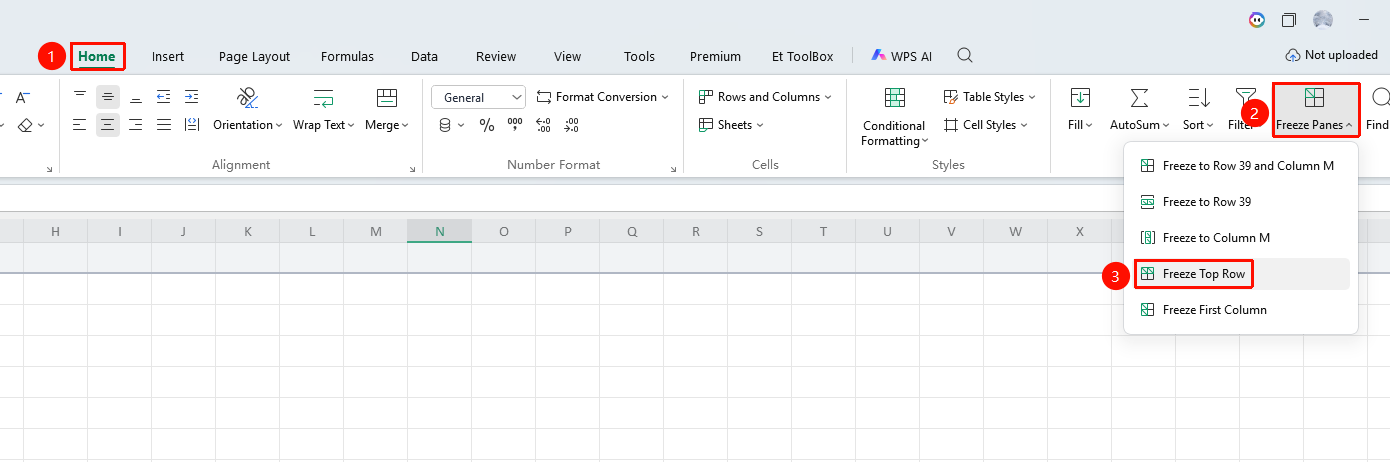
Freeze Top Row via the Home Tab
Feature Entry
"Home" tab → "Freeze" dropdown menu → "Freeze Top Row" option
- Click the Home tab
- Click the Freeze dropdown menu
- Select the "Freeze Top Row" button
- The top row remains visible when scrolling down
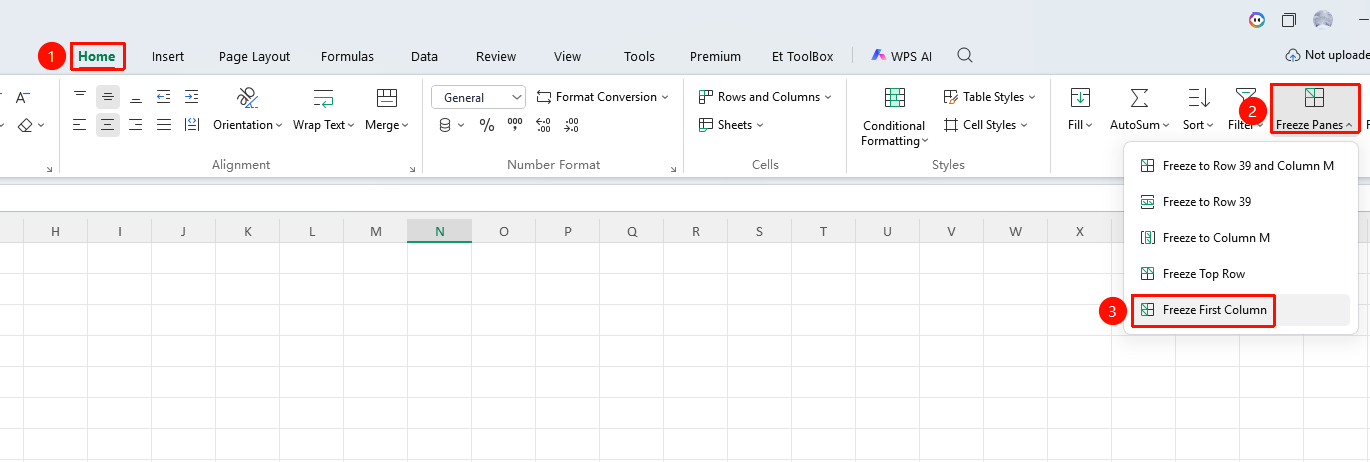
Freeze First Column via the Home Tab
Feature Entry
"Home" tab → "Freeze" dropdown menu → "Freeze First Column" option
- Click the Home tab
- Click the Freeze dropdown menu
- Select the "Freeze First Column" button
- The first column remains visible when scrolling down
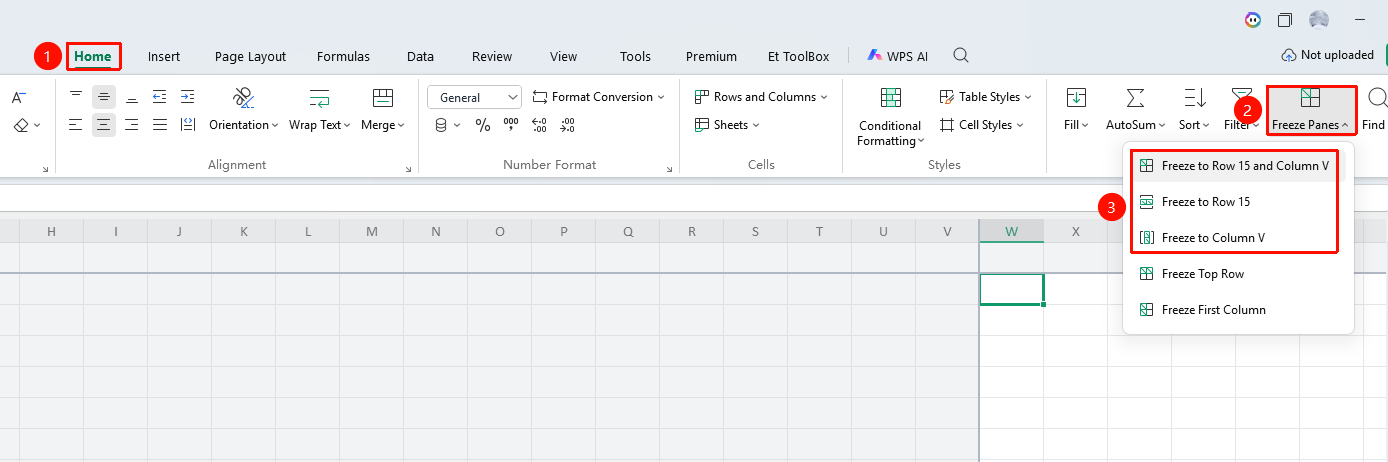
Freeze a Specified Area via the Home Tab
Feature Entry
"Home" tab → "Freeze" dropdown menu
- Select the cell to the bottom-right of the area you want to freeze
- Click the Home tab
- Click the Freeze dropdown menu
- Select the freeze area:
- Freeze to Row x
- Freeze to Column x
- Freeze to Row x, Column x
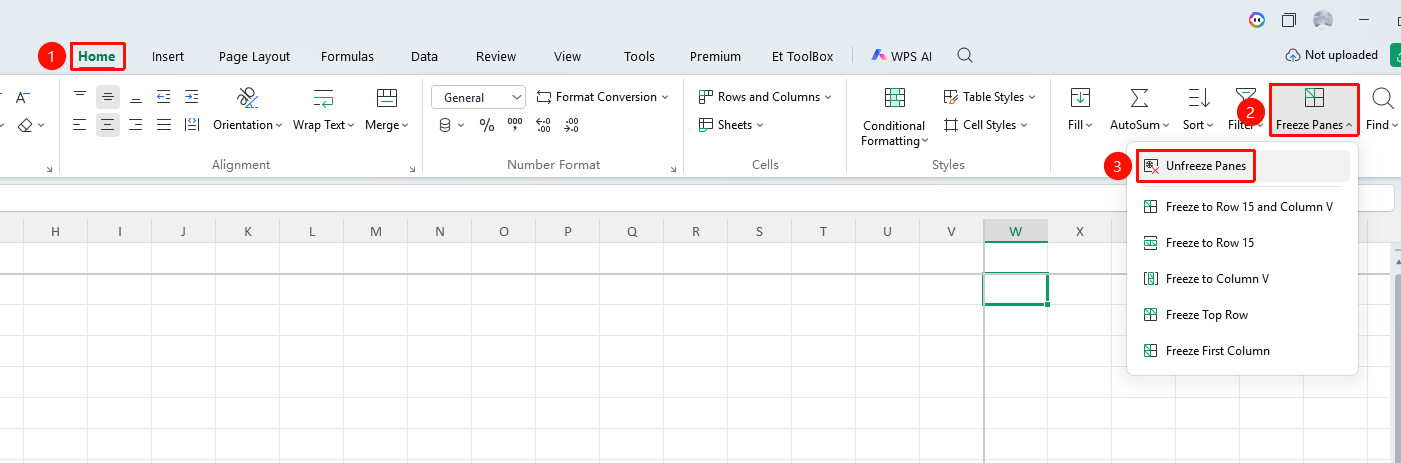
Unfreeze Panes via the Home Tab
Feature Entry
"Home" tab → "Freeze" dropdown menu → "Unfreeze Panes" button
- Click the Home tab
- Click the Freeze dropdown menu
- Select the "Unfreeze Panes" button
FAQ
Q1: What is the purpose of Freeze Panes?
- Solution: Freeze Panes keeps headers or key columns always visible while scrolling through large datasets, making data comparison easier.
Notes
- Freeze Panes does not affect print results
- Rows and columns can be frozen simultaneously
- The Split Panes feature is unavailable when panes are frozen