Feature Summary
The Text-to-Columns feature is used to split the content of a single cell into multiple columns based on a specified delimiter or fixed width, and is commonly used for processing imported data.
Feature Description
| Feature Dimension | Description |
|---|---|
| Membership Restrictions | Some features require a membership subscription |
| Version Restrictions | No version restrictions |
Steps
Text to Columns
Feature Entry
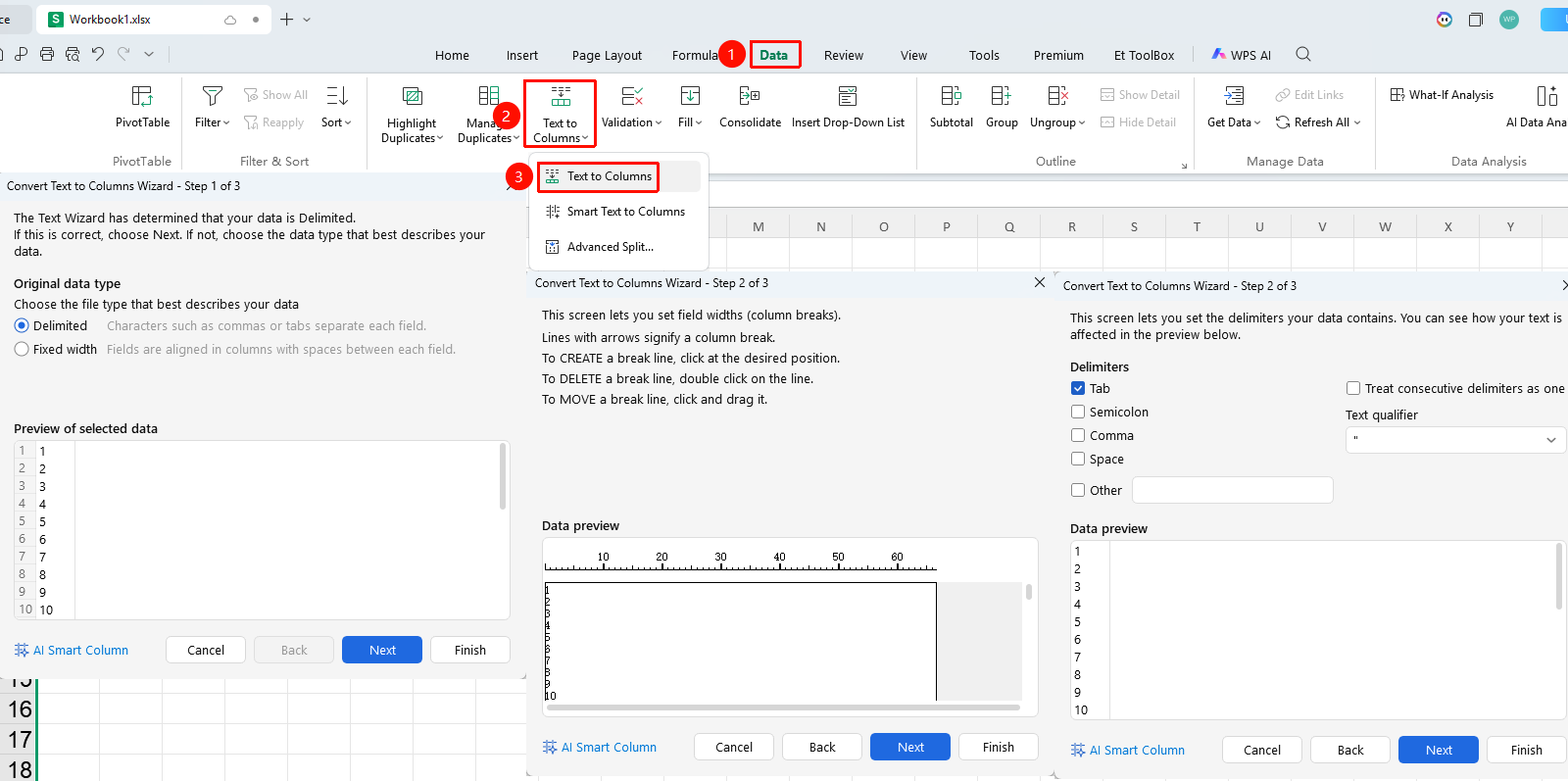
"Data" tab → "Text to Columns" button
- Select the data column you want to split
- Click the Text to Columns button in the Data tab
- Choose a splitting method:
- Delimited
- Fixed Width
Advanced Text to Columns in the Data Tab (Membership Required)
Feature Entry
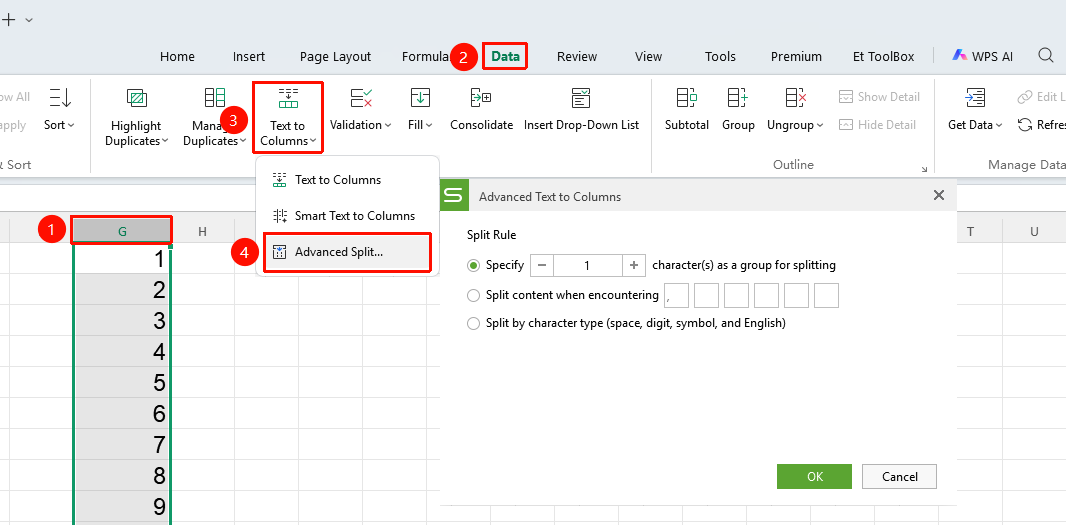
"Data" tab → Dropdown menu under the "Text to Columns" button → "Advanced Text to Columns" button
- Select the data column you want to split
- Click the Data tab
- Click the dropdown menu under the Text to Columns button
- Click Advanced Text to Columns
- Choose a splitting method:
- Fixed Characters
- Specific Content
- Character Type
Advanced Text to Columns in the Smart Toolbox Tab (Membership Required)
Feature Entry
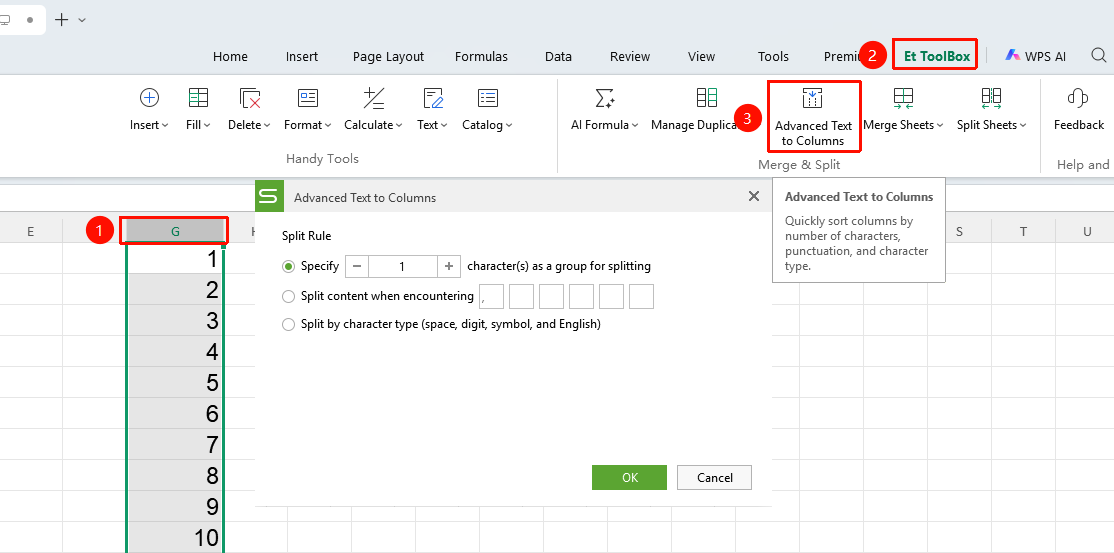
"Member Exclusive" tab → "Smart Toolbox" option → "Smart Toolbox" tab → "Advanced Text to Columns" button
- Select the data column you want to split
- Select the Member Exclusive tab
- Click the Smart Toolbox button
- The Smart Toolbox tab will appear
- Click the Advanced Text to Columns button
- Choose a splitting method:
- Fixed Characters
- Specific Content
- Character Type
FAQ
Q1: Will Text to Columns overwrite existing data?
- Solution: If the target area contains data that would be overwritten, it is recommended to perform the split operation in blank columns.
Notes
- Ensure there are enough blank columns in the target area before splitting
- The split result can be previewed and confirmed
- Supports setting the data format after splitting