Feature Summary
The Subtotal feature is used to group and summarize data by specified fields. It supports various summary methods such as Sum, Count, Average, Max, and Min, and can quickly generate summary reports with hierarchical display for convenient data viewing and analysis.
Feature Description
| Feature Dimension | Description |
|---|---|
| Membership Restriction | No membership restriction |
| Version Restriction | No version restriction |
Operation Steps
Subtotal
Feature Entry
"Data" tab → "Subtotal" button
- Select any cell within the data range
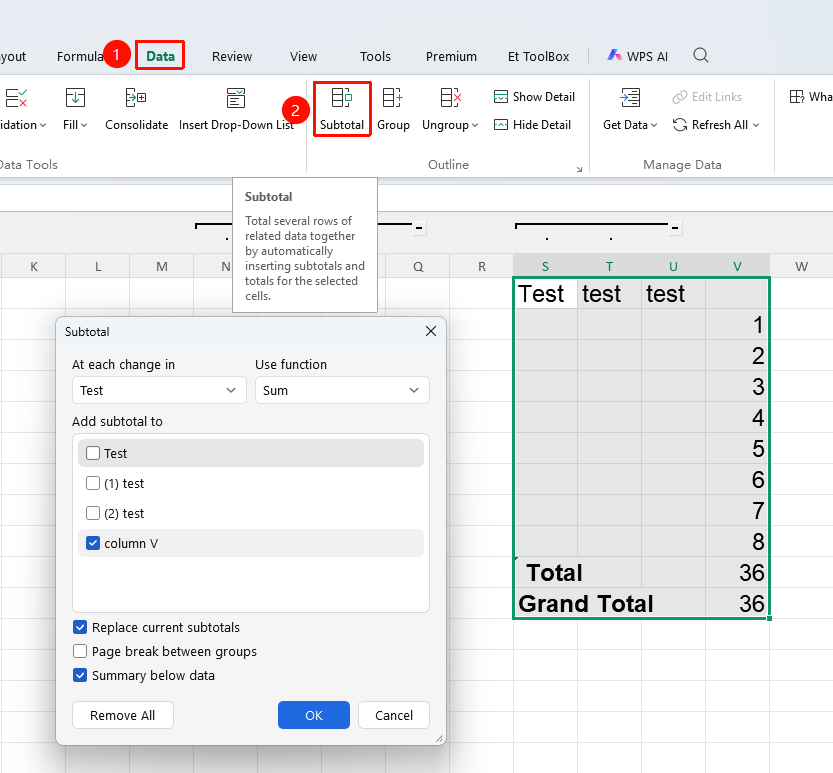
- Click the Data tab, and in the "Outline" group, click the "Subtotal" button
- Configure core parameters:
- At each change in: Select the column used for grouping (e.g., to group by "Department", select "Department" )
- Use function: Choose the calculation logic based on your needs (Sum, Count, Average, Max, Min, etc.)
- Add subtotal to: Check the data columns you want to calculate (multiple selections supported)
- Keep the default check on Summary below data
- Click OK to complete the subtotal
Multi-level Nested Subtotal
Feature Entry
"Data" tab → "Subtotal" button
- Complete the first subtotal first
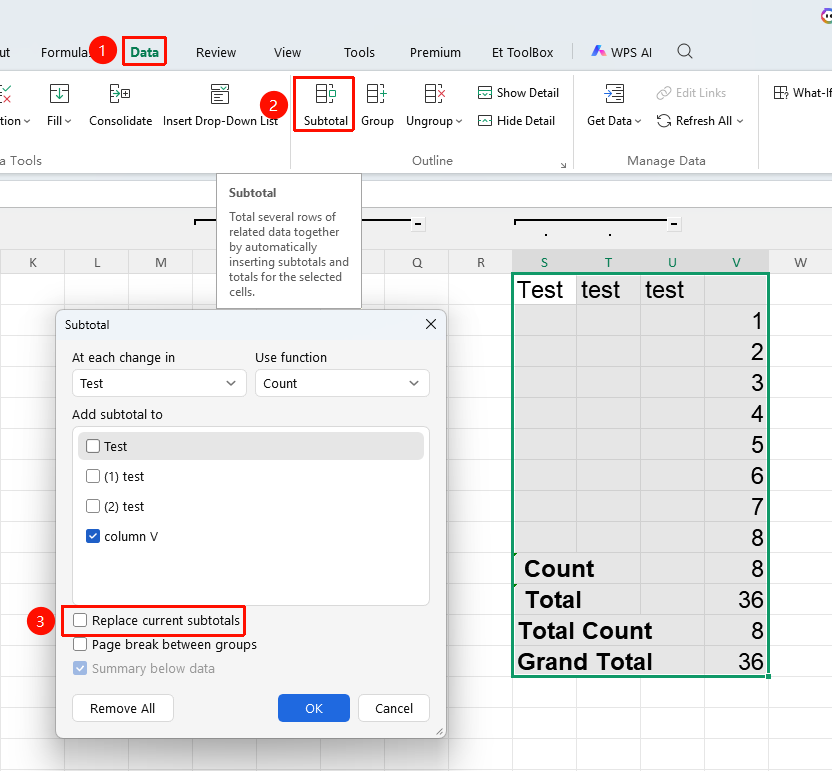
- Click the "Subtotal" button in the Data tab again
- Set the corresponding function and subtotal items
- Uncheck "Replace current subtotals" to keep the previous subtotal results
- Click OK to generate a two-level nested subtotal
- Repeat the above steps if more levels are needed
Remove Subtotal
Feature Entry
"Data" tab → "Subtotal" button → "Remove All" option
- Click any cell in the data range
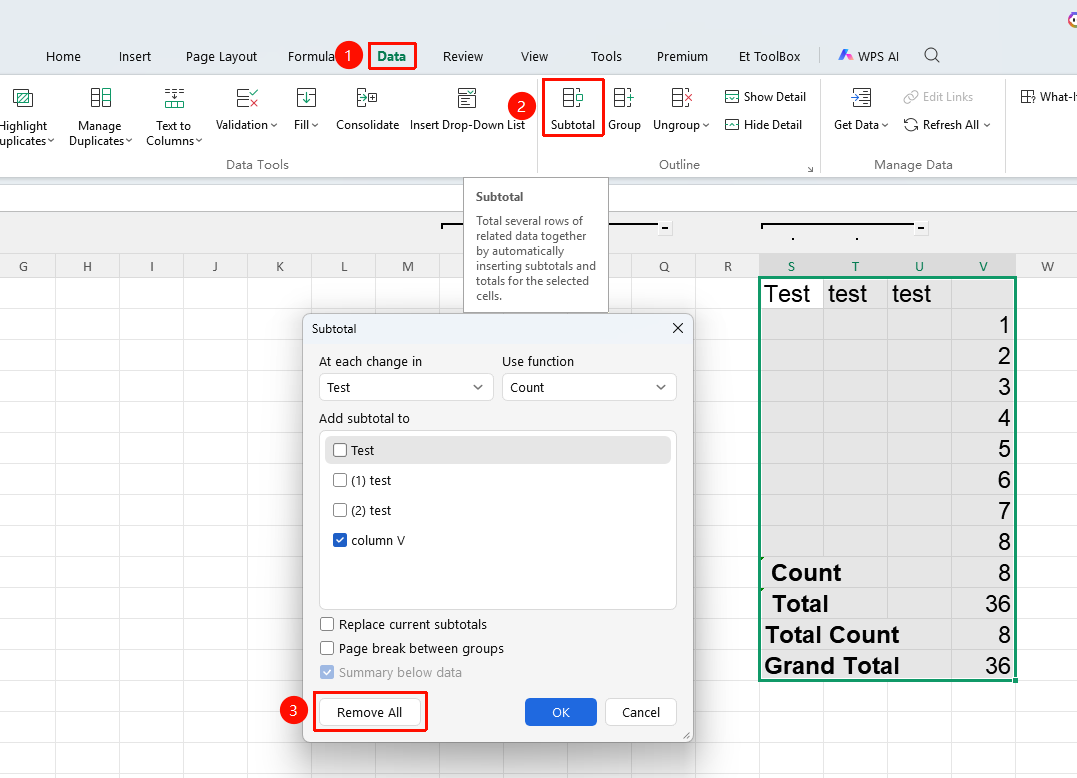
- Open the Subtotal dialog box in the Data tab again
- Click the "Remove All" option in the lower-left corner of the dialog box
- Click OK to restore the original data
FAQ
Q1: How to copy only the summary data without copying the hidden detail data?
- Solution: Use the CTRL+G Go To function, check "Visible cells only", and then you can copy only the summary data.
Notes
- The data must be a continuous rectangular range, with the first row being a standard header row, and no merged cells are allowed
- When creating multi-level nested subtotals, you need to uncheck "Replace current subtotals"
- Removing subtotals can restore the original data without affecting the source data