Feature Summary
The Column Width feature is used to adjust the width of columns in a worksheet. It supports manual dragging, precise settings, and automatic adjustment to ensure optimal content display.
Feature Description
| Feature Dimension | Description |
|---|---|
| Membership Restrictions | No membership restrictions |
| Version Restrictions | No version restrictions |
Step-by-Step Operations
Setting Column Width via the Ribbon
Function Entry Point
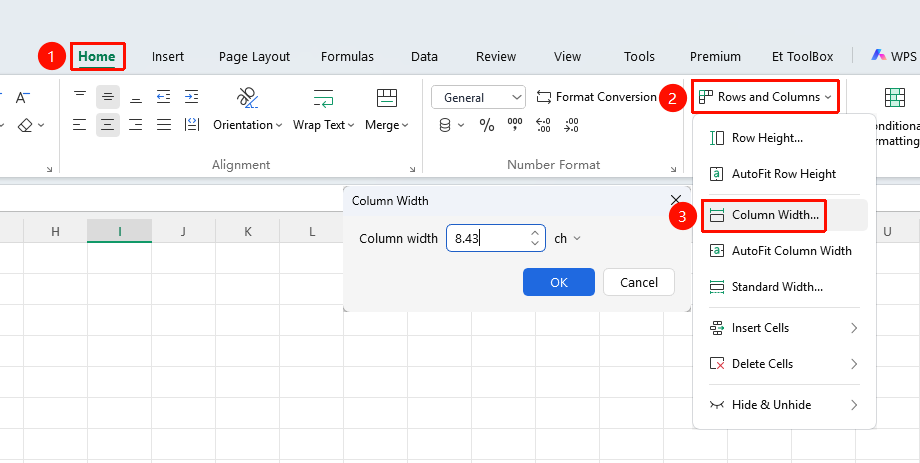
"Home" tab → "Rows and Columns" drop-down menu → "Column Width" option
- Click the Home tab
- Select the Rows and Columns drop-down menu
- Click the "Column Width" option
- Enter the precise column width value (unit: points)
- Click OK
Setting Column Width via the Right-Click Menu
Function Entry Point
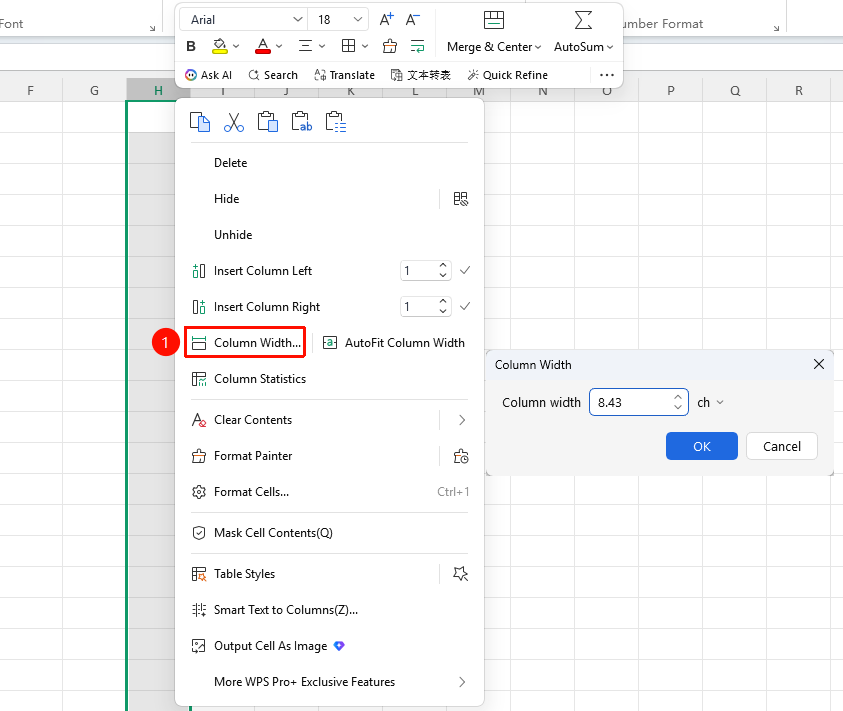
Right-click the column(s) you want to adjust → Select the "Column Width" option
- Select the column(s) you want to adjust (multiple selection is allowed)
- Right-click the column header(s) and select the "Column Width" option
- Enter the precise column width value (unit: points)
- Click OK
Automatic Column Width Adjustment via the Ribbon
Function Entry Point
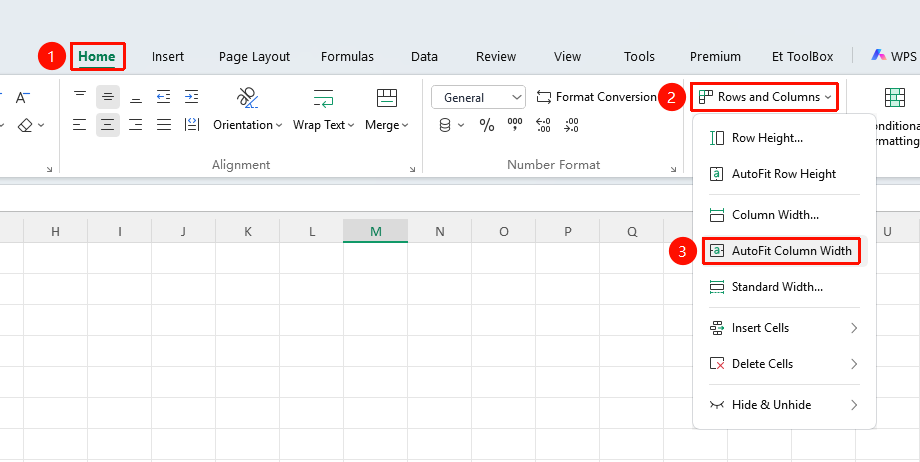
"Home" tab → "Rows and Columns" drop-down menu → "AutoFit Column Width" option
- Click the Home tab
- Select the Rows and Columns drop-down menu
- Click the "AutoFit Column Width" option
- WPS will automatically set the most suitable column width based on the current cell content.
Automatic Column Width Adjustment via the Right-Click Menu
Function Entry Point
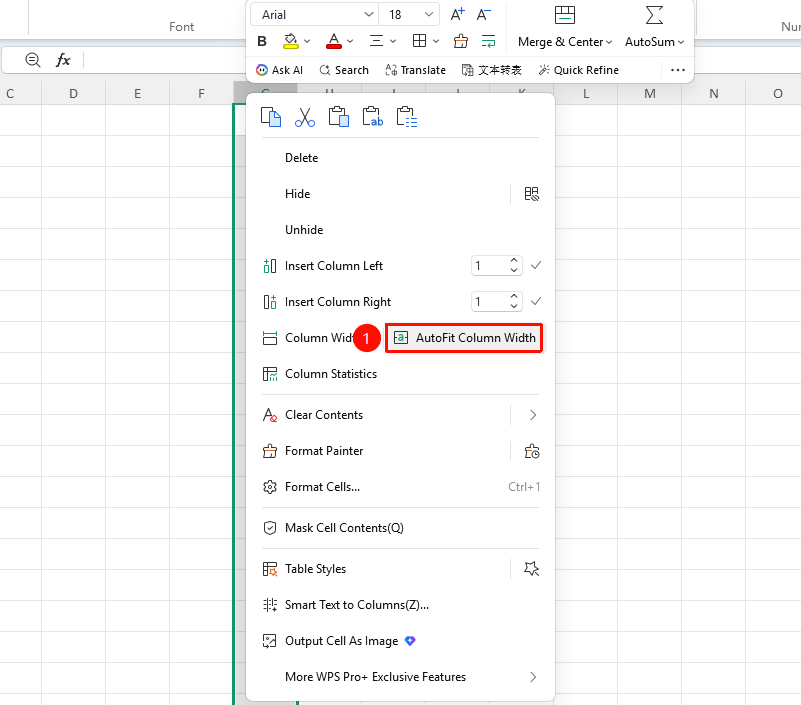
Right-click the column(s) you want to adjust → Select the "AutoFit Column Width" option
- Select the column(s) you want to adjust (multiple selection is allowed)
- Right-click the column header(s) and select the "AutoFit Column Width" option
- WPS will automatically set the most suitable column width based on the current cell content.
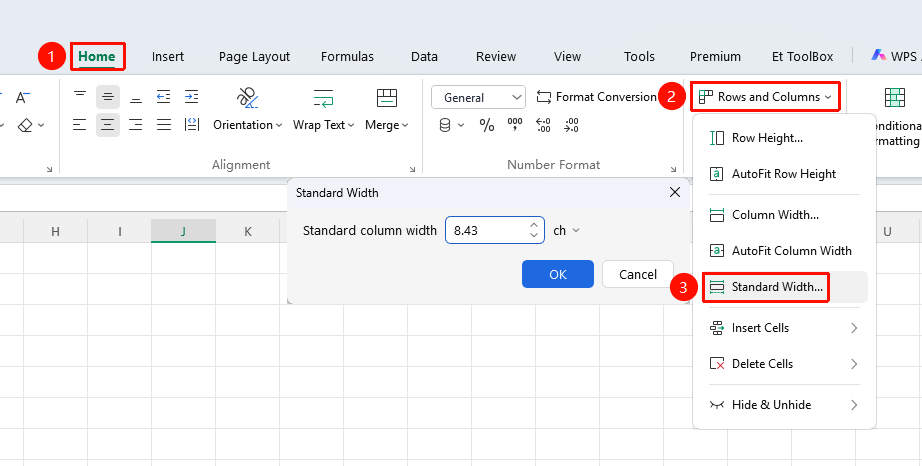
Adjusting Standard Column Width via the Ribbon
Function Entry Point
"Home" tab → "Rows and Columns" drop-down menu → "Standard Column Width" option
- Click the Home tab
- Select the Rows and Columns drop-down menu
- Click the "Standard Column Width" option
- Enter the precise column width value (unit: points)
- Click the OK button; this will set the column width for all columns in the current worksheet to the value you just entered.
Frequently Asked Questions
Question 1: How to adjust the column width for multiple columns in batch?
- Solution: After selecting multiple columns, right-click to set the column width or drag to adjust; all selected columns will be adjusted simultaneously.
Important Notes
- The default column width is 8.11 characters.
- Automatic adjustment can adapt to content width.
- Column width settings will affect the print output.