Feature Summary
The Duplicate Sheet feature is used to quickly copy an entire worksheet, including data, formatting, formulas, etc., making it easy to back up or create a new sheet based on existing data.
Feature Description
| Feature Dimension | Description |
|---|---|
| Membership Restriction | No membership restriction |
| Version Restriction | No version restriction |
Steps
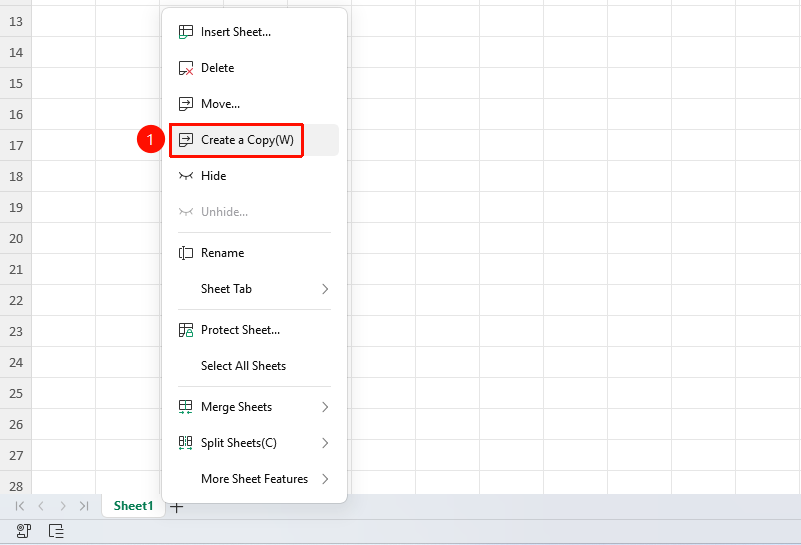
Duplicate via Right-Click Menu
Feature Entry
"Sheet" tab bar → Right-click an existing sheet tab → "Duplicate" button
- Right-click the sheet tab you want to duplicate
- Click the "Duplicate" button to complete the creation
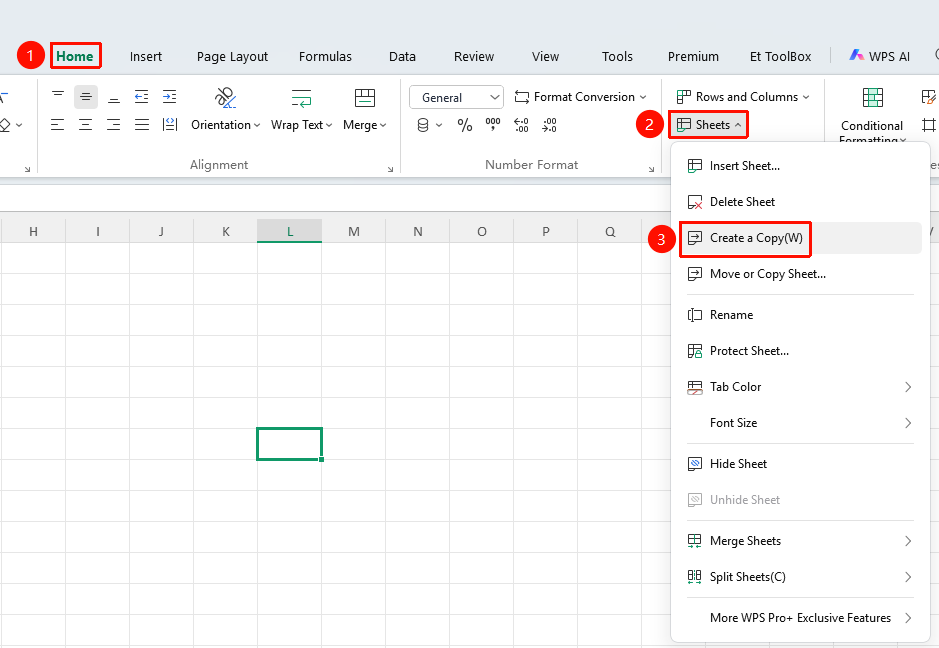
Duplicate via Ribbon
Feature Entry
"Home" tab → "Sheet" dropdown menu → "Duplicate" button
- Click the Home tab
- Select the Sheet dropdown menu
- Click the "Duplicate" button
Shortcut to Duplicate:
- Hold down the Ctrl key
- Drag the sheet tab to the target position
- Release the mouse to automatically create a duplicate
FAQ
Q1: What is the relationship between the duplicate and the original sheet?
- Solution: The duplicate is a completely independent worksheet. Modifying the duplicate will not affect the original sheet, and vice versa.
Notes
- The duplicate will be automatically named (e.g., Sheet1 (2))
- The duplicate contains all data, formatting, and formulas from the original sheet
- You can rename the duplicate after creation