Feature Summary
The bold function is used to set cell text to a bold style, making important content more prominent and eye-catching. It is a commonly used text formatting feature.
Feature Description
| Feature Dimension | Description |
|---|---|
| Membership Restriction | No membership restriction |
| Version Restriction | No version restriction |
Operation Steps
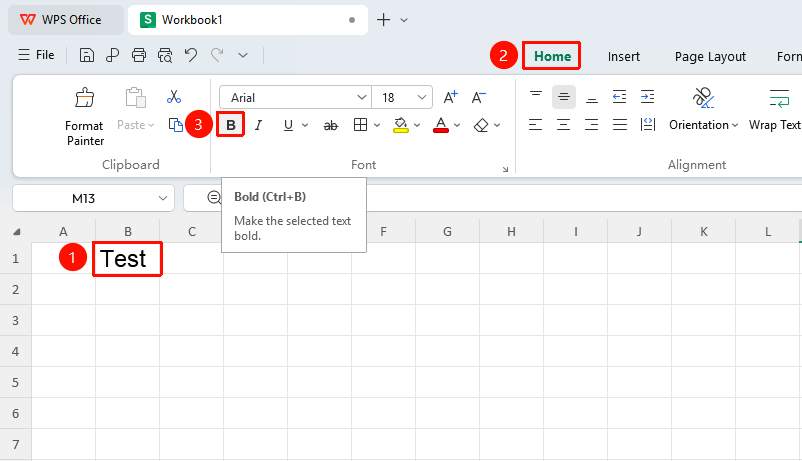
Bold via Ribbon Button
Feature Entry
"Home" tab → "Bold" button
- Select the cell or partial text within the cell that you want to bold
- Click the Bold button in the Home tab
- Click again to remove bold
Bold via Right-Click Menu
Feature Entry
Right-click menu → "Bold" button
- Select the cell or text within the cell that you want to bold
- Right-click to bring up the context menu
- Click the Bold button in the context menu
- Click again to remove bold

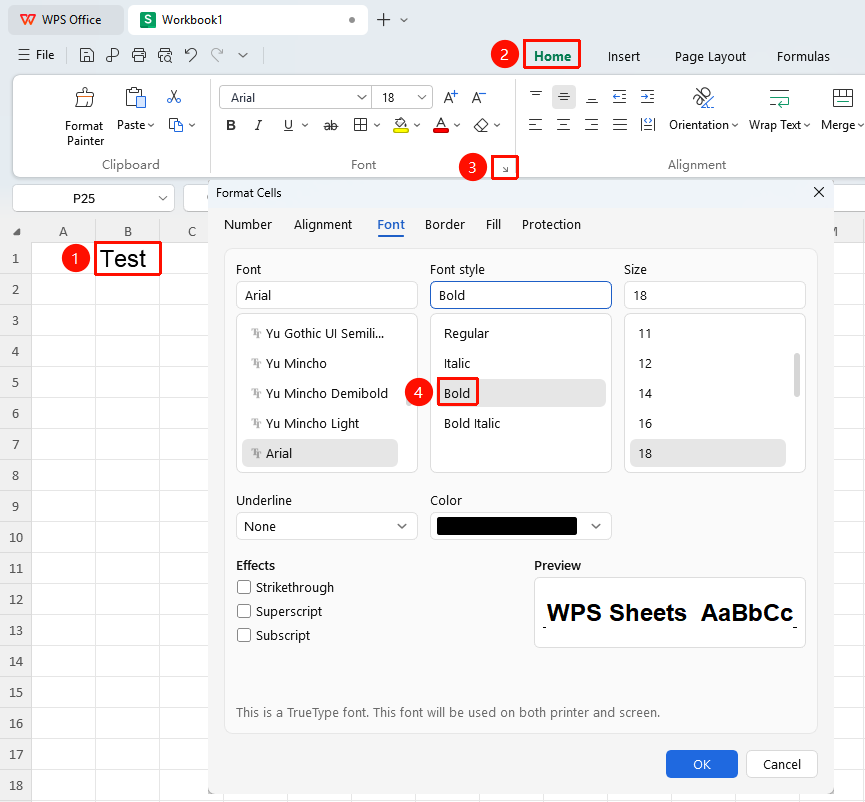
Bold via Format Cells Dialog
Feature Entry
"Home" tab → "Font Settings" arrow icon → "Bold" button
- Select the cell or text within the cell that you want to bold
- Click the Font Settings arrow icon in the Home tab
- In the pop-up dialog, click the Bold button, then click OK
Bold shortcut key:
Ctrl+B
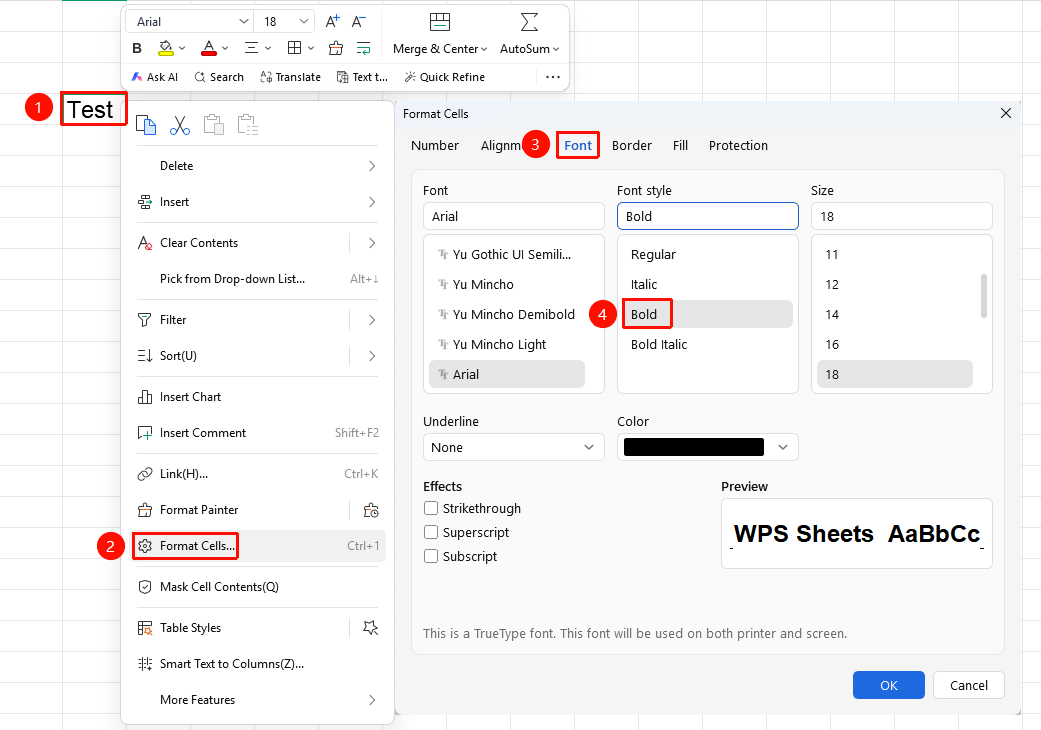
Bold via Right-Click Format Cells
Feature Entry
Right-click menu → "Format Cells" button → "Font" tab → "Bold" button
- Select the target cell, right-click and select the Format Cells button
- Switch to the Font tab
- Click the Bold button, then click OK
FAQ
Q1: Does bold apply only to cell content or the entire cell?
- Solution: If you select the entire cell, bold will be applied to all text within the cell; if you select only partial text within the cell, bold will only be applied to the selected portion.
Notes
- The shortcut key Ctrl + B is the most commonly used method for bolding
- Bold can be used simultaneously with other font formats (such as italic, underline)