Feature Summary
Add-ins are used to extend the functionality of WPS Sheets, supporting the addition, management, and use of various add-in plugins to achieve flexible feature expansion.
Feature Description
| Feature Dimension | Description |
|---|---|
| Membership Restriction | No membership restriction |
| Version Restriction | No version restriction |
Operation Steps
Open Add-in Management
Feature Entry
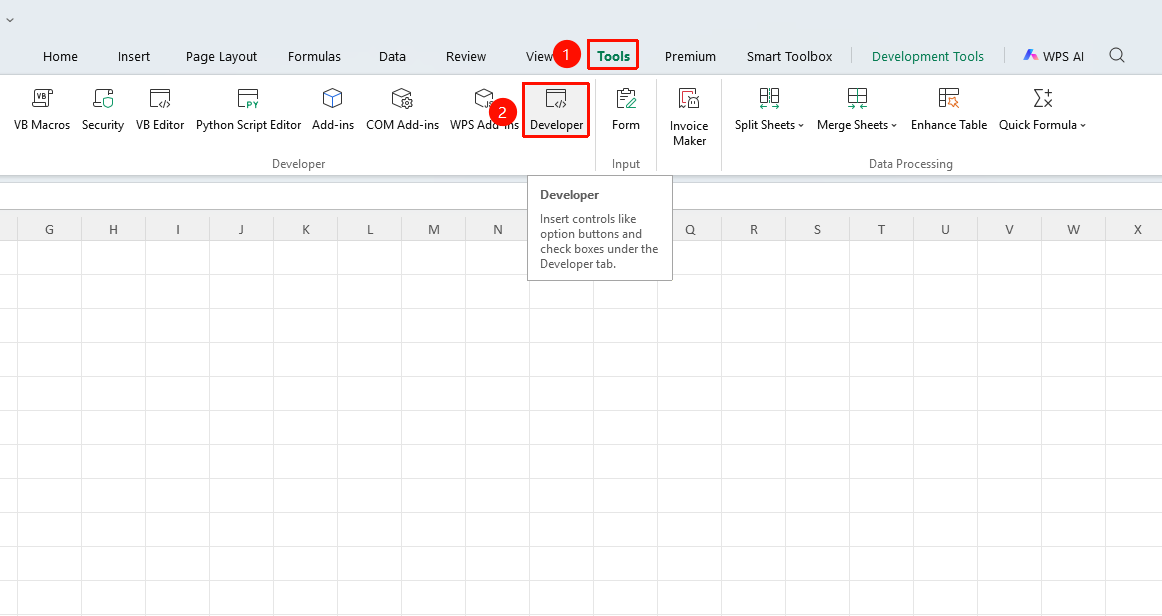
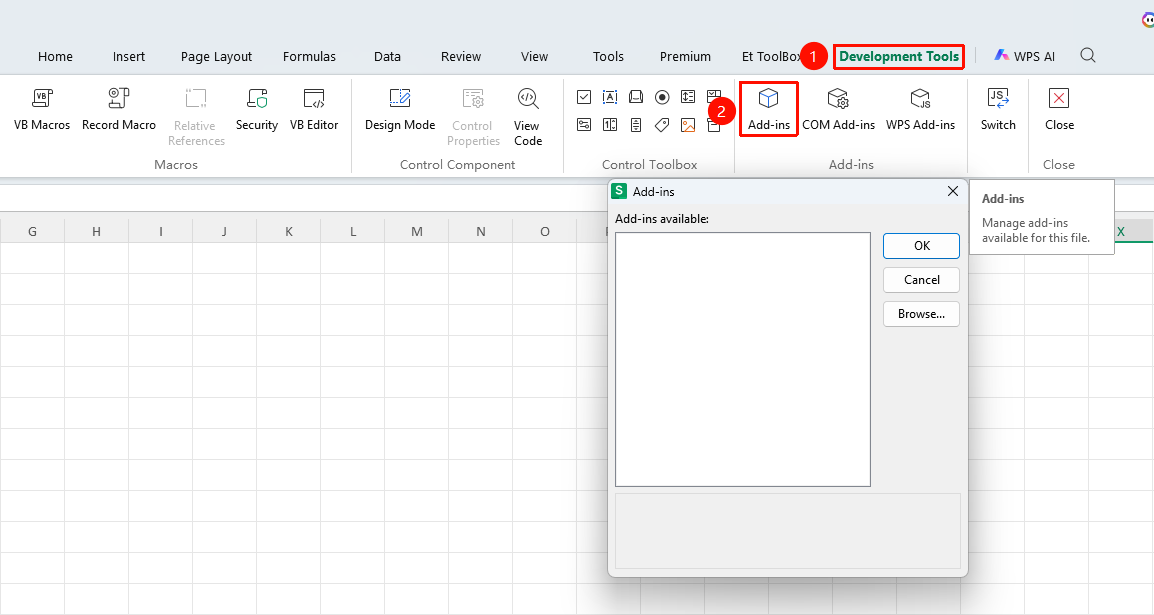
"Tools" tab → "Developer Tools" button → "Developer Tools" tab → "Add-ins" button
- Click the "Tools" tab at the top, locate and click the "Developer Tools" button to bring up the "Developer Tools" tab at the top
- Click the "Add-ins" button in the Developer Tools tab
- In the pop-up Add-in Management window, view the list of installed add-ins
- You can check/uncheck to enable or disable specific add-ins
Add New Add-in
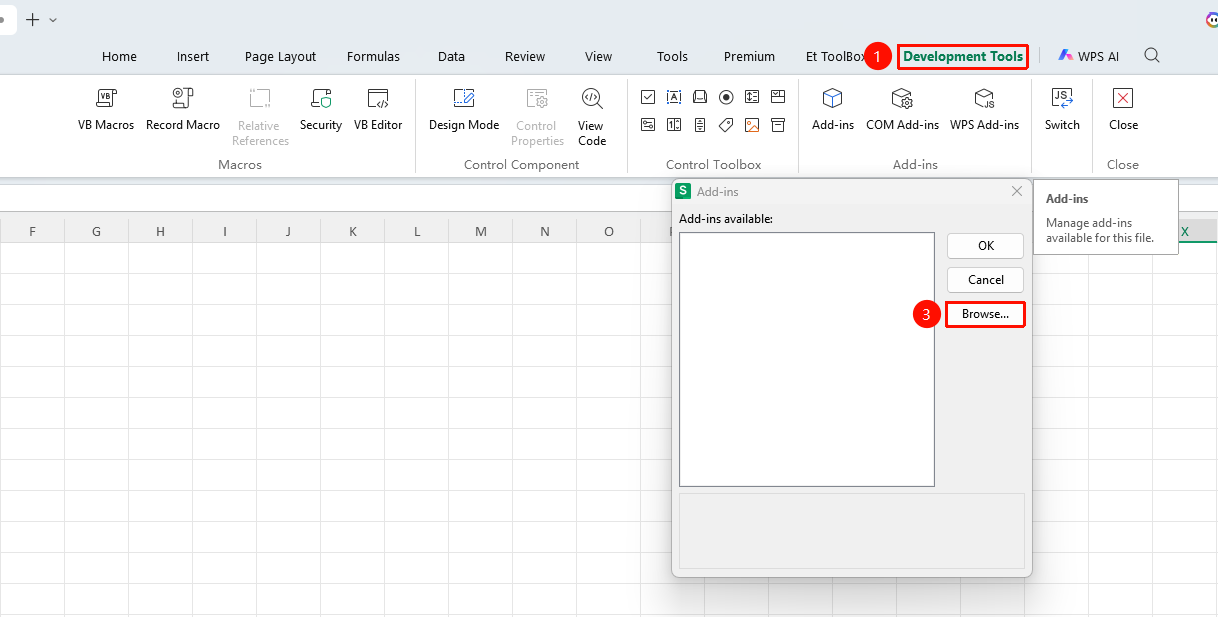
- Click the "Browse" button in the Add-in Management window
- Select the add-in file from the file system
- Click "Open" to complete the addition
- The new add-in appears in the list; check it to enable
Frequently Asked Questions
Question 1: What should I do if I cannot find the "Developer Tools" tab?
- Solution: Click "File" → "Options" → "Customize Ribbon", and check "Developer Tools" in the main tab list on the right.
Question 2: The add-in does not take effect after installation?
- Solution: Confirm that the add-in is checked and enabled. Check whether the add-in file format is correct, and restart WPS if necessary for it to take effect.
Question 3: How to remove an unwanted add-in?
- Solution: Open "Developer Tools" → "Add-ins", and uncheck the add-in in the list to disable it. This does not affect re-enabling it when needed next time.
Notes
- Only add add-ins from trusted sources to prevent security risks
- Too many add-ins may affect WPS startup and running speed