Feature Summary
WPS Sheets collaboration mode supports adding underline effects to cell content for emphasizing or annotating data, with support for multiple underline styles.
Feature Description
| Feature Dimension | Description |
|---|---|
| Membership Restriction | No membership restriction |
| Version Restriction | No version restriction |
Operation Steps
Apply Underline
Feature Entry
"Home" tab → "Underline" button
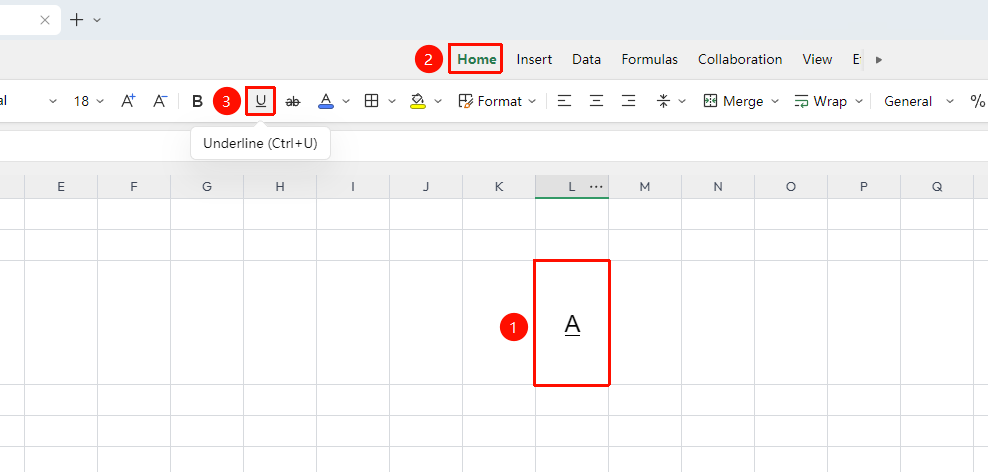
- Select the cell or text within a cell to which you want to add an underline
- Click the Home tab
- Click the "Underline" button
- An underline will be added below the selected text
Shortcut:
Ctrl+U
Remove Underline
Feature Entry
"Home" tab → "Underline" button
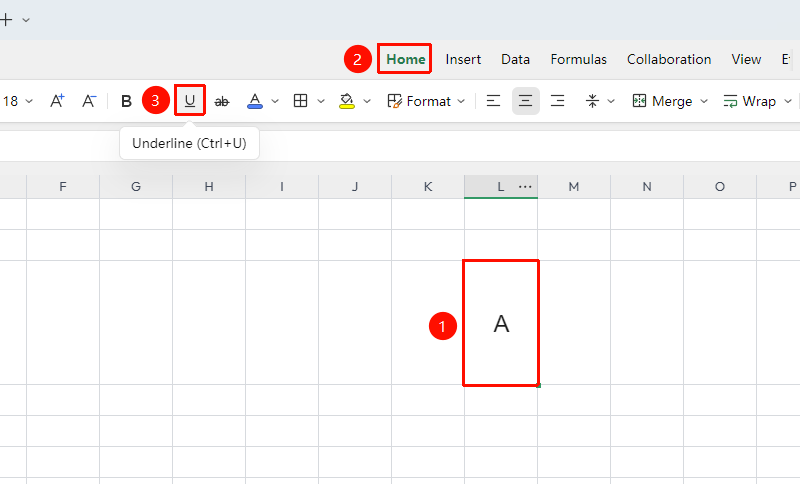
- Select the cell or text within a cell that has an underline applied
- Click the "Underline" button again
- The underline will be removed
Customize Underline Style
Feature Entry
Right-click → "Format Cells" → "Font"
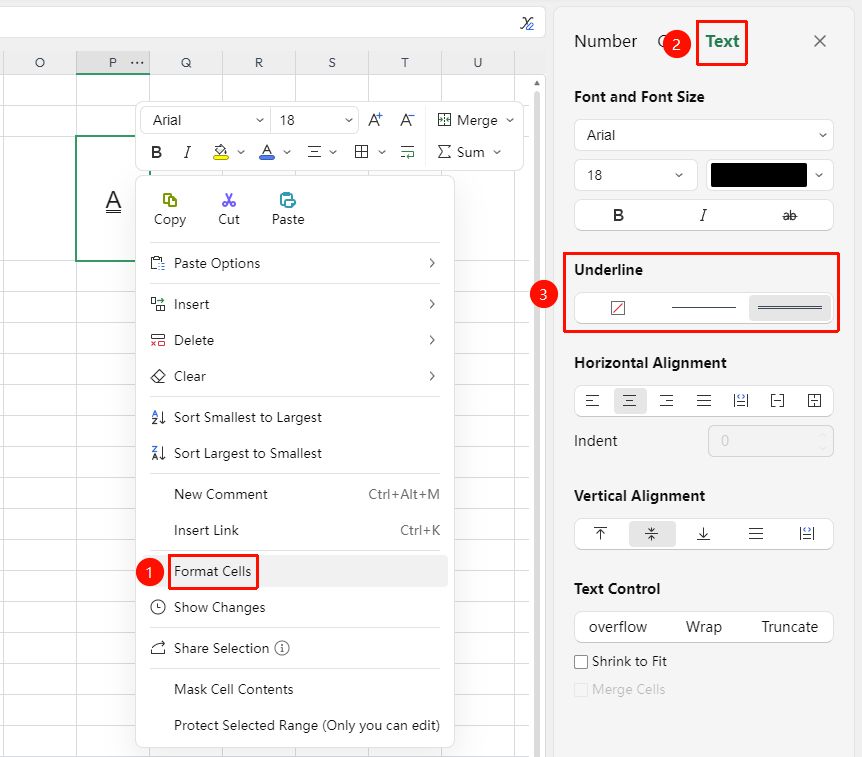
- Select the target cell range, right-click to bring up the context menu
- Select "Format Cells" from the context menu to open the right-side panel
- Switch to the Text tab, and select the desired style from the "Underline" menu (single underline, double underline, and so on.)
- Select "None" to remove the underline, and click "OK" to save the settings
FAQ
Q1: Can others see the underline set in collaboration mode?
- Solution: Yes, all formatting changes in collaboration mode are synchronized in real time to all online collaborators.
Q2: What should I do if the underline button is grayed out?
- Solution: Check if another collaborator is currently editing the same cell (formatting cannot be modified while editing is locked). Wait for them to exit editing and try again.
Notes
- The underline operation acts as a toggle; performing it again will cancel the underline
- Underlines remain visible in tables after filtering and sorting