Feature Summary
Full-Screen Display is an interface optimization feature in WPS Sheets collaboration mode. It hides all toolbars and menu bars, allowing the spreadsheet content to fill the entire screen and maximizing the data viewing area.
Feature Description
| Feature Dimension | Description |
|---|---|
| Membership Restriction | No membership restriction |
| Version Restriction | No version restriction |
Operation Steps
Enabling Full-Screen Display
Feature Entry
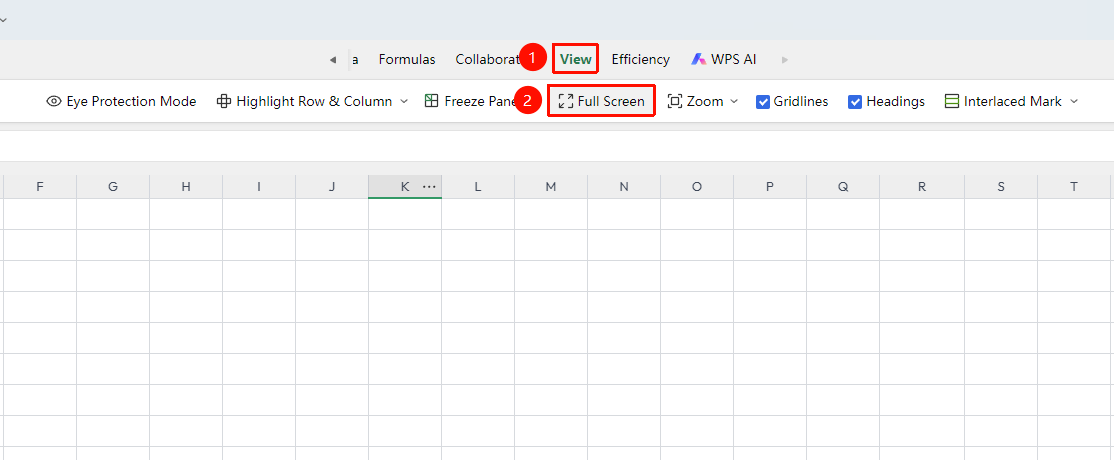
"View" tab → "Full-Screen Display"
- Click the top "View" tab
- Find the "Full-Screen Display" button in the toolbar
- After clicking, all toolbars and menu bars are hidden, and the spreadsheet content fills the screen
- A minimized operation bar is retained at the top; press the Esc key to exit full-screen mode
Feature Entry ②
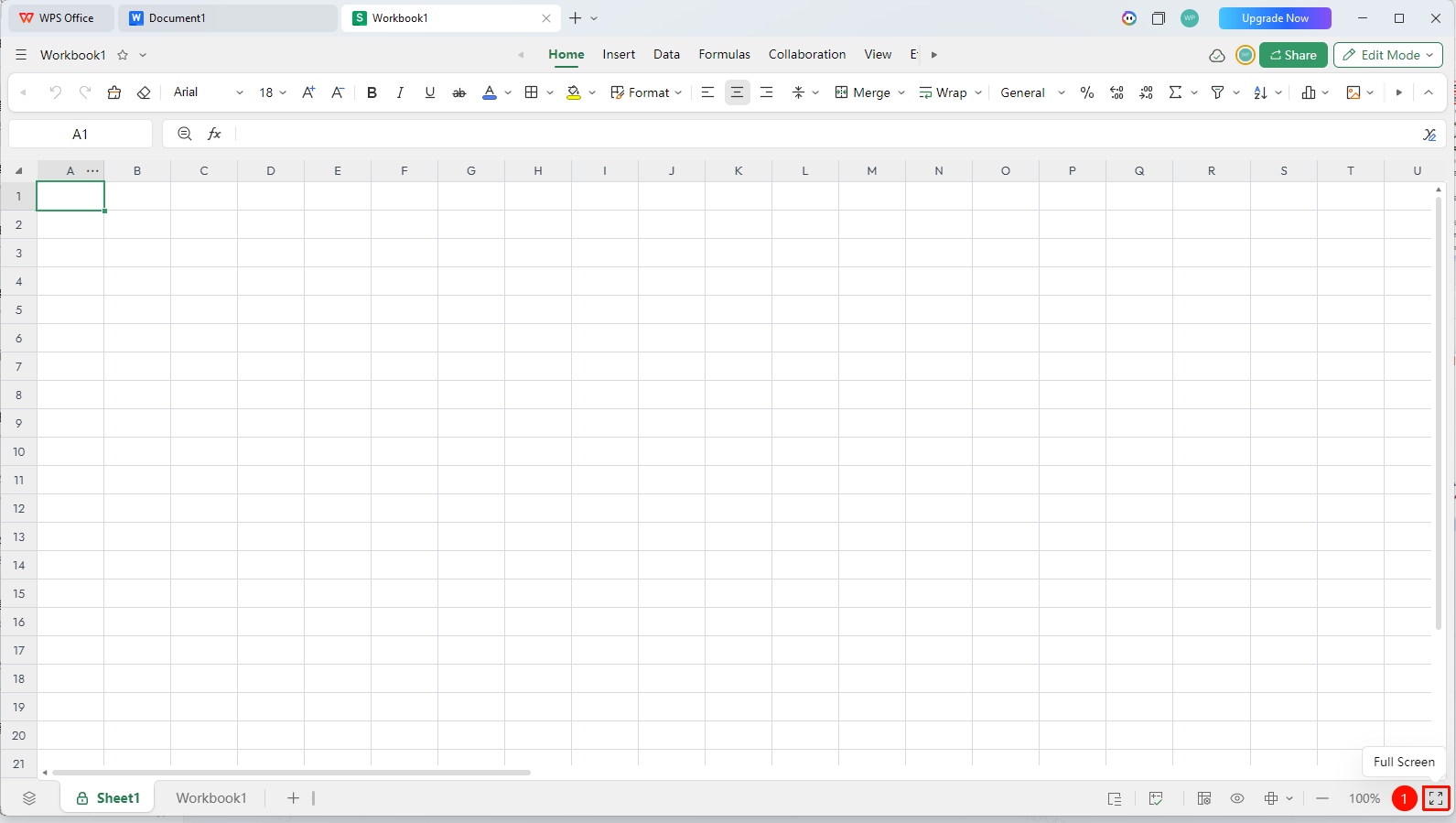
Full-screen icon on the status bar at the bottom of the screen
- Click the full-screen icon on the status bar at the bottom right corner of the screen
- The spreadsheet immediately enters full-screen display mode
- Press the same button again to exit full-screen mode
FAQ
Q1: What should I do if I cannot operate the functional area after entering full-screen display?
- Solution: In full-screen mode, all functional areas are hidden. Click the top area to expand the functional area.
Q2: Does full-screen display affect other users' operations?
- Solution: No, it does not. Full-screen display is only a local display setting for the user and has no impact on online collaboration, data synchronization, or other functions in collaboration mode. The collaboration status of other co-authors is not affected.
Notes
- Exiting full-screen mode restores the original toolbar layout
- Full-screen display does not affect data content or printing results