Feature Summary
Content Auto-Hide is a privacy protection feature in WPS Sheets collaboration mode. When enabled, it automatically hides cell content within protected areas to prevent sensitive data from being viewed by unauthorized collaborators.
Feature Description
| Feature Dimension | Description |
|---|---|
| Membership Restriction | No membership restriction |
| Version Restriction | No version restriction |
Operation Steps
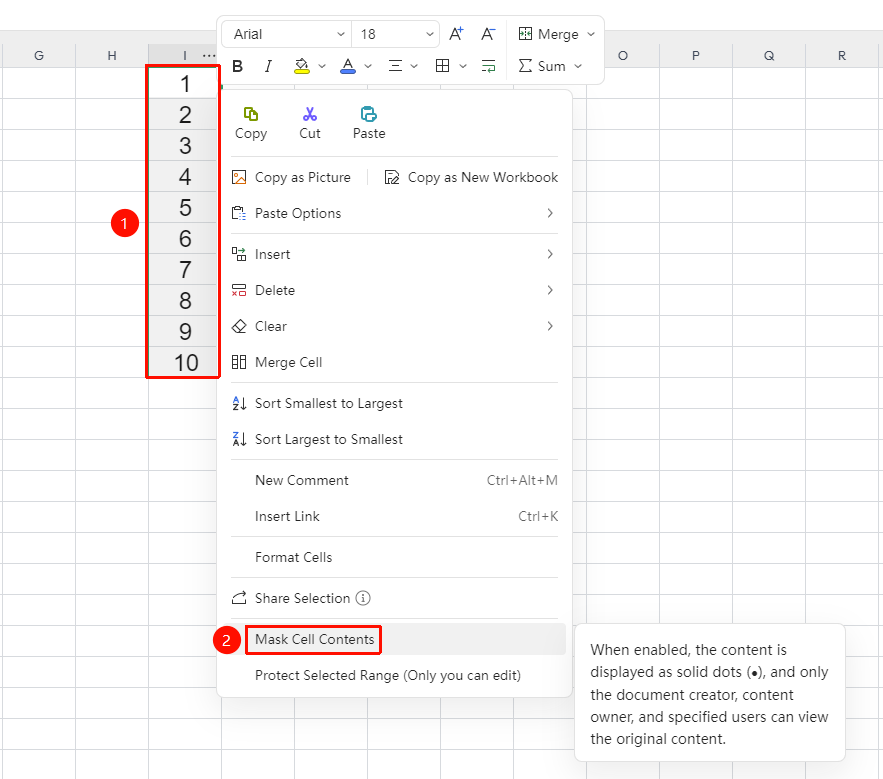
Feature Entry 1: Right-Click Menu
Feature Entry
Right-click menu → "Enable Content Auto-Hide"
- Select the cell range where you want to hide content
- Right-click anywhere within the selected range
- Find and click "Enable Content Auto-Hide" in the right-click menu
- After enabling, the content in this area will be displayed as
●, viewable only by the document author, fillers, and designated users
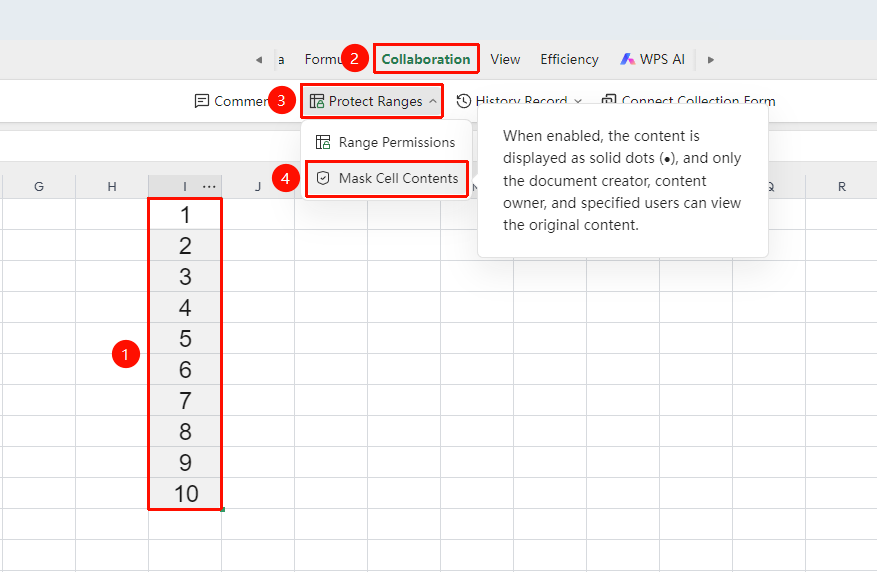
Feature Entry 2: "Collaboration" Tab
Feature Entry
"Collaboration" tab → "Protect Range" → "Content Auto-Hide"
- Click the top "Collaboration" tab
- Click the "Protect Range" button in the toolbar
- Select "Content Auto-Hide" from the drop-down menu
- The protection range settings panel will appear on the right side; complete the content auto-hide configuration
Setting Hide Permissions
Feature Entry
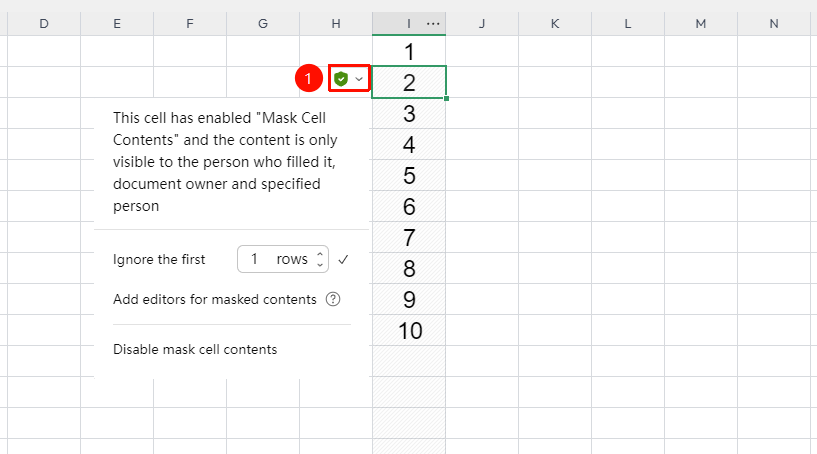
Click a cell with content auto-hide → left-side drop-down menu
- Click a cell with content auto-hide, and in the left-side drop-down menu (shield icon), you can set the following options:
- Ignore First "N" Rows: Set the number of header rows to ignore (default is 1 row); ignored rows display normally and are not hidden
- Designated Persons to Manage Hidden Content: Set which collaborators can view the data content in the hidden area
- Disable Content Auto-Hide: Remove the hidden state and restore all data to normal display
FAQ
Q1: What is the difference between Content Auto-Hide and Range Permissions?
- Solution: Range Permissions prevent others from modifying data, while Content Auto-Hide prevents others from viewing data. Range Permissions can be set to view-only or edit-only, whereas Content Auto-Hide directly hides the content, and only authorized users can see the data.
Q2: Is the hidden content invisible to all collaborators?
- Solution: No. Content Auto-Hide only takes effect for unauthorized collaborators. The spreadsheet creator and collaborators added to the designated persons list can still view and edit the data in the hidden area normally.
Q3: Is the data still there after enabling Content Auto-Hide?
- Solution: Yes. After disabling Content Auto-Hide, all hidden data will be displayed again. The data itself remains completely unchanged; only the hidden state is removed.
Notes
- The Content Auto-Hide feature only takes effect in collaboration mode (online mode)
- The spreadsheet creator always has permission to view all content
- It is recommended to set up an authorized list via "Designated Persons to Manage Hidden Content" to ensure data security