Feature Summary
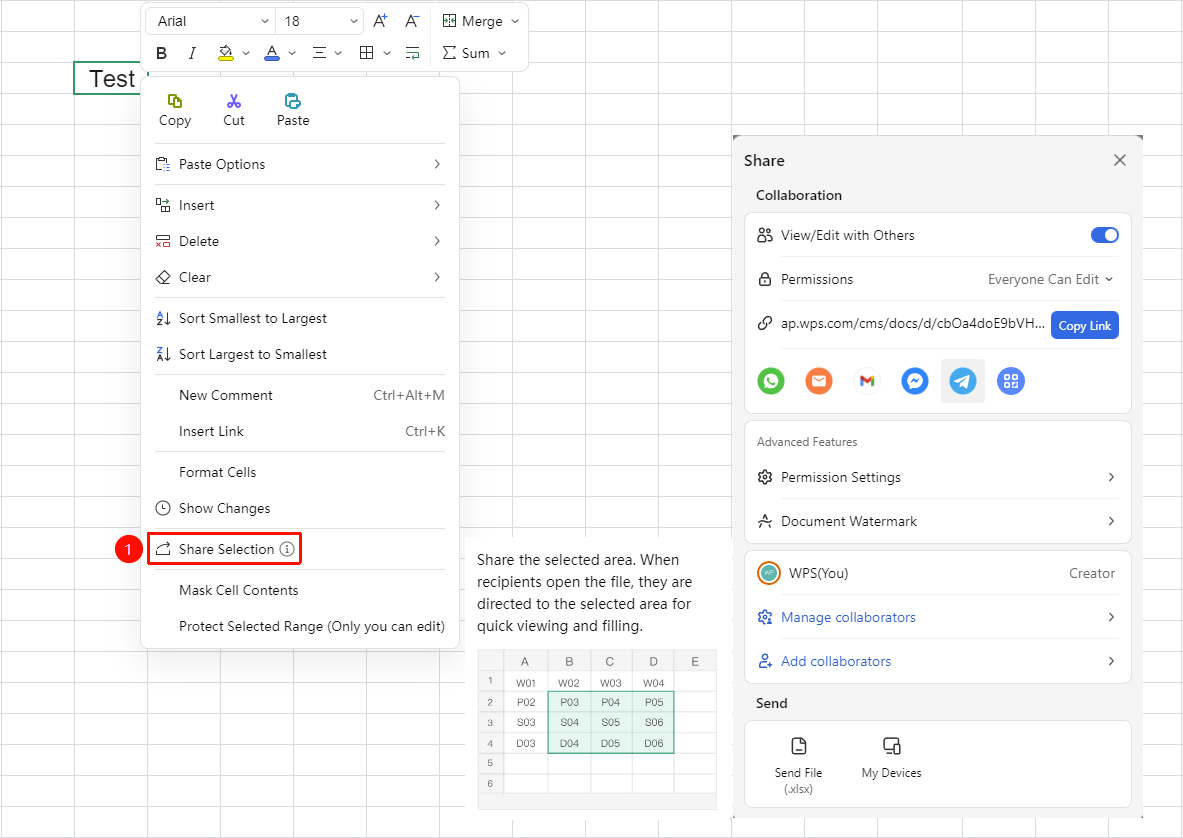
Share Selection is used to quickly share a specified area in a collaborative spreadsheet. When the recipient opens it, they will be directed to this selection, making it easy to quickly view and fill in.
Feature Description
| Feature Dimension | Description |
|---|---|
| Membership Restriction | No membership restriction |
| Version Restriction | No version restriction |
Operation Steps
Share Selection
Feature Entry
Right-click menu → "Share Selection"
- Select the cell range you want to share in the spreadsheet
- Right-click on the selected area
- Select "Share Selection" from the menu
- Set "Link Permissions"
- Click "Copy Link" to copy the link and send it out
FAQ
Q1: What is the difference between Share Selection and normal sharing?
- Solution: Share Selection supports quick navigation. When the recipient opens the file link sent via Share Selection, it will directly jump to the location of the selection, improving efficiency.
Notes
- After sharing a selection, modifications made by the sharing recipient to the specified area will be synced to the collaborative file in real time
- Canceling Share Selection will not affect the file's normal sharing link